
Why your iPhone headphone jack fails (and how to fix it)
- 2 days ago
- 9 min read
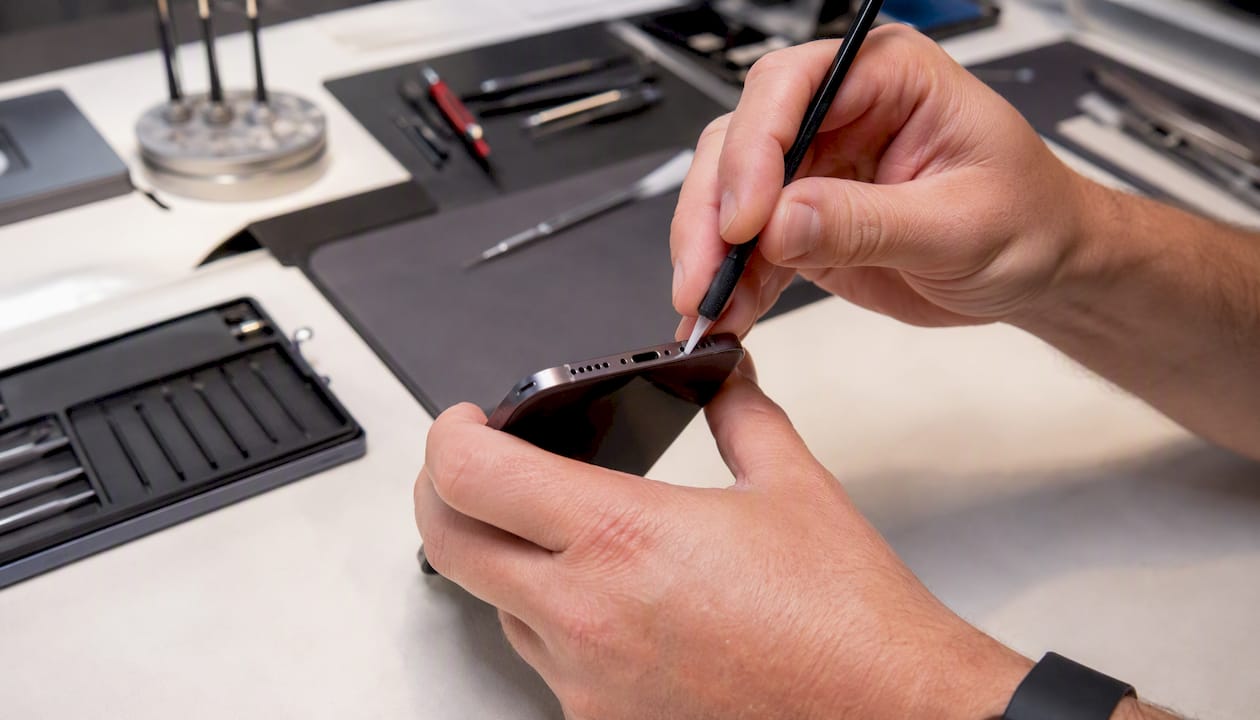
Most iPhone headphone jack failures come down to one of three things: compacted lint or debris in the port, a faulty accessory or adapter, or physical wear and water damage to the port itself. Before you book a repair, run these checks first.
Try a different pair of headphones. If they work, your original headphones are the problem.
Check Bluetooth and audio output. Your iPhone may be routing sound to a wireless device instead.
Inspect the port with a torch. Visible fluff or grime is often the entire cause.
Key takeaways
Most iPhone headphone jack failures trace back to debris, a faulty adapter, or port wear, and the majority can be diagnosed in under five minutes with the checks above.
Point | Details |
Try accessories first | Test different headphones and a second adapter before assuming the iPhone port is at fault. |
Clean before repairing | Compacted lint is a very common cause; safe removal with a soft brush often restores audio immediately. |
Spot hardware failure | Intermittent audio when the cable moves, visible corrosion, or a red Liquid Contact Indicator all point to a hardware fault. |
Back up before any repair | Complete an iCloud backup before a Reset All Settings or any shop visit to avoid data loss. |
Rapidrepairsldn | Offers same-day diagnostics and component-level iPhone audio repairs in north London. |
Table of Contents
Quick fixes to try before anything else
Work through this list in order. Most people find the fault within the first three steps.
Try different headphones on your iPhone. If they work, the original pair is faulty.
Test your original headphones on another device. If they fail there too, replace them.
Check the volume. Press the volume-up button and confirm the on-screen slider moves.
Disable Silent mode. Flip the physical switch on the left side of the iPhone so no orange is visible.
Turn off Do Not Disturb and Focus modes in Settings or Control Centre.
Disconnect all Bluetooth devices. Go to Settings > Bluetooth and toggle it off entirely, then retest.
Restart your iPhone. A soft reset clears temporary software glitches that can misdirect audio output.
Inspect the Lightning or USB-C port with a torch for lint, fluff, or debris.
Try a different Lightning-to-3.5 mm adapter if you use one. Adapter failure is a very common cause of iPhone audio issues.
Back up your data before going further. If any step below involves a Reset All Settings or a repair visit, having a current iCloud or iTunes backup means you lose nothing.
Step-by-step diagnosis: software first, hardware second
Start with software. It takes two minutes and costs nothing.
Software checks
Open Settings > Sounds & Haptics and confirm the Ringer and Alerts slider is not at zero. Then open Control Centre and tap the audio output icon (the triangle with circles) to see which device your iPhone is currently sending audio to. If it shows AirPods, a Bluetooth speaker, or any device other than iPhone, tap iPhone to switch back. Apple recommends checking Silent mode, Focus settings, and the active output selection as the first steps whenever audio appears to be missing.
Check whether the problem is app-specific. Play audio in two or three different apps. If sound works in one app but not another, the issue is an app permission or setting, not the port. Go to Settings > Privacy & Security > Microphone and confirm the app has access if recording is involved.
As a last resort before hardware tests, try Settings > General > Transfer or Reset iPhone > Reset > Reset All Settings. This wipes preferences without deleting your data and clears any corrupted audio routing configuration.
Accessory and adapter checks
Lightning-to-3.5 mm adapters contain a small DAC and an authentication chip. When that chip fails, iOS cannot detect the accessory at all, which looks identical to a dead headphone port. Always test a second adapter before concluding the iPhone itself is at fault.
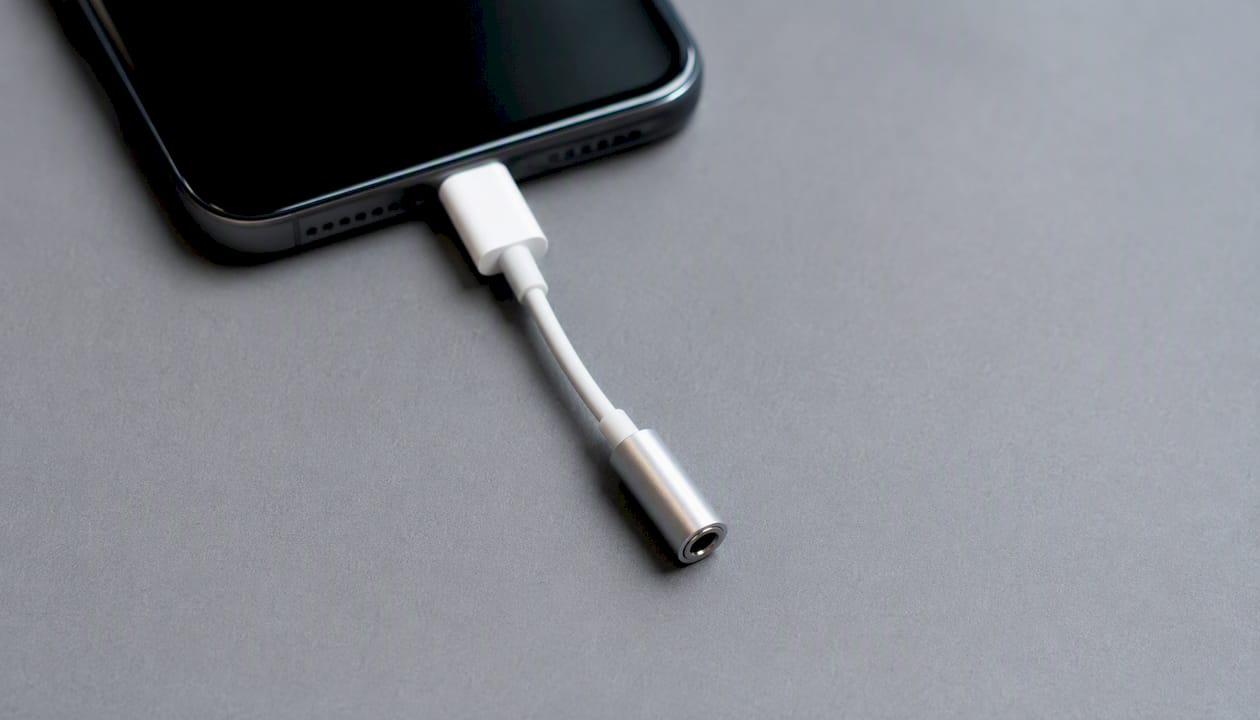
Port tests
Plug in your headphones and gently move the cable near the connector. If audio cuts in and out depending on the angle, the port has a loose or worn contact pin. That is a hardware fault and will not resolve itself.
Pro Tip: Open Control Centre while headphones are plugged in. If the audio output icon still shows “iPhone” rather than “Headphones”, the port is not detecting the accessory at all. That narrows the fault to the port, the adapter, or the headphone plug itself.
How to inspect and clean your iPhone port safely
Power the iPhone off completely before you start. Remove the case so you have a clear view.
Shine a torch into the port. Look for compacted grey or brown fluff sitting at the base.
Use a soft-bristled brush (a clean, dry toothbrush works) to loosen debris with short, gentle strokes.
Use brief bursts of compressed air held at least 10 cm away to blow loosened debris out. Do not blow directly into the port with your mouth — moisture from breath causes corrosion.
For stubborn lint, a wooden or plastic toothpick can carefully tease out compacted material. Work slowly and do not press against the metal contacts.
Wipe the headphone plug itself with an isopropyl wipe and let it dry fully before reinserting.
Apple confirms that lint and debris packed into the port are among the most common causes of no audio through wired headphones and recommends a soft-bristled brush for safe removal.
What to avoid: never insert metal tools, pins, or paperclips. Never spray liquid cleaner directly into the port. High-pressure air can push debris deeper rather than clearing it.
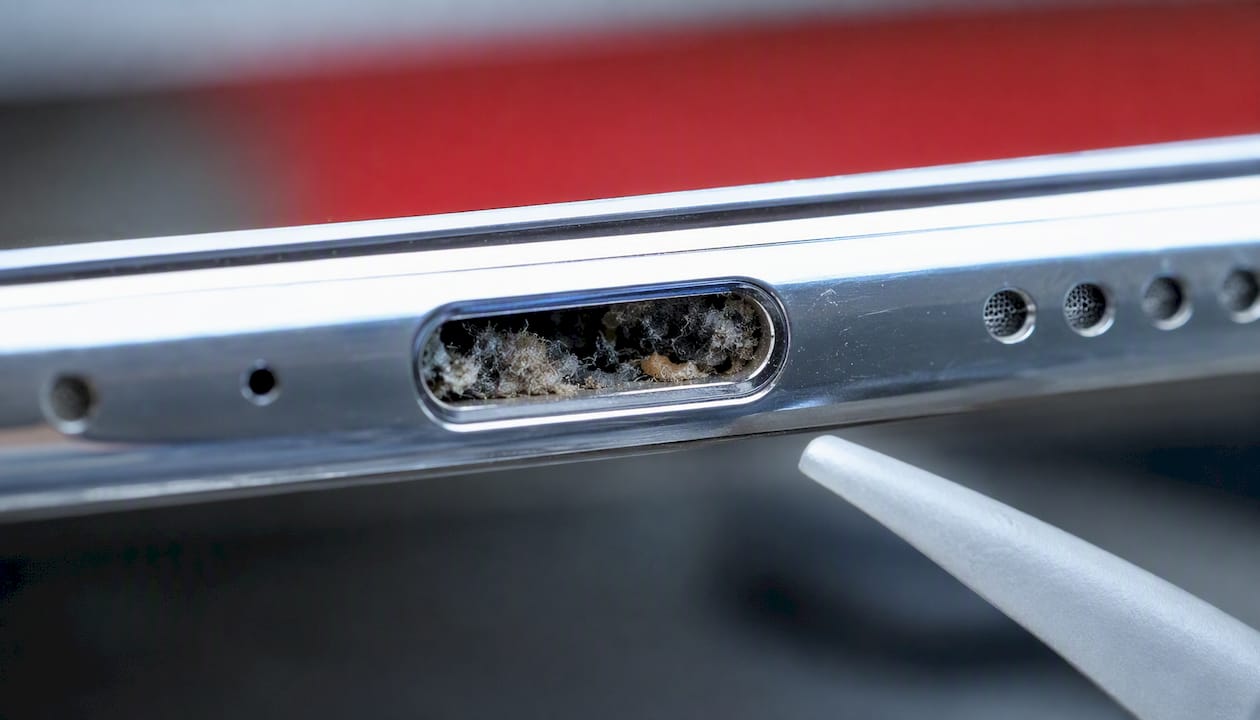
Pro Tip: Compacted lint looks grey or brown and sits flat at the base of the port. Corrosion looks greenish or white and coats the metal contacts. If you see corrosion, stop cleaning and book a professional inspection. Scrubbing corroded contacts can remove the plating entirely.
Signs the port or nearby components are physically damaged
Some faults cannot be cleaned or reset away. These symptoms point to hardware damage that needs professional attention.
Audio cuts when you move the cable. Intermittent contact means a worn or bent pin inside the port.
Sound only comes from one channel. A partially failed contact or a cracked solder joint on the port connector.
Visible bent or collapsed pins inside the port when viewed with a torch.
Green or white residue on the contacts. Corrosion from moisture exposure.
Water damage indicators. The Liquid Contact Indicator inside the SIM tray turns red or pink when moisture has entered the device. A red indicator alongside audio problems strongly suggests internal corrosion.
No audio on any headphones, any adapter, after a full reset. When software and accessories are ruled out, the port or the logic board is the fault.
If you see any of these signs, check our guide to warning signs your iPhone needs repair before attempting anything further at home. Back up your data now, before any repair that might require opening the device or a factory reset.
Repair choices in the UK: what to expect on cost and timeline
Three main routes are available to UK iPhone users once home troubleshooting is exhausted.
Apple authorised service (Apple Store or Apple Authorised Service Provider) uses genuine parts and preserves your warranty. Turnaround is typically one to three working days for a port repair, though it can be longer if the device needs to be sent away. Costs vary by model and whether the device is in or out of warranty. Out-of-warranty port repairs tend to sit at the higher end of the price range.
Authorised third-party repair offers genuine or certified parts with a repair warranty, usually at a lower price than Apple direct. Turnaround is often same-day or next-day for straightforward port replacements.
Local independent repair (such as Rapidrepairsldn) offers component-level diagnostics, same-day turnaround on many jobs, and competitive pricing. iFixit has noted that consolidating audio and charging into a single Lightning or USB-C port increases the repair impact of that connector, which is why board-level diagnostics matter when a simple port swap does not resolve the fault.
Factor | Apple authorised | Authorised third-party | Local independent |
Parts | Genuine Apple | Genuine or certified | Quality aftermarket or genuine |
Turnaround | 1–3 days (often longer) | Same-day to next-day | Same-day where possible |
Price range | Higher | Mid-range | Competitive |
Board-level repair | Rarely offered | Limited | Available |
Warranty on repair | Yes | Yes | Yes |
What to bring to any repair shop:
Device passcode disabled (or be present to unlock it)
iCloud backup completed and verified
Proof of purchase if the device may be under warranty
Case removed
How to avoid headphone jack problems in future
Small habits make a real difference, especially if you carry your phone in a pocket or bag every day.
Remove headphones before pocketing your phone. Leaving a plug inserted while the phone moves around accelerates pin wear.
Use a dust plug in the Lightning or USB-C port when you are not charging or using headphones. These cost very little and keep lint out.
Prefer wireless headphones for exercise or commuting. Sweat and movement are the two fastest routes to port corrosion and wear.
Keep ports dry. If your phone gets wet, shake out excess water and leave it upright in a dry place for several hours before plugging anything in.
Inspect the port monthly. A quick look with a torch takes ten seconds and catches lint before it compacts.
Pro Tip: Commuters: the trouser pocket is the single biggest source of lint compaction. A small cable clip that keeps your headphone cable tidy also reduces the lateral stress on the plug that bends contact pins over time.
Why iPhone jacks fail at a component level
The 3.5 mm headphone jack on older iPhones uses spring-loaded contact pins that press against the plug’s rings to carry audio signals. Each insertion and removal cycle flexes those pins slightly. Over thousands of cycles, the spring tension weakens, contact becomes intermittent, and eventually the pin no longer makes reliable contact at all. Debris accelerates this by acting as an abrasive.
On iPhones from iPhone 7 onwards, Apple removed the 3.5 mm jack entirely. Audio now travels through the Lightning or USB-C port via an adapter. Diagnostic and forum data has historically shown headphone issues as a recurring iPhone fault, with physical wear, debris, and water intrusion as the most common causes. Shifting to a single port means one connector now handles charging, data, and audio simultaneously, concentrating wear on a single point.
When moisture reaches the logic board, it corrodes the solder joints connecting the port to the board. At that stage, replacing the port connector alone may not restore audio. The corroded traces on the board itself need cleaning or rerouting, which is board-level work requiring specialist tools and experience.
At Rapidrepairsldn, the most common faults we see are compacted lint (often resolved in under ten minutes), failed Lightning adapters, and water-damaged ports where corrosion has spread to the board. The lint cases are quick. The water-damage cases take longer, sometimes requiring ultrasonic cleaning and micro-soldering, but most are recoverable.
What we see in the shop
The majority of iPhone audio issues that come through the door at Rapidrepairsldn are not catastrophic. Lint is the most frequent culprit, and a careful clean resolves it without any parts. Adapter failure is the second most common cause, and swapping to a quality certified adapter costs very little.
Water damage is where expectations need to be realistic. A phone that has been submerged or repeatedly exposed to moisture may need board-level work, and that takes more time than a port swap. Most cases are still fixable, but the repair window narrows the longer a water-damaged device is left powered on. If you suspect moisture damage, power the phone off immediately and bring it in as soon as possible.
Rapidrepairsldn: same-day iPhone audio diagnostics in north London
When you have run through the checks above and the fault is still there, the port or logic board likely needs hands-on attention. Rapidrepairsldn offers component-level diagnostics for iPhone audio problems, covering everything from a blocked Lightning port to corroded board traces after water damage.

Many straightforward port repairs are completed the same day. Board-level work takes longer, but you will get a clear diagnosis and a fixed price before any work begins. Bring your device with the passcode disabled, a completed iCloud backup, and your proof of purchase if the phone is potentially still under warranty. For a full overview of what the shop covers, visit the iPhone repair page or read more about the benefits of professional iPhone repair before you decide. Walk-ins are welcome, or you can get in touch via the Rapidrepairsldn website to check availability.
Sources
Recommended
Comments