
iPhone battery health explained: what the % means
- 11 minutes ago
- 8 min read

iPhone battery health is a percentage that shows how much maximum charge your battery can hold compared with when it was new. A reading of 100% means full original capacity; a lower percentage means the battery can only store that fraction of what it once could. The simple rule: generally above a certain percentage is fine; below that with noticeable symptoms, consider a replacement.
Before doing anything else, check your current reading:
Go to Settings → Battery → Battery Health & Charging
Note your Maximum Capacity percentage
Check whether you see a Peak Performance Capability message or a “Service” warning
If you are getting unexpected shutdowns, rapid percentage drops, or sluggish performance under load, book a diagnostic even if the number looks borderline
Quick rule of thumb: at a high percentage and above, carry on. Around the commonly cited threshold, monitor closely. Below that threshold with symptoms, get it looked at.
Table of Contents
What does iPhone battery health actually measure?
Battery health is not the same as battery life. Battery life is how long a single charge lasts during a day’s use. Battery health, specifically called Maximum Capacity in iOS, is how much total energy the battery can store compared with a brand-new one. A phone at 82% health can still last a full day if you use it lightly. A phone at 95% health might drain fast if you are streaming video all afternoon.
Lithium-ion batteries lose capacity gradually with every charge cycle and every hour spent in warm conditions. Apple made this visible in iOS 11.3, released in 2018, partly in response to what became known as “Batterygate.” That was the controversy in which Apple admitted it had been slowing down older iPhones to prevent unexpected shutdowns caused by aged batteries. The Battery Health feature was Apple’s transparency fix: give users the data so they can decide for themselves.
The percentage you see in Settings is a snapshot of Maximum Capacity. It does not update in real time and can sometimes lag behind the battery’s actual condition, which is why a deeper analytics check is occasionally worth doing.
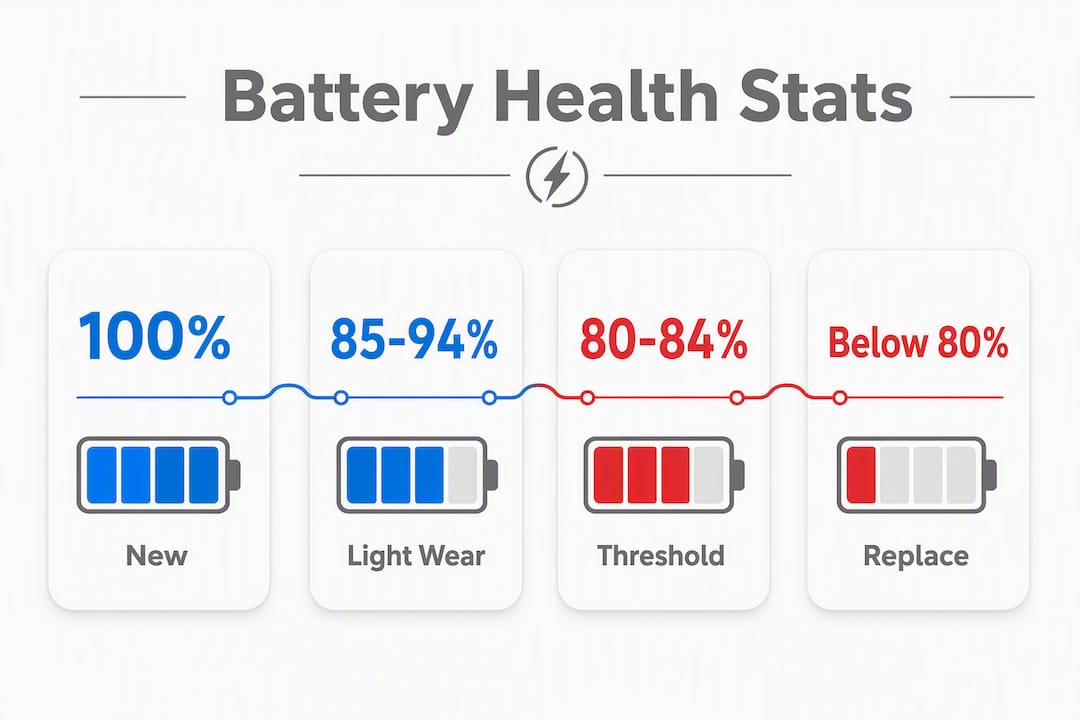
What do the different battery health percentages mean?
Translating a number into real-world expectations helps you decide what to do next.
95–100%: Your battery is in excellent condition. Runtime should be close to what Apple advertises for your model. No action needed.
85–94%: Normal wear for a phone that is one to two years old. You may notice slightly shorter runtime on heavy-use days, but performance should be unaffected. Good habits now will slow further decline.

80–84%: You are approaching the commonly cited threshold. Apple’s guidance treats roughly 80% as the point at which batteries are considered worn and may need service. Runtime is noticeably shorter, and you may see iOS enabling performance management to prevent shutdowns.
Below 80%: Runtime is meaningfully reduced. iOS may display a “Service” message. Unexpected shutdowns become more likely, particularly in cold weather or under heavy load. Replacement is worth considering seriously.
Below ~70%: At this level, daily use often requires a mid-day charge. Performance throttling is common. If your phone is otherwise in good shape, a battery swap will feel like getting a new device.
How to check your iPhone battery health right now
Step-by-step via Settings
Open Settings on your iPhone
Tap Battery
Tap Battery Health & Charging
Read your Maximum Capacity percentage
Check the Peak Performance Capability section for any service messages
This works on any iPhone running iOS 11.3 or later. If you do not see the Battery Health option, update iOS first via Settings → General → Software Update.
What to do when the Settings number seems wrong
The Settings percentage does not always refresh frequently, so if your phone is behaving worse than the number suggests, the analytics data gives a more current picture. Here is how to access it:
Go to Settings → Privacy & Security → Analytics & Improvements → Analytics Data
Find the most recent file beginning with “Analytics”
Tap it, then tap the share icon and copy the text
Paste it into a notes app and search for “NominalChargeCapacity” and “CycleCount”
A shortcut-based tool can parse this file automatically and pull out MaximumFCC, Nominal Charge Capacity, and Cycle Count in one step. If the analytics data shows a significantly lower capacity than Settings, that is a reliable sign of real degradation rather than a reporting lag.
Pro Tip: Cycle count matters as much as the percentage. A battery with 400 cycles at 85% is in a different position from one with 200 cycles at 85%. The lower-cycle battery has more useful life ahead of it.

What speeds up battery capacity loss?
Lithium-ion batteries degrade with charge cycles and heat. Both are unavoidable to some degree, but your habits make a real difference to how fast the decline happens.
The main culprits:
Heat: Leaving your phone on a car dashboard, charging it under a pillow, or running intensive apps in a warm room all accelerate chemical ageing. Heat is the single biggest enemy of lithium-ion capacity. For more on how temperature affects your device, see why your iPhone overheats.
Charge cycles: Every full 0–100% cycle contributes to wear. Partial charges are gentler on the battery than full drain-and-charge cycles.
Keeping the battery at extremes: Sitting at 100% for hours (overnight charging without Optimised Charging) or regularly draining to 0% both stress the cells.
High-drain apps and background activity: Apps that constantly use GPS, camera, or mobile data keep the battery working hard, generating heat and burning through cycles faster.
Age: Even a phone that sits unused loses some capacity over time as the chemistry changes.
Simple habits that slow the decline:
Enable Optimised Battery Charging (Settings → Battery → Battery Health & Charging) so iOS learns your routine and avoids holding at 100% for long periods
Keep your phone out of direct sunlight and away from heat sources while charging
Aim to keep charge between roughly 20% and 80% on most days
Disable background app refresh for apps that do not need it (Settings → General → Background App Refresh)
Use Low Power Mode when you need to stretch a charge — it does not restore capacity but reduces the drain rate
When should you replace your iPhone battery?
Symptom checklist
Check how many of these apply to your phone:
Battery drops from 30% to zero without warning
Phone needs charging twice a day under normal use
Apps slow down or crash when the battery is below 30%
Settings shows a “Service” message under Battery Health
Phone shuts off in cold weather even at a reasonable percentage
Performance feels sluggish compared with six months ago
If two or more of these match your experience, a battery replacement is likely the right call regardless of the exact percentage. For a broader look at signs your iPhone needs repair, including symptoms that go beyond the battery, that guide covers the full picture.
Apple’s guidance and what it means in practice
Apple’s commonly cited threshold is around 80% Maximum Capacity. Below that, the company considers the battery worn and may recommend service. The Peak Performance Capability section in Settings will tell you whether iOS has enabled performance management to prevent shutdowns — if it has, you will likely notice it as slower app launches or reduced frame rates under load.
UK practicalities
Costs vary by iPhone model and where you go. Apple UK charges a set fee per model; independent repair shops in London typically offer competitive pricing, often with same-day turnaround for common models. Always ask for a diagnostic before agreeing to a replacement, as symptoms like random freezing or restart loops can sometimes point to software issues rather than the battery itself. Check current pricing directly with Apple UK or your chosen repair shop, as fees change with new model releases.
DIY battery replacement versus using a professional
Why DIY carries real risk
Replacing an iPhone battery yourself is technically possible, but the risks are significant:
iPhone batteries are glued in place; removing them without the right tools can puncture the cell, which is a fire hazard
Incorrect reassembly can damage the screen, Face ID components, or waterproofing seals
iOS may flag a non-Apple-sourced battery and display a permanent “Unable to verify battery” message, which limits the health data you can see
Any DIY work can affect your options for future Apple service
What a professional repair gives you
A reputable shop will diagnose first, replace second, and test after. That means checking cycle count, voltage, and nominal capacity before touching the phone, fitting a quality replacement battery, and running a post-repair stress test to confirm Peak Performance Capability is restored. Turnaround at a well-stocked local shop is typically same day for common iPhone models.
Pro Tip: Before booking any repair, ask three questions: Do you use genuine or OEM-equivalent batteries? Will the health percentage show correctly in Settings after the repair? Do you offer a warranty on the replacement battery? A shop that answers all three clearly is worth trusting.
Decision checklist
Is your iPhone still under Apple warranty or AppleCare+? If yes, go to Apple first.
Is the phone more than four years old? Weigh repair cost against the value of the device.
Are symptoms affecting daily use? If yes, do not delay.
Is a reputable local shop within easy reach? Same-day repair beats waiting for a postal service.
Key takeaways
iPhone battery health measures maximum charge capacity as a percentage of a new battery, and the 80% mark is the practical threshold where replacement becomes worth considering if symptoms are present.
Point | Details |
What the percentage means | Maximum Capacity shows how much charge your battery holds compared with when it was new. |
The 80% threshold | Below 80%, runtime drops noticeably and iOS may recommend service or enable throttling. |
Check Settings first | Go to Settings → Battery → Battery Health & Charging for your current Maximum Capacity reading. |
Symptoms beat numbers | Frequent shutdowns or sluggish performance matter more than a clean reading with no issues. |
Rapidrepairsldn for replacement | Rapidrepairsldn offers iPhone battery diagnostics and same-day replacement for common models in north London. |
What technicians actually look for when testing a battery
The percentage in Settings is a starting point, not a diagnosis. When a phone comes into the shop with battery complaints, the first step is always the analytics data: cycle count, nominal capacity, and voltage behaviour under load. A phone showing 81% in Settings but 650 cycles and a nominal capacity well below its rated figure is a clear replacement candidate. A phone at 78% with only 180 cycles might just need a recalibration check before any parts are ordered.
Common patterns seen in practice: customers often report that their phone “just started dying fast overnight.” In most cases, a single app running background location or push notifications is compounding a battery that was already borderline. Fixing the app behaviour buys time, but it does not fix the underlying capacity loss. The diagnostic checklist Rapidrepairsldn uses covers cycle count, voltage, nominal capacity, and thermal behaviour before any recommendation is made.
The other thing worth knowing: a post-repair stress test matters. Fitting a battery and handing the phone back without confirming Peak Performance Capability is restored is not a complete repair. A quick stress test catches calibration issues before the customer leaves the shop.
Rapidrepairsldn can sort your iPhone battery today
Worried your battery is the problem? Rapidrepairsldn offers a fast, no-fuss diagnostic for iPhone users in north London. Bring your phone in and the team will check cycle count, nominal capacity, and performance behaviour before recommending anything. If a replacement is needed, most common iPhone models are done the same day using quality replacement batteries that restore full health reporting in Settings.

No guessing, no unnecessary parts. Just a clear answer and a fixed phone. Book your iPhone battery replacement or drop in to the Rapidrepairsldn shop to get a diagnostic and a straight quote.
Useful sources and further reading
Apple Support: iPhone Battery Health and Charging — official Apple UK guidance on Battery Health, Maximum Capacity, and service messages
How to check your iPhone battery health (PCMag) — practical walkthrough covering Settings path, causes of degradation, and short-term fixes
How to check your iPhone’s battery health (Yahoo Tech) — covers Maximum Capacity, analytics data extraction, and cycle count
Signs your iPhone needs repair (Rapidrepairsldn) — broader symptom checklist for hardware issues beyond the battery
iPhone repair services (Rapidrepairsldn) — booking page for battery replacement and diagnostics in north London
Recommended
Comments