
What causes an iPhone boot loop: fixes that work
- 11 minutes ago
- 13 min read

Most iPhone boot loops are caused by software problems. A failed or interrupted iOS update, corrupted system files, or a crashing app are the most common culprits, and repair technicians see software as the majority cause in cases that come through the door. Hardware faults, such as a failing battery, a damaged charging port, or a logic-board component failure, account for fewer cases but are harder to fix at home.
If your iPhone is stuck in a restart loop right now, here is what to do first:
Try a force restart (button sequence depends on your model — see Section 6 below).
If the loop continues, connect to a computer and try Recovery Mode ‘Update’ — this reinstalls iOS without erasing your data.
Do not jump straight to a DFU restore. DFU erases everything on the device and should be your last software step.
If the loop only happens when your iPhone is plugged in, stop software troubleshooting and book a repair — that pattern points to a charging or power-management fault, not software.
Before trying anything, check whether your iPhone is stuck on the Apple logo or cycling through restarts repeatedly. Both are boot loops, but the timing and trigger can tell you a lot about the underlying cause.
Key takeaways
Most iPhone boot loops are software-caused and can be resolved with a force restart or Recovery Mode ‘Update’ before any data is lost; hardware faults require board-level diagnosis and are identifiable by specific behavioural patterns.
Point | Details |
Software is the most common cause | Failed iOS updates, corrupted files, and crashing apps account for the majority of boot loops. |
Try force restart first | Use the correct button sequence for your iPhone model before attempting any restore. |
Recovery Mode ‘Update’ preserves data | Always choose ‘Update’ over ‘Restore’ in Recovery Mode; DFU erases the device and is the last resort. |
Charging-triggered loops signal hardware | A loop that only occurs when plugged in points to a battery or charging-circuit fault, not software. |
Rapidrepairsldn offers in-person diagnosis | The north London shop provides component-level testing, battery and port repairs, and data recovery options. |
Table of Contents
What causes an iPhone boot loop?
A boot loop happens when your iPhone starts up, fails to complete the process, and restarts again, over and over. The table below maps the main cause categories to their typical triggers and how often they appear in practice.
Cause category | Typical trigger | How common |
Failed or interrupted iOS update | Update cut short by low battery, Wi-Fi drop, or force-quit | Very common |
Corrupted system files or full storage | Firmware write error; storage too full to complete boot | Common |
Incompatible or crashing app | App installed just before loop started; background daemon crash | Common |
Jailbreak or unauthorised modification | Unsigned tweak conflicts with iOS version | Moderate |
Battery or charging-port fault | Battery cannot hold charge during boot; port delivers unstable power | Moderate |
PMIC or power-rail fault | Power-management chip damaged by water, impact, or prior repair | Less common |
Logic-board or sensor failure | Missing or damaged component after drop, water ingress, or third-party repair | Less common |
Water or impact damage | Liquid on the board; cracked connector or flex cable | Less common |
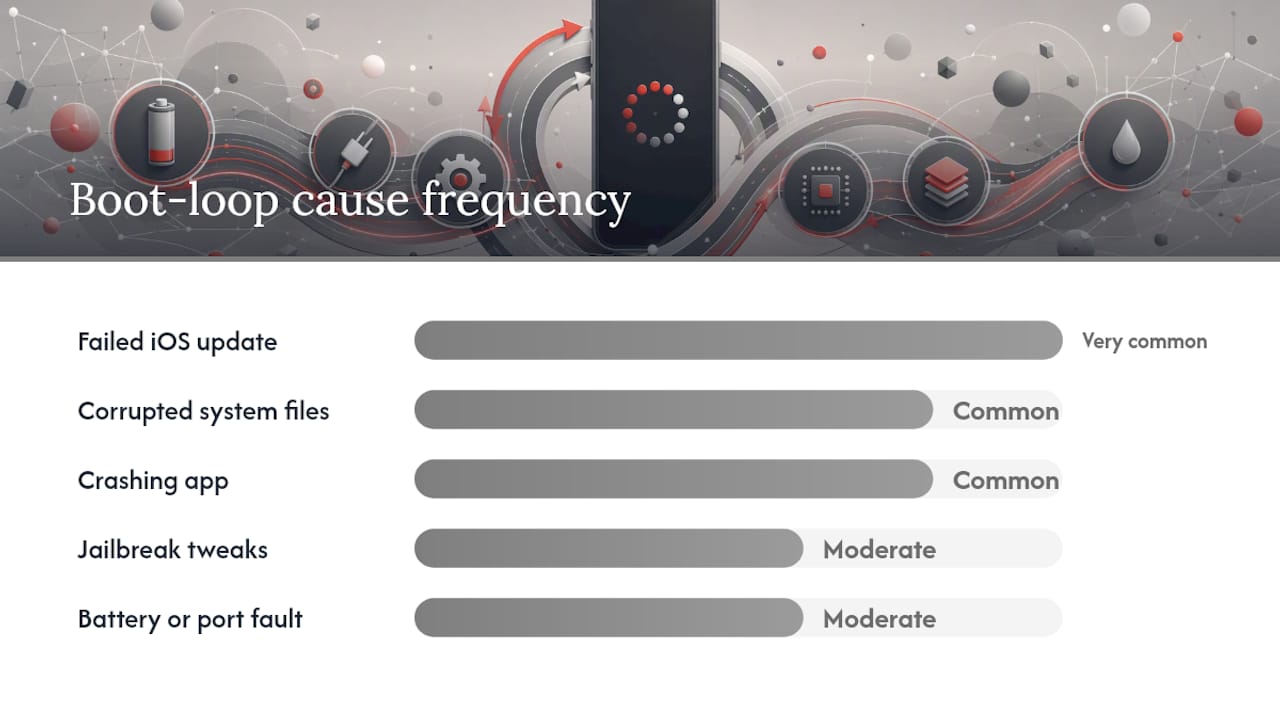
Software problems account for the majority of boot-loop cases seen by repair labs. Hardware faults are more likely on older iPhones, devices that have been dropped or exposed to water, or phones that have had a recent third-party repair where a non-genuine part or a loose connector may be the root cause.
How iOS and apps create a boot loop
Failed or interrupted iOS updates
The most frequent software cause is an update that did not finish. When iOS writes new firmware to your device, it needs to complete the process in one go. If the battery dies mid-update, your Wi-Fi drops, or you force-restart at the wrong moment, the firmware is left in a half-written state. On the next boot, iOS tries to load that incomplete system and fails, triggering the loop. iOS also requires a working buffer of free storage during the boot and update process; a device with almost no space left can fail to complete boot even when the update itself was not interrupted.
Corrupted system files
System-file corruption can happen outside of updates too. A sudden power loss, a failed jailbreak attempt, or a storage fault can leave core iOS files in a broken state. When the operating system tries to load those files at startup, it hits an error and reboots rather than continuing.
Apps, background processes, and unauthorised modifications
An app that crashes at launch, or a background daemon that the system cannot load, can stall the boot sequence. This is especially common after installing a new app just before the loop started. Jailbreak tweaks and unsigned modifications are a higher-risk version of the same problem: they inject code into the boot process, and if that code conflicts with the current iOS version, the device loops. Post-update loops on recent models, such as the iPhone 15 series, often trace back to a tweak that was not yet compatible with the new iOS build.
Pro Tip: If your loop started immediately after an iOS update, Recovery Mode ‘Update’ is your best first move. It reinstalls iOS without erasing your data, whereas a DFU restore wipes the device entirely. Always try Update first.
Hardware faults that repair labs commonly see
Battery and charging-port problems
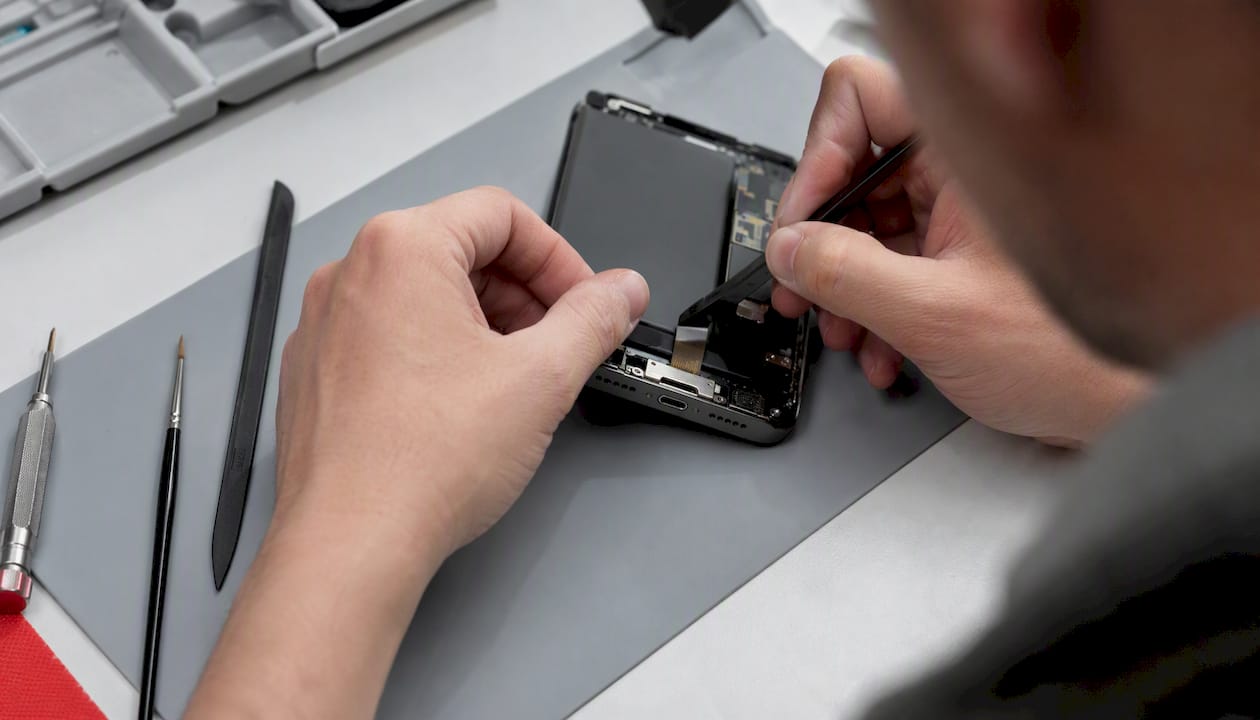
A battery that can no longer hold a stable charge during the boot sequence will cause the phone to restart before iOS fully loads. The tell-tale sign is a loop that only appears when the phone is on battery, or conversely, one that only appears when plugged in. iFixit documents that battery and charging-circuit faults can mimic boot loops and that board-level diagnostics are needed when current draw falls to zero or a battery cannot communicate with the logic board. A damaged charging port that delivers unstable power can produce the same restart pattern, particularly on older models where the port has worn contacts.
PMIC and power-management faults
The Power Management Integrated Circuit (PMIC) controls how power flows to every component on the logic board. Water ingress, a hard drop, or a prior repair that disturbed a nearby component can damage the PMIC or the power rails it feeds. When that happens, the phone may boot only when connected to a charger, or may restart at a specific point in the boot sequence every time. This is a board-level fault and cannot be fixed with software.
Logic-board failures and sensor issues
Some boot loops are caused by a missing or damaged sensor connection. iPhones from the iPhone 8 onwards use a “serialised” pairing between certain components (the Face ID sensor array, for example) and the logic board. If a third-party repair has replaced one of these components with a non-genuine part, or if a flex cable was damaged during a prior screen replacement, the phone can loop because it cannot authenticate a required hardware component at startup. Authorised versus unauthorised repairs and replacement parts can affect later device behaviour and diagnostic complexity, which is why a shop that does board-level work will always ask about prior repairs before starting a diagnosis.
Water and impact damage sit in the same category. Liquid on the board causes short circuits or corrosion that may not show up immediately but can trigger a loop days or weeks after the incident. If your phone was recently dropped or got wet, that history is important diagnostic information.
When DFU errors point to hardware
If you attempt a DFU restore and iTunes or Finder returns error codes such as 9, 4013, or 4014, that is a strong signal of a hardware problem rather than a software one. These codes typically indicate a communication failure between the phone and the computer at a level that software cannot resolve.
How to tell software problems from hardware faults
Use the checklist and decision table below to decide whether to keep troubleshooting at home or book a repair.
Behavioural clues to check first:
Does the loop only happen when the phone is plugged in? That pattern points to a charging-hardware fault, not software.
Did the loop start immediately after a drop, water exposure, or a recent third-party repair? Hardware is the more likely cause.
Did the loop start right after an iOS update or after installing a new app? Software is the more likely cause.
Does the phone get unusually warm during the loop? This can indicate a short circuit or a power-management fault.
Does the loop stop at a consistent point in the startup sequence every time? A fixed crash point often suggests a specific component or file is failing.
Simple tests to run now:
Unplug the charger and see whether the loop continues on battery alone.
Try a different cable and charger to rule out a faulty accessory.
Try connecting to a different computer for Recovery Mode to rule out a driver or USB issue.
Attempt a force restart (see Section 6 for your model’s button sequence).
Symptom pattern | Probable cause | Recommended next action |
Loop started after iOS update or app install | Software | Force restart, then Recovery Mode ‘Update’ |
Loop only when plugged in | Charging hardware | Stop software restores; book a diagnostic |
Loop after drop or water exposure | Hardware | Book a repair; mention the incident |
DFU restore fails with error 9, 4013, or 4014 | Hardware | Board-level diagnosis needed |
Loop after third-party screen or battery repair | Component or connection fault | Return to repairer or book a diagnostic |
Loop on battery only; boots fine when charging | Battery fault | Battery replacement likely needed |
Step-by-step fixes to try, in order
Work through these steps from safest to most invasive. Stop as soon as the phone recovers.
Step 1: Force restart your iPhone
A force restart clears the phone’s active memory without touching your data. The button sequence depends on your model.
iPhone 8, iPhone SE (2nd and 3rd generation), iPhone X, and all later models: Press and quickly release Volume Up, press and quickly release Volume Down, then press and hold the Side button until the Apple logo appears. Release the Side button.
iPhone 7 and iPhone 7 Plus: Press and hold both the Volume Down button and the Sleep/Wake button simultaneously until the Apple logo appears.
iPhone 6s, iPhone SE (1st generation), and earlier: Press and hold both the Home button and the Sleep/Wake button simultaneously until the Apple logo appears.
The Apple Community guidance confirms these sequences and recommends connecting the phone to a computer before attempting the force restart if you plan to follow up with Recovery Mode.
Step 2: Try Recovery Mode ‘Update’
If the force restart does not break the loop, connect your iPhone to a Mac running Finder (macOS Catalina or later) or a Windows PC running iTunes.
Open Finder or iTunes before connecting the phone.
Put the phone into Recovery Mode using the same button sequence as the force restart, but keep holding the Side button (or the relevant buttons for your model) until you see the Recovery Mode screen (a cable and laptop icon) rather than the Apple logo.
Finder or iTunes will detect a phone in Recovery Mode and offer two options: Update or Restore.
Choose Update first. This reinstalls iOS without erasing your data. Recovery Mode ‘Update’ preserves data in most update-related cases and is the right first move for any software-caused loop.
If the Update fails or the loop returns, move to Step 3.
Pro Tip: If Recovery Mode ‘Update’ succeeds and your phone boots normally, back up immediately via iCloud or Finder before doing anything else. A successful repair is the right moment to create a fresh backup.
Step 3: DFU restore (last software option)
DFU (Device Firmware Update) mode bypasses more of the boot stack than Recovery Mode and can recover firmware corruption that Recovery Mode cannot reach. However, DFU always erases the device. Only use it if Update has failed and you accept that your data will be lost unless you have a backup.
Connect the phone to your computer with Finder or iTunes open.
Enter DFU mode: on iPhone 8 and later, press and release Volume Up, press and release Volume Down, then hold the Side button for 3 seconds, then add Volume Down and hold both for 10 seconds, then release only the Side button while continuing to hold Volume Down for a further 5 seconds. The screen stays black if DFU mode is entered correctly.
Finder or iTunes will detect a phone in DFU mode and offer a Restore option.
Proceed with the restore. The device will be wiped and a fresh iOS installed.
If the DFU restore fails and returns error codes such as 9, 4013, or 4014, stop. Those codes indicate a hardware fault that software cannot fix.
Pro Tip: If the loop only occurs when your iPhone is plugged in, do not attempt a DFU restore. That charging-triggered pattern is a hardware signal. Further software restores will not help and may complicate a later board-level diagnosis.
When to get professional repair in the UK
Some boot loops cannot be fixed at home, and pushing further with software restores can make a hardware problem harder to diagnose. Book a professional repair if any of the following apply:
DFU restore fails or returns error codes 9, 4013, or 4014.
The loop only occurs when the phone is charging.
The phone was dropped, submerged, or exposed to liquid before the loop started.
A recent third-party repair preceded the loop.
The phone gets hot during the loop without an obvious software cause.
Recovery Mode is not detected by any computer you try.
What a repair technician does
A qualified technician will start with a board-level diagnostic, not a software restore. That means checking the battery’s communication with the logic board, testing the charging circuit and PMIC, inspecting flex cables and connectors for damage, and running component-level tests on any recently replaced parts. iFixit notes that board-level diagnostics are required when a battery cannot correctly communicate with the logic board, and that is exactly the kind of check a good shop will perform before quoting for a repair.
Data recovery is a separate conversation. If the phone cannot boot at all, a technician may be able to access the storage directly or stabilise the board enough to complete one boot cycle and extract a backup. This is not always possible, but it is worth asking about before authorising any erase.
UK cost and turnaround expectations
Costs vary by fault and model, but as a rough guide:
Battery replacement: typically £40–£80 depending on model.
Charging port repair: typically £50–£90.
Screen replacement (if a damaged screen is contributing): typically £80–£200 depending on model.
Board-level diagnosis and component repair: typically £100–£250 or more, depending on the fault found.
Turnaround for straightforward battery or port repairs is usually same-day or next-day at a well-equipped local shop. Board-level work takes longer, often two to five working days, because it requires component sourcing and careful testing after the repair.
UK right-to-repair coverage has highlighted that consumers have more options than they may realise when it comes to independent repair. You are not obliged to use an Apple Store or an Apple Authorised Service Provider, and a reputable independent shop with board-level capability can often offer faster turnaround and more transparent pricing.
Questions to ask before you hand over your phone
Can you provide a written diagnostic report before I authorise the repair?
What parts will you use, and are they genuine or certified-equivalent?
What is the realistic chance of data recovery if the device cannot boot?
Do you offer any warranty on the repair?
A note from the bench: The majority of boot loops that come into a repair shop are software-related and can be resolved without opening the phone. Force restart and Recovery Mode ‘Update’ solve a significant proportion of cases. When those steps fail, the diagnostic almost always points to a battery, charging circuit, or board-level fault — and that is where a proper component-level test saves both time and money compared with repeated software restores that will never succeed.
How to reduce the chance of future boot loops
A few straightforward habits significantly reduce the risk of your iPhone entering a restart loop again.
Update over Wi-Fi with enough battery. Always update iOS when your battery is above 50% and you are on a stable Wi-Fi connection. Avoid updating on mobile data or when the battery is low. Never force-restart the phone while an update is in progress.
Keep at least 2–3GB of free storage. iOS needs working buffer space to complete the boot and update process. A phone with almost no storage left is at higher risk of a failed update loop. Offload unused apps or move photos to iCloud to maintain that buffer.
Use genuine or certified chargers and cables. Cheap, uncertified accessories can deliver unstable power that stresses the charging circuit over time. Apple-certified (MFi) cables and chargers are worth the extra cost.
Avoid beta iOS releases unless you are a developer. Beta builds are unfinished software. They carry a higher risk of boot issues, and recovery from a beta-related loop can be more complicated than recovering from a stable-release problem.
Do not jailbreak or install unauthorised tweaks. Jailbreaking removes the security and stability protections built into iOS. A tweak that conflicts with a future iOS update is one of the more reliable ways to end up in a boot loop.
Back up regularly. A current iCloud or Finder backup means that even a worst-case DFU restore does not cost you your data. Back up before every iOS update, and back up again immediately after any successful repair.
Pro Tip: Set iCloud Backup to run automatically overnight while your phone charges. If you ever need a DFU restore, a recent backup turns a stressful situation into a straightforward recovery.
A technician’s perspective on boot loops
Most boot loops that arrive at a repair shop are fixable, and the majority do not require opening the device at all. Software causes are the most common, and a force restart followed by a Recovery Mode ‘Update’ resolves a large proportion of them. The cases that need board-level work are usually identifiable within the first few minutes of diagnosis: the phone fails to enter Recovery Mode, throws hardware error codes during a restore attempt, or shows the charging-triggered restart pattern that is almost never software.
Data recovery is the question most people ask first, and the honest answer is that it depends on whether the storage itself is intact. If the board can be stabilised enough to complete one boot, a backup can usually be extracted. If the storage has been damaged by water or a failed component, recovery becomes more complex and is not always possible. A shop that is upfront about those odds before taking your money is one worth trusting.
Rapidrepairsldn can diagnose and fix your iPhone boot loop
If you have worked through the force restart and Recovery Mode steps and your iPhone is still stuck, the fault is most likely hardware, and that needs a proper diagnostic rather than another software restore.

Rapidrepairsldn, based in north London, offers in-person iPhone diagnostics, battery and charging-port replacements, and board-level component testing for boot-loop faults. When you bring your phone in, a technician will run a component-level check before quoting for any repair, so you know exactly what the fault is and what fixing it will cost. Data recovery options are discussed upfront, not as an afterthought. Most battery and port repairs are completed same-day. Board-level work typically takes two to five working days depending on the fault found.
Book your iPhone repair in north London and bring your phone in for a no-obligation diagnostic. The team will tell you clearly whether the fix is straightforward or whether board-level work is needed, and what your data recovery options look like before any repair begins.
Sources
The following resources are worth consulting for restore procedures, diagnostic detail, and UK repair context.
Recommended
Comments