
8 Quick Checks From a UK Repair Shop for Liquid Detected iPhone Alerts
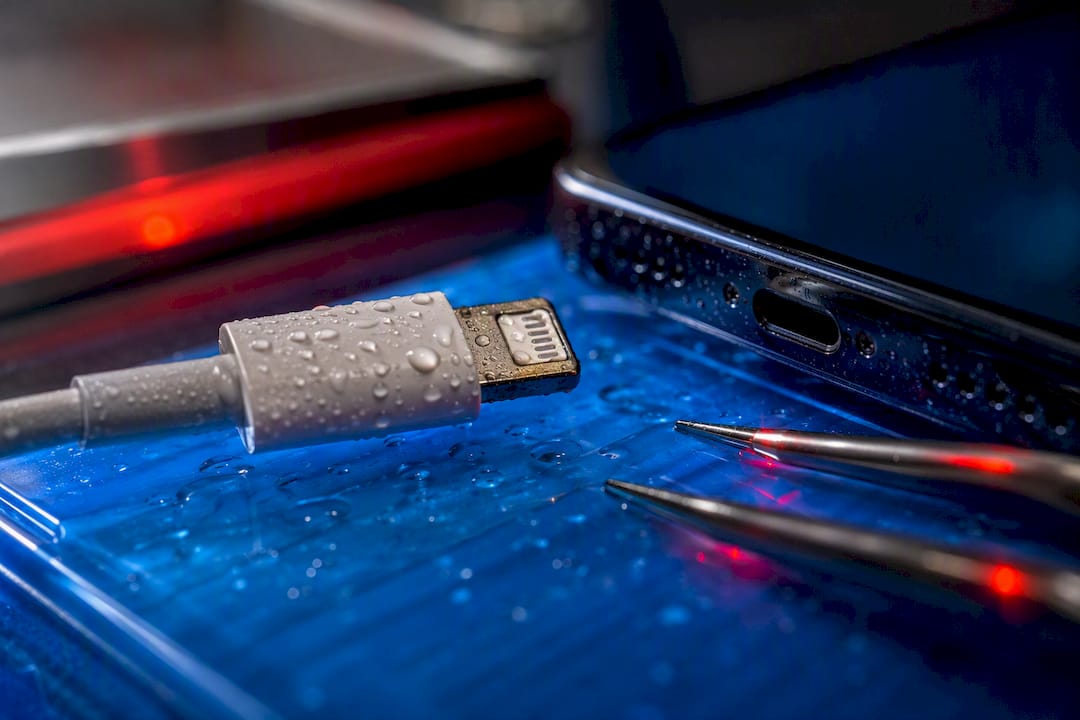
The alert means your iPhone has picked up moisture or conductive residue inside the port, cable, or accessory, and it has switched off charging to protect itself. Unplug everything straight away, don’t try to force a wired charge, and let the port air dry. If the back of your iPhone is completely dry, wireless charging is fine in the meantime. If the alert is still showing after drying and a few basic checks, it’s time to book it in with a repair shop.
TL;DR:
Most liquid detected alerts are caused by debris, salt residue, or faulty cables, rather than actual water inside the device.
Patience and proper drying techniques typically resolve the alert within a few hours, with at least 30 minutes recommended before retesting.
Using the Emergency Override bypasses safety measures and risks damaging the port through corrosion or short circuits if residual moisture remains.
Persistent alerts beyond 24 hours or visible corrosion require professional inspection and possibly port replacement to prevent long-term damage.
Swapping cables and checking for debris should be the first steps before considering repairs, as many triggers are false positives from external factors.
Table of Contents
Why your iPhone shows “liquid detected in Lightning connector” or USB-C
Your iPhone doesn’t actually “see” water. It measures electrical resistance across the connector pins, and moisture changes that reading in a way dry metal never does. When the sensor picks up that shift, Apple’s guidance confirms the phone disables charging and accessory connections in the Lightning or USB-C port until everything reads dry again.
This isn’t the phone being overcautious for no reason. Charging current running through a wet connector can trigger a short circuit or start corroding the contact pins within minutes, and that kind of damage doesn’t always announce itself straight away. You might get away with it once. You might not notice the corrosion creeping in until your phone stops charging reliably three weeks later.
The moisture doesn’t have to be in the phone itself. It’s often sitting in the cable head or the plug end of your charger, which is why swapping cables is one of the first things worth trying rather than assuming the worst about your handset.
What to do first: safe steps for a liquid detected iPhone
Most liquid detected alerts clear up with patience and a bit of care, not panic. Work through these in order:
Unplug the cable and any accessory immediately, and don’t plug back in until you’ve dried things out.
Wipe the cable connector dry with a lint-free cloth, and take the phone case off so trapped moisture can escape.
Hold the iPhone with the port facing downward and tap it gently against your palm to dislodge any droplets sitting inside.
Leave it somewhere with good airflow. A silica gel sachet nearby helps draw out residual damp faster than open air alone.
Wait at least 30 minutes before testing again.
Test with a different, known-good, dry cable rather than the one you were using when the alert first appeared.
Restart the phone and check for a pending iOS update, since a software glitch occasionally triggers a false alert.
If the port is genuinely dry but you still need power, use wireless charging as a stopgap.
Pro Tip: Skip the rice trick entirely. Rice grains and dust can wedge into the port, and the moisture it does pull out is negligible compared with simple airflow. Apple’s own advice explicitly steers people away from rice, heat sources, and compressed air, since forcing warm air or high pressure into the connector can push moisture further into the phone rather than out of it.
For a broader walkthrough of drying technique beyond the port itself, our guide on getting water out of an iPhone covers the wider handset, not just the connector.
No visible moisture? Here’s how to rule out cables, debris, and software
Plenty of liquid detected alerts show up when there’s no water anywhere near the phone. Debris and corroded pins can change the port’s resistance reading in almost the same way moisture does, and iFixit’s troubleshooting notes point out that even salt residue, sugary drink splashes, or old body oils can be enough to set the sensor off.
Work through these before assuming the worst:
Check the cable head itself for grime or moisture, since a faulty or dirty cable is a common trigger.
Try a completely different cable to separate a cable fault from a phone fault. ZDNet’s analysis makes the point that technicians reach for a known-good cable first for exactly this reason.
Use a torch to look inside the port for lint, pocket fluff, or a greenish tinge that suggests corrosion.
Only remove debris with a non-conductive tool, such as a plastic SIM-eject tool, never anything metal.
Force restart the phone, then check for and install any available iOS update, since MakeUseOf’s fix sequence treats a software glitch as a genuine possibility worth ruling out.
Treat a full restore as a last resort, only after the physical checks above have failed.
The same debris logic applies to other ports on your phone. If you’ve ever dealt with a crackling or unresponsive headphone jack, the causes and fixes overlap more than you’d expect, our piece on why iPhone headphone jacks fail walks through it.
How long should you wait, and is Emergency Override safe to use?
Patience does most of the work here. Test again after roughly 30 minutes, since Asurion’s guidance treats this as a sensible first checkpoint. Most cases clear within a few hours. Stubborn moisture from more significant exposure can take longer to fully evaporate.
Your iPhone does offer an Emergency Override option that lets you charge anyway, bypassing the alert. Treat it as a genuine last resort. It doesn’t dry anything out. It simply overrides the safety check, and charging through residual moisture can accelerate pin oxidation, leading to intermittent faults or, in worse cases, a dead port down the line. A power bank, like those from ifory, is a far safer stopgap than forcing a wired charge you know is risky.
Wireless charging is the sensible middle ground. It only works if the back glass is dry and you’re confident the phone wasn’t fully submerged, since internal moisture won’t show up from the outside.
When a liquid detected alert means it’s time to book a repair
If the alert is still showing after a full 24 hours of drying, or you spot visible corrosion, greenish residue, or intermittent charging that comes and goes, stop troubleshooting and get it looked at. Physical damage to the port housing is another clear signal, no amount of waiting fixes bent or cracked connector housing.
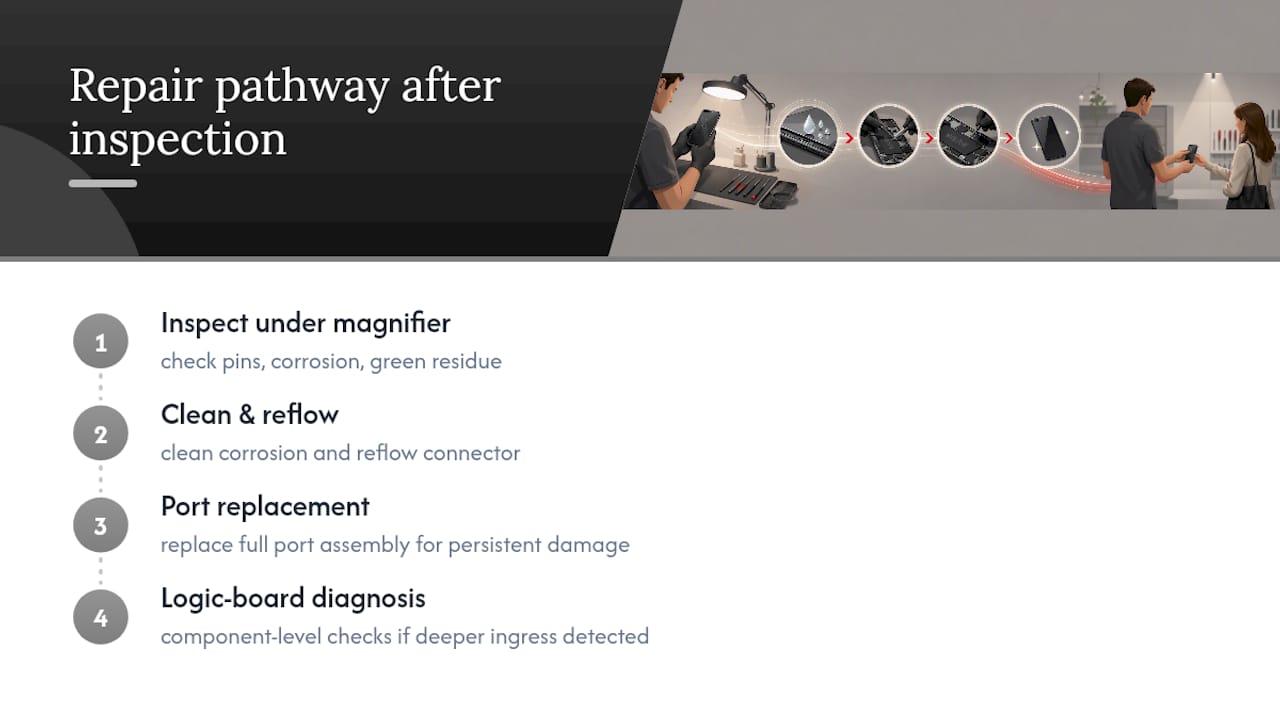
A technician’s process usually starts with a visual port inspection under magnification, checking pin condition and looking for the kind of corrosion you can’t always see with the naked eye. From there, it’s either a clean and reflow of the existing connector or, more often with persistent water damage, a full port assembly replacement. Deeper ingress that’s affected the logic board calls for component-level diagnosis rather than a straightforward port swap.
Expect a diagnostic fee that’s usually credited against the repair if you go ahead, a same-day or next-day turnaround for most port jobs, and a warranty on parts and labour. A reputable shop will talk you through the likely cost before starting any work, our guide to iPhone charging port repair costs breaks down what that typically looks like.
Why this advice holds up
Rapid Repairs handles charging-port repairs and water-damage restoration on iPhones every week, alongside component-level diagnostics when moisture has reached further into the device. That daily exposure to real cases, not just Apple’s official documentation, shapes the thresholds in this guide: which alerts clear with patience, and which ones need a bench and proper tools.
This piece was written by Joshua, drawing on Rapid Repairs’ technical troubleshooting guides and hands-on repair experience with water-affected devices. Where drying and basic checks genuinely don’t shift a persistent alert, a proper diagnostic beats guesswork, particularly once corrosion is a possibility rather than just a theory.
A repair shop’s honest view on liquid detected alerts
Most guides treat every liquid detected alert as an emergency. It usually isn’t. The evidence points the other way: a large share of these alerts trace back to a damp cable head or a bit of pocket debris changing the port’s resistance reading, not water sitting inside your phone. Panicking straight into a repair booking is overkill for most people.
Where I think the conventional advice actually falls short is the silence around Emergency Override. Plenty of guides mention it exists without being honest about the trade-off: it doesn’t dry anything, it just removes the safety net, and using it repeatedly is how a manageable damp cable turns into a corroded port six months later.
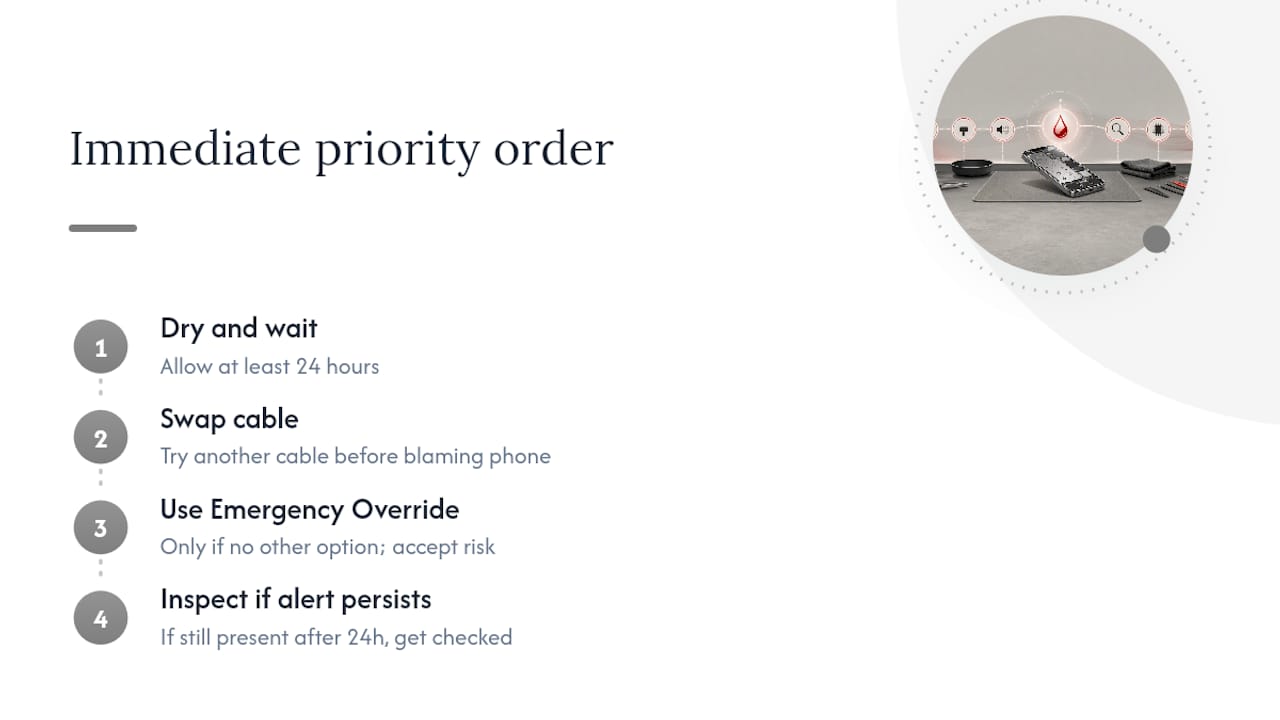
My priority order is simple. Dry and wait first, always. Swap the cable before you blame the phone. Only reach for Emergency Override if you genuinely have no other charging option and you accept the risk. And if the alert is still there after a proper 24-hour dry, stop testing your luck and get it checked. A five-minute inspection catches corrosion while it’s still cheap to fix.
— Joshua
Book a diagnosis with Rapid Repairs
If drying it out hasn’t cleared the alert, a proper diagnostic beats another 24 hours of guessing, and it costs less than a replacement port assembly you didn’t need. Rapid Repairs runs charging-port repairs and water-damage diagnostics on iPhones day in, day out, with the tools to spot corrosion a torch and a SIM-eject tool can’t reach.

Before you come in, take the case off, bring any cable you were using when the alert first appeared, and have a rough idea of when and how the moisture happened, that timeline speeds up diagnosis and helps us avoid replacing parts that don’t actually need it. Most charging-port jobs turn around the same day or next day, and parts and labour carry a warranty so you’re covered if anything resurfaces. Head to our iPhone repair page to check symptoms against typical fixes, or get in touch through Rapidrepairsldn to book a diagnostic slot at our Finchley shop.
Sources
Recommended
Comments