
Fix your iPhone just showing Apple logo: quick steps
- 9 hours ago
- 10 min read

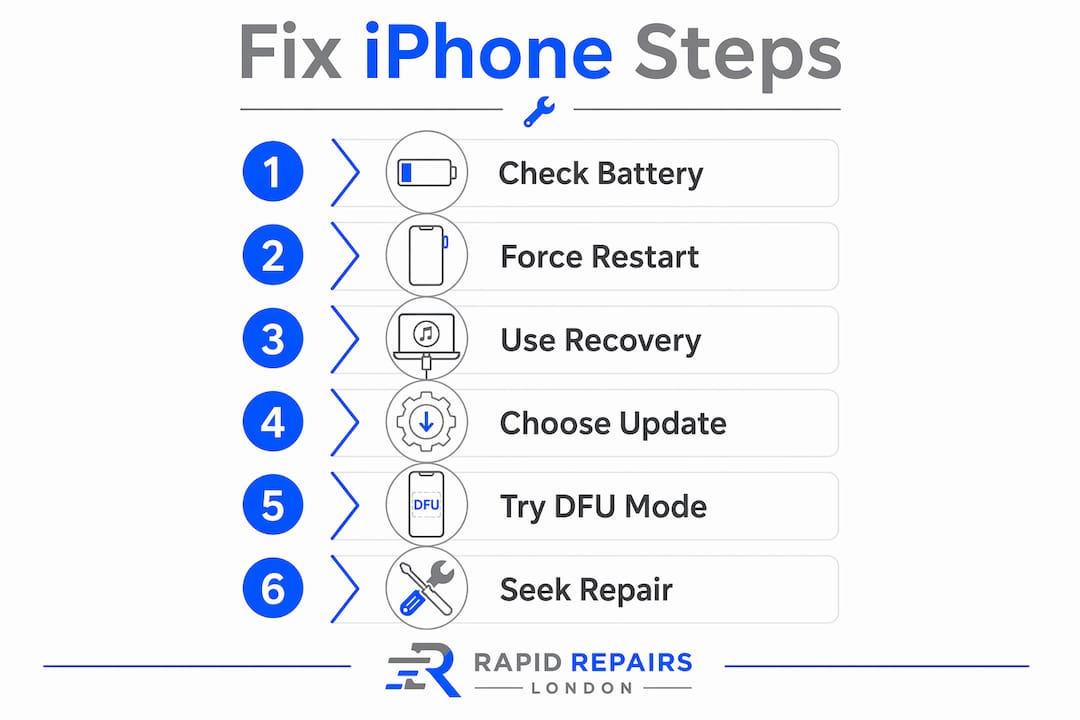
A force restart fixes most iPhones stuck on the Apple logo without touching your data. If that does not work, charge for a while, then connect to a computer and choose Update in Recovery Mode via Finder or iTunes. Only move to Restore or DFU mode if you have a confirmed backup or are prepared to lose your data.
Here is what to try in the first five minutes:
Force restart your iPhone (model-specific steps in Section 3 below)
Check your charger and cable — use a wall adapter, not a laptop USB port
Leave it charging for 30–60 minutes if the screen stays blank or the logo keeps flashing
Connect to a Mac or PC and choose Recovery Mode → Update if the logo persists
Data warning: In Recovery Mode, Update reinstalls iOS and aims to keep your data intact. Restore wipes the device completely. Always try Update first. If you have no recent backup, avoid Restore and consider professional diagnostics instead.
Apple Support confirms this order. Finder on macOS Catalina or later, and iTunes (or the Apple Devices app) on Windows, are the tools you need for Recovery Mode. If the problem started after a drop or an unofficial repair, skip straight to the hardware section — Rapidrepairsldn can run diagnostics before you risk losing anything.
Table of Contents
What to check before you try anything else
Before running through recovery steps, spend two minutes ruling out the simple stuff. A surprising number of iPhone logo loop issues turn out to be a flat battery or a faulty cable.

Is there a progress bar under the logo?
If you can see a thin progress bar beneath the Apple logo, the phone is updating or restoring itself. Leave it alone for up to an hour. Only act if the bar has not moved at all in that time.
A frozen logo with no bar, or a logo that flashes on and off repeatedly, is a different situation. Low battery or deep discharge can cause the phone to show the Apple logo briefly and then shut off because the battery cannot deliver the current the boot process demands.
Charging checklist: Use a 20W or higher wall adapter if you have one. Use an original or Apple-certified cable. Plug into a wall socket, not a laptop or USB hub. Leave it for at least 30–60 minutes before trying to power on again.
Hardware red flags to check now:
Recent drop or impact
Any liquid exposure (check the SIM tray for a red moisture indicator)
A battery or screen replaced recently with non-genuine parts
A charging port that felt loose or intermittent before this happened
If any of these apply, physical diagnostics are the right next step rather than repeated software attempts. Continuing to force-restart a phone with internal damage can waste time and, in rare cases, risk further harm.
How to force restart your iPhone (model by model)
A force restart clears a frozen process in the phone’s kernel without wiping any of your data. It is the safest first fix and
quickly.
Step-by-step by model
iPhone 8, iPhone SE (2nd/3rd generation), and all later models (including iPhone X through iPhone 16 series): Press and release Volume Up. Press and release Volume Down. Then press and hold the Side button. Keep holding even when the screen goes dark. Release only when the Apple logo disappears and reappears.
iPhone 7 and iPhone 7 Plus: Press and hold both the Volume Down button and the Sleep/Wake (Side) button at the same time. Hold for around 10–15 seconds until the Apple logo reappears.
iPhone 6s, iPhone SE (1st generation), and earlier: Press and hold both the Home button and the Sleep/Wake (Top or Side) button together for around 10 seconds until the Apple logo reappears.
Pro Tip: On iPhone 8 and later, do not rush the Volume Up and Volume Down presses — each one should be a quick press-and-release, not a hold. Then hold the Side button firmly and keep holding through the black screen. Many people let go too early.
What success looks like
Stage | What you see | What to do |
During hold | Screen goes dark | Keep holding |
Success | Apple logo disappears, then reappears | Release button |
Booting | Lock screen appears within ~60 seconds | Wait |
No change after 15 seconds | Nothing happens | Repeat once, then move to charging |
If the phone boots, go to Settings → General → About to confirm the iOS version is current. An outdated iOS version can cause repeated logo loops after restarts.
How to use Recovery Mode: choose Update, not Restore
Use Recovery Mode when the logo is still frozen or looping after a force restart and a full charge. Apple’s official guidance is clear: connect to a computer and choose Update rather than Restore. Update reinstalls iOS while attempting to preserve your data. Restore wipes everything.
What you need:
A Mac running macOS Catalina or later (use Finder) or a Windows PC with iTunes or the Apple Devices app
A reliable USB-A to Lightning or USB-C cable (avoid third-party cables if possible)
A USB port directly on the computer, not a hub
Recovery Mode workflow
Quit Finder or iTunes, then connect your iPhone to the computer.
Open Finder (Mac) or iTunes/Apple Devices (Windows).
Put the phone into Recovery Mode using the same button sequence as a force restart for your model, but keep holding the final button until you see the Recovery Mode screen (a cable and laptop icon) rather than the Apple logo.
Finder or iTunes will detect the phone in Recovery Mode and show a prompt.
Click Update. The computer will download the latest iOS and reinstall it. This can take 15–20 minutes.
Treat Restore as the point of no return. Once you click Restore, the device is wiped. If you have no iCloud or iTunes backup, you will lose photos, messages, and app data permanently. Verify your backup before you go anywhere near that button.
Update vs Restore at a glance
Option | Data outcome | When to use |
Update | Preserves data (aims to) | First choice — always try this first |
Restore | Erases all data | Only if Update fails and you have a backup |
DFU Restore | Erases all data | Last resort for deep firmware corruption |
Common problems and quick fixes:
Phone exits Recovery Mode on its own: Reconnect and repeat the button sequence more carefully.
Update times out or fails: Check your internet connection; the download can be several gigabytes.
Computer does not recognise the phone: Try a different cable, a different USB port, or restart the computer.
DFU mode: the last software resort before hardware repair
DFU stands for Device Firmware Update. It bypasses the bootloader entirely and reinstalls both the firmware and iOS from scratch. It can fix corruption that Recovery Mode Update cannot reach, but it will erase your device completely.
Use DFU only when:
Recovery Mode Update has failed or the phone will not enter Recovery Mode at all
You have a confirmed iCloud or iTunes backup
There is no visible physical damage (drops, liquid, bent casing)
Pre-DFU checklist:
Confirm your backup is recent and accessible (check iCloud.com or iTunes).
Charge the phone to at least 50% if it will power on at all.
Use a known-good Apple cable and a direct USB port on the computer.
Have Finder or iTunes open and ready before you start.
High-level DFU sequence (iPhone 8 and later):
Connect to computer with Finder/iTunes open.
Press and release Volume Up, press and release Volume Down.
Press and hold the Side button for 3 seconds.
Without releasing the Side button, also press and hold Volume Down for 10 seconds.
Release the Side button but keep holding Volume Down for another 5 seconds.
The screen should stay completely black. Finder or iTunes will detect a device in DFU mode.
Click Restore when prompted.
Pro Tip: If the Apple logo appears at any point during the DFU sequence, you have held too long. Start again from step 1.
DFU erases all personal data with no recovery option. If you have no backup, contact a repair professional before proceeding. A technician can sometimes recover data before a full restore is needed.
When it’s probably hardware and what a UK repair shop will do
Software fixes stop working when the underlying problem is physical. A boot loop that started immediately after a drop, liquid exposure, or a battery swap with non-genuine parts is almost always a hardware fault, not a software one. Repeated software attempts in these cases waste time and will not resolve the issue.
Repair technicians note that physical trauma or liquid exposure often produces identical boot symptoms to software failure. The key difference is that software fixes will keep failing until the physical fault is addressed.
Signs pointing to hardware:
Logo loop began directly after a drop or impact
Liquid exposure (even brief)
Non-genuine battery or screen fitted recently
Phone gets warm during the loop but never boots
Recovery Mode Update completes but the loop restarts immediately
What a diagnostic appointment covers: A technician will visually inspect the board and connectors, test the battery and charging port, run component-level checks, and attempt a test boot with known-good parts where possible. This rules out software causes and identifies the exact fault before any repair cost is committed.
Indicative UK repair costs and turnaround times
Repair type | Typical UK cost range | Typical turnaround |
Battery replacement | — | Same day |
Charging port repair | — | Same day to 24 hours |
Logic board diagnostics | £30–£60 (diagnostic fee) | 24 hours |
Logic board component repair | — | 2–5 days |
Water damage inspection | £30–£50 (inspection fee) | Same day assessment |
Costs vary by iPhone model and the severity of the fault. A diagnostic fee is standard and tells you exactly what is wrong before you commit to a repair. Rapidrepairsldn uses quality parts and offers a warranty on completed repairs, so you are not left guessing after the work is done.
For context on when professional repair makes sense versus continued DIY attempts, the decision usually comes down to two things: whether you have a backup, and whether physical damage is present.
Key takeaways
A force restart is the right first step for any iPhone stuck on the Apple logo; if it fails, Recovery Mode Update is the safest next move because it reinstalls iOS without erasing your data.
Point | Details |
Force restart first | Safe, fast, and data-preserving — works for most models quickly. |
Charge before retrying | Leave on a 20W+ wall charger for 30–60 minutes to rule out deep battery discharge. |
Update before Restore | In Recovery Mode, Update reinstalls iOS and keeps data; Restore wipes the device completely. |
DFU is the last resort | Only use DFU when Recovery Mode has failed and you have a confirmed backup. |
Rapidrepairsldn for hardware faults | If the loop started after a drop or non-genuine repair, book diagnostics at Rapidrepairsldn before attempting further software fixes. |
Why the order of these fixes matters more than people realise
Most guides list these steps in the right order but do not explain why the order is so important. The reason is data risk. Each step up the ladder increases the chance of losing everything on the phone. A force restart carries zero data risk. Recovery Mode Update carries very low risk. DFU Restore carries total, irreversible risk.
The other thing worth saying plainly: a boot loop that started after a drop or an unofficial repair is not a software problem wearing a software mask. Technicians see this regularly. The phone shows the Apple logo, the user runs through every software fix, and nothing sticks — because the real fault is a loose connector, a degraded battery cell, or a damaged component on the board. Getting to diagnostics sooner in those cases saves time and, sometimes, saves data that would have been lost in a Restore attempt.
If you have no backup and the software fixes are not working, the worst thing you can do is click Restore. The second-worst is to keep trying DFU. The right move is to stop and get the phone looked at by someone who can check the hardware first. A diagnostic fee is a small price compared to losing years of photos and messages.
Rapidrepairsldn can help if the software fixes have not worked
When force restarts and Recovery Mode have not resolved the issue, the fault is likely physical. Rapidrepairsldn offers a full range of iPhone repair services directly relevant to boot loop problems: battery replacement, charging port repair, water damage inspection, logic board diagnostics, and component-level board repair.

Bring your device in and a technician will carry out a full diagnostic check before any repair work begins. You will know exactly what is wrong and what it will cost before you commit. Repairs come with a warranty on parts and labour, and most common fixes are completed the same day or within 24 hours. If you are concerned about data, mention it when you book — the team can advise on the safest approach before anything is touched.
To book or to ask a question, visit Rapidrepairsldn or drop in. Walk-in diagnostics are welcome.
Useful sources and further reading
If your iPhone is stuck on the Apple logo — Apple Support: Apple’s official guidance on Recovery Mode; confirms that Update should be chosen before Restore to preserve data where possible.
If your iPhone won’t turn on or the screen is black — Apple Support: Official force restart instructions for all current iPhone models, including exact button sequences and hold times.
iPhone stuck on Apple logo? 9 Proven Fixes — HowToFixPro: Practical step-by-step guide covering force restart through DFU, with model-specific notes and tips for avoiding unnecessary Restores.
Complete fix guide — why the logo freezes — MacsWire: Technical explainer on why the bootloader succeeds but the kernel fails, useful for understanding what the Apple logo freeze actually means.
iPhone flashing Apple logo — causes and fixes — Gbyte: Covers hardware causes including battery degradation and logic board faults; recommends 30–60 minutes of charging before concluding a hardware fault is present.
YouTube: force restart demonstration: Short video walkthrough of the force restart sequence for iPhone 8 and later; useful if you want to see the button timing in real time.
YouTube: bootloader and kernel explainer: Technical background on the iPhone boot process; explains why a visible Apple logo means the bootloader ran but a subsequent stage failed.
Recommended