
iPhone Face ID not working: fix it step by step
- 16 minutes ago
- 9 min read

Most Face ID problems are solved without a repair appointment. Common causes fall into three categories: physical obstructions, software or settings issues, and recognition-condition problems like masks or poor lighting. Hardware faults do exist, but they are far less common than a dirty sensor or a toggled-off permission.
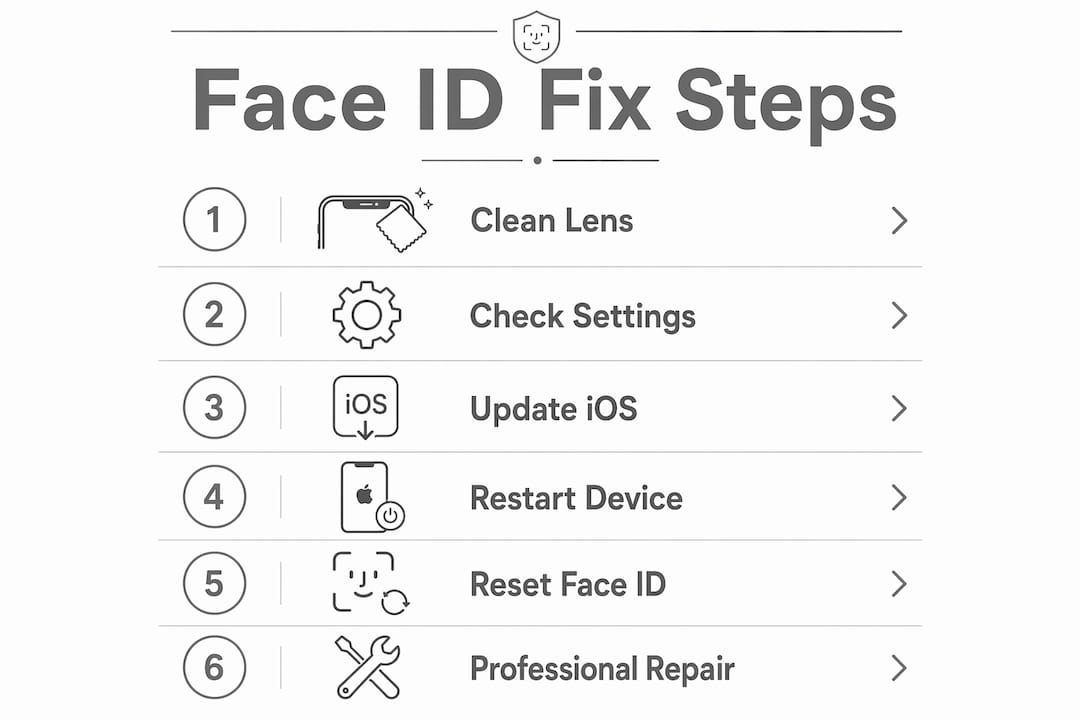
Try these steps right now, in order:
Wipe the TrueDepth camera area (the notch or Dynamic Island) with a clean, lint-free cloth
Remove any case or screen protector that overlaps the top edge of the screen
Open Settings → Face ID & Passcode and confirm that iPhone Unlock (and any other toggles you need) is switched on
Restart your iPhone normally
If Face ID still fails, tap Reset Face ID in the same menu and re-enrol your face
If none of those work, Apple Support is the next official port of call. For hands-on hardware diagnosis in London, Rapidrepairsldn offers an in-shop diagnostic.
Pro Tip: If Face ID stopped working immediately after a screen repair, go to Settings → General → About → Parts & Service History. An “Unknown Part” or “Non-Genuine Part” entry for the display or camera system means the TrueDepth pairing was broken during that repair — a software reset will not fix it.
Table of Contents
How do you check Face ID settings and software first?
Start here before touching anything physical. Open Settings → Face ID & Passcode, enter your passcode, and check that the toggles for iPhone Unlock, Wallet & Apple Pay, Password AutoFill, and any third-party apps you need are all enabled. A single toggled-off switch is a surprisingly common culprit.

Next, go to Settings → General → Software Update. Minor iOS updates frequently contain biometric bug fixes, and running an outdated version can cause persistent Face ID glitches that disappear the moment you update.
Some situations cause iOS to disable Face ID deliberately. After a restart, after 48 hours without a successful scan, after five consecutive failed attempts, or following an Emergency SOS call, the system requires your passcode before Face ID will work again. If you have just restarted your phone and Face ID is not responding, this is almost certainly why. Enter your passcode once and Face ID will re-activate.
Intermittent failures — Face ID works sometimes but not always — almost always point to software or permissions rather than hardware. A broken TrueDepth sensor tends to produce a consistent “Face ID Not Available” message, not occasional recognition failures.
Is something blocking the TrueDepth camera?
Physical obstructions cause more Face ID failures than most people expect. Work through this checklist before moving on:
Clean the sensor area. Use a dry, lint-free cloth. Fingerprint grease, dust, or moisture on the notch or Dynamic Island can scatter the infrared dots Face ID relies on.
Check for cracks or debris. Even a hairline crack near the top of the screen can interfere with the dot projector or flood illuminator.
Remove your screen protector or case. Any protector that extends over the top edge of the display, or a case with a lip that partially covers the sensor, can block Face ID. Test without them.
Positioning matters too. Face ID works best held at a comfortable arm’s length from your face, in portrait orientation. iPhone 13 and later models support landscape Face ID on current iOS versions; older models are portrait-only, which explains many “works sometimes” reports from people who unlock at an angle.
Recognition conditions are another common factor. Polarised sunglasses block the infrared sensors. Heavy backlighting (sitting with a bright window directly behind you) confuses the system. Hats that cast a shadow across your eyes, or heavy make-up that significantly changes your facial geometry, can also cause failures. Face ID with a Mask became available in iOS 15.4 on compatible models and can be enabled in Settings → Face ID & Passcode to reduce passcode prompts when wearing a face covering — though it does not help with polarised sunglasses, which still block the infrared signal.

Pro Tip: When diagnosing a recognition problem, test in a well-lit room, remove glasses and sunglasses, and hold the phone at arm’s length in portrait mode. If Face ID works under those conditions, the issue is environmental rather than a fault.
Should you restart or reset Face ID?
A standard restart clears the vast majority of transient software faults. Hold the side button and a volume button until the power slider appears, slide to power off, then turn the phone back on. If your screen is frozen, a force restart is needed: on iPhone 8 and later, press and quickly release Volume Up, press and quickly release Volume Down, then press and hold the side button until the Apple logo appears.
If a restart does not help, reset Face ID itself. Go to Settings → Face ID & Passcode → Reset Face ID, then tap Set Up Face ID to re-enrol. The process takes about 30 seconds and often resolves recognition failures caused by a corrupted facial data file.
When those steps still leave Face ID broken, Reset All Settings is the next level up. Find it at Settings → General → Transfer or Reset iPhone → Reset → Reset All Settings. This clears system-level configurations and network settings without deleting your photos, apps, or personal data. Technicians recommend it precisely because it is powerful without being destructive. That said, you will need to re-enter Wi-Fi passwords and reconfigure some preferences afterwards.
Before any factory-level action, back up your device via iCloud (Settings → [your name] → iCloud → iCloud Backup) or via a Mac or PC using Finder or iTunes. A backup takes a few minutes and protects everything if something goes wrong.
What if Face ID fails only in certain apps?
This is a software permissions problem more often than not. Go to Settings → Face ID & Passcode → Other Apps and check that the app in question has Face ID access enabled. Toggle it off and back on if it is already showing as active.
Use this numbered checklist to isolate whether the problem is system-wide or app-specific:
Try unlocking the iPhone from the lock screen — if this works, Face ID itself is functioning.
Try an Apple Pay transaction — if this works, the biometric system is healthy.
Try the failing app — if only this fails, the issue is the app’s own permissions or settings.
Inside the app, check its own security settings; many banking apps have a separate biometric toggle within the app itself, independent of iOS.
Setting up an Alternate Appearance (Settings → Face ID & Passcode → Set Up an Alternate Appearance) is worth doing if your look changes significantly — different glasses, a beard grown or shaved, or a medical face covering. Face ID stores two facial maps and uses both for recognition.
Banking apps sometimes apply additional security policies that block Face ID even when iOS grants permission. If your bank’s app is the only one failing, check the app’s own settings menu or contact the bank’s support line directly.
What does Parts & Service History tell you about Face ID?
Go to Settings → General → About → Parts & Service History. If you see “Unknown Part” or “Non-Genuine Part” next to the display or camera system, that entry explains why Face ID stopped working after a screen repair. This is one of the most common reasons Face ID fails following a third-party screen replacement.
The TrueDepth camera system is cryptographically paired to the iPhone’s logic board at the factory. When a replacement display or camera module is fitted without preserving that pairing, iOS loses trust in the sensor and disables Face ID entirely. No software reset will restore it.
Symptom | Likely cause | First step |
“Face ID Not Available” after screen repair | Non-genuine or unpaired display/camera | Check Parts & Service History; book authorised repair |
“Set Up Face ID Again” after drop | Corrupted facial data or minor sensor shift | Reset Face ID and re-enrol |
Face ID works on lock screen, fails in apps | App permission or policy issue | Check Settings → Face ID & Passcode → Other Apps |
Intermittent failures, no error message | Environmental or recognition-condition issue | Clean sensor, check lighting and positioning |
“Face ID Not Available” with no recent repair | TrueDepth hardware fault | Professional diagnostic required |
When you speak to a technician, tell them whether the problem started after a repair, a drop, or water exposure. Ask specifically whether they use genuine Apple parts or parts that support pairing, whether the repair carries a warranty, and what the turnaround time is. If your device is under AppleCare+ or the standard one-year warranty, an Apple Genius Bar appointment may cover the repair at no additional cost.
When should you get professional repair in the UK?
Book a professional diagnostic if any of the following apply:
“Face ID Not Available” persists after restarting, resetting Face ID, and Reset All Settings
Parts & Service History shows an unknown or non-genuine part
There is visible damage to the notch, Dynamic Island, or top edge of the screen
The phone has been exposed to water and Face ID stopped working shortly after
You can see signs your iPhone needs repair beyond just Face ID
In the UK, your main service options are: an Apple Genius Bar appointment (book via apple.com/uk/retail), an Apple Authorised Service Provider, or a reputable independent repair shop. Apple and authorised providers guarantee genuine parts and preserve your warranty; turnaround is typically 1–3 working days for most repairs, though same-day service is available at some Genius Bar locations. Independent shops can often turn repairs around faster, sometimes on the same day, and at a lower cost, but ask about parts quality and repair warranties before committing.
Rapidrepairsldn, based in Finchley, North London, will run a full hardware diagnostic on the TrueDepth system, check Parts & Service History, and advise whether a repair is viable. Back up your data before visiting any repair shop, regardless of who you choose.
Key takeaways
Most iPhone Face ID problems are software or environmental, and the majority resolve with cleaning, a settings check, a restart, or a re-enrol — hardware faults are the exception, not the rule.
Point | Details |
Clean and check first | Wipe the TrueDepth area and remove any case or screen protector overlapping the sensor. |
Settings and restart | Verify Face ID toggles in Settings, update iOS, and restart before attempting any reset. |
Re-enrol or add alternate appearance | Reset Face ID and re-enrol; add an Alternate Appearance if your look changes regularly. |
Read Parts & Service History | An “Unknown Part” entry after a screen repair means a software fix will not restore Face ID. |
Rapidrepairsldn for hardware faults | If “Face ID Not Available” persists, book a diagnostic at Rapidrepairsldn in Finchley for a hands-on assessment. |
A technician’s view on what we actually see in the shop
The most common scenario we see at Rapidrepairsldn is a phone that had a screen replaced elsewhere, and Face ID stopped working immediately afterwards. The customer has already tried every software fix — because they have — and nothing has worked. That is because the fault is not software. It is a pairing issue, and once the cryptographic link between the TrueDepth module and the logic board is broken, the only path forward is an Apple-authorised repair that restores that pairing, or in some cases a full TrueDepth assembly replacement.
The second most common cause is impact damage. A drop that cracks the screen near the notch can physically shift or damage the dot projector or flood illuminator. Water ingress is third: even a phone rated for water resistance can suffer sensor corrosion over time, particularly on older models where the seals have degraded.
A diagnostic in the shop typically takes 20–40 minutes. If parts need ordering, most repairs complete within 1–3 working days. Cost estimates for a TrueDepth-related repair vary depending on the model and the specific component at fault; we provide a written quote before any work begins. All repairs at Rapidrepairsldn carry a warranty on parts and labour, so you are covered if the same fault recurs.
Rapidrepairsldn can diagnose and fix your Face ID
When software fixes have not worked and Face ID is still unavailable, the problem is almost certainly hardware. Rapidrepairsldn’s iPhone repair service in Finchley covers full TrueDepth diagnostics: we check the dot projector, flood illuminator, and infrared camera, read Parts & Service History, and give you a clear, written assessment of what is wrong and what it will cost to fix.

We use quality parts and back every repair with a warranty on both parts and labour. Most diagnostics are completed the same day; repairs typically finish within 1–3 working days depending on parts availability. Before you visit, back up your iPhone via iCloud or your computer. Then book your diagnostic online or drop in to our Finchley shop — we will tell you exactly what is going on and what your options are.
Useful sources and further reading
Apple: If Face ID isn’t working on your iPhone or iPad Pro — the official Apple troubleshooting guide for Face ID, covering settings checks, re-enrolment, and when to contact Apple Support directly.
Apple Get Support — use this to book a Genius Bar appointment, start a mail-in repair, or chat with Apple Support online.
Android Authority: Apple Face ID not working? Here’s how to fix it — detailed walkthrough including Parts & Service History checks and hardware fault identification.
Rapidrepairsldn: Signs your iPhone needs repair — a practical guide to recognising when a hardware diagnostic is the right next step.
Rapidrepairsldn: iPhone ghost touch causes and fixes — useful if you are also experiencing touch-screen issues alongside Face ID problems, which can indicate broader display damage.
Recommended
Comments