
iPhone won't charge wirelessly: causes and fixes
- 3 days ago
- 6 min read

Your iPhone won’t charge wirelessly for one of a handful of reasons: misalignment on the charging pad, a thick or metal case blocking the signal, a software glitch, or a charger that isn’t Qi-certified. The good news is that most of these are quick to fix yourself before you need to think about a repair.
Here is a summary of the most common causes and first steps to try:
Remove your case and place the iPhone flat in the centre of the charging pad
Make sure the iPhone is not connected to a USB cable at the same time — wireless charging stops immediately when a cable is plugged in
Restart your iPhone and try again
Check that your charger is plugged into a working wall socket
Update iOS to the latest version
Test with a different Qi-certified charger if you have one available
Table of Contents
Which iPhone models support wireless and MagSafe charging?
Before troubleshooting, it is worth confirming your iPhone actually supports wireless charging. Not every model does.
Qi wireless charging is supported on:
iPhone 8 and iPhone 8 Plus
iPhone X, XS, XS Max, and XR
iPhone 11, 11 Pro, and 11 Pro Max
iPhone 12 series, 13 series, 14 series, 15 series, and 16 series
iPhone SE (3rd generation)
MagSafe charging (Apple’s magnetic alignment system for faster wireless charging) is available on iPhone 12 and all later models. MagSafe can deliver peak power for faster wireless charging, while standard Qi charging provides lower power depending on your charger and adapter.
If you have an iPhone 7 or earlier, wireless charging is simply not supported on your device. A cable is your only option.
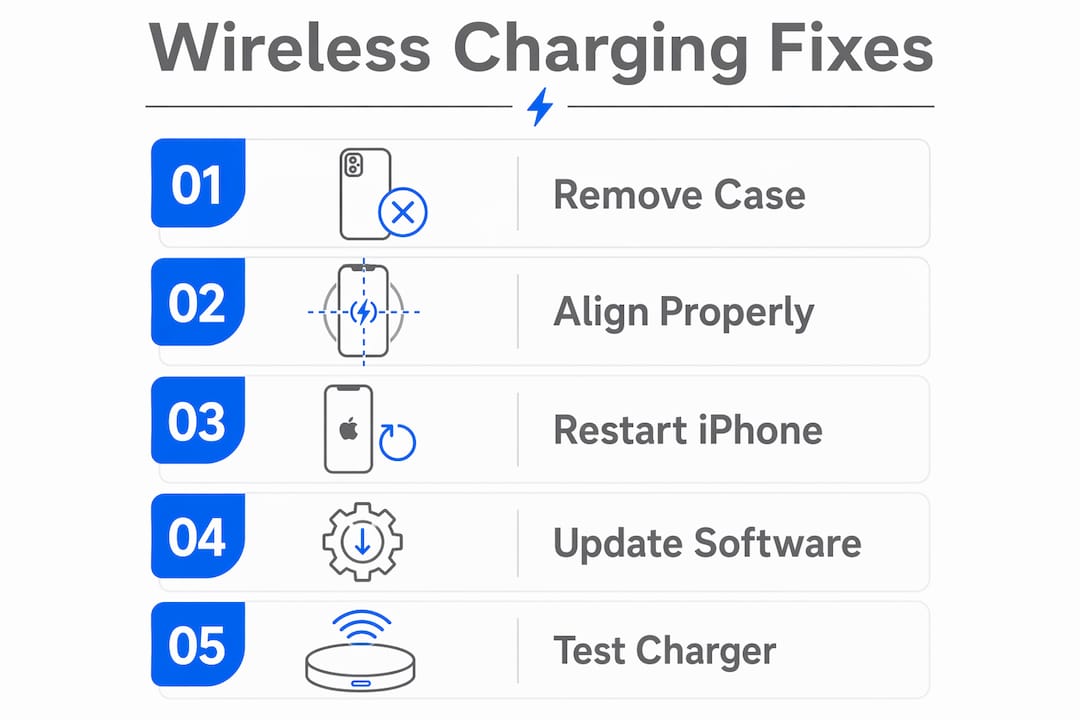
Common reasons your iPhone isn’t charging wirelessly
Several factors can interrupt the wireless charging process. Understanding which one applies to your situation makes fixing it much faster.
Case interference: Thick cases, metal-backed cases, or cases with built-in card slots can block the electromagnetic signal. Even some MagSafe-compatible cases cause problems if they are too thick or contain metal components. Removing the case and retesting is the single most reliable first step.
Misalignment: The charging coils in your iPhone and the pad must line up precisely. Placing the phone off-centre, even slightly, can result in no charge at all.
Overheating: If your iPhone or the charger gets too warm, iOS deliberately slows or pauses charging above 80% to protect the battery. Moving to a cooler spot usually resolves this quickly.
Non-certified chargers: Using a charger that is not Qi-certified can result in slow, capped, or failed charging. Newer iPhones optimised for Qi2 may perform poorly with older Qi1 pads.
Outdated iOS or charger firmware: Software glitches in iOS can affect charging behaviour. Third-party charger manufacturers such as Anker also release firmware updates to maintain compatibility with newer iOS versions — a step many users overlook entirely.
Dirty charging coils: Dust or debris on the back of your iPhone or on the charging pad can disrupt the connection.
Magnetic interference: Credit cards, key fobs, or magnetic accessories placed between the phone and pad can block charging.
Pro Tip: Always test wireless charging with the case completely removed first. If it works without the case, the case is your problem — not the charger or the phone.
Step-by-step fixes to get wireless charging working again

Work through these in order. Most iPhone wireless charging issues resolve within the first three or four steps.
Quick checklist before you start:
Case removed
iPhone not connected to a USB cable
Charger plugged into a wall socket (not a USB hub or car port)
iPhone placed flat and centred on the pad
Step-by-step troubleshooting:
Remove the case and place the iPhone directly on the charging pad, centred over the coil.
Check the power source. Plug the charger into a different wall socket to rule out a dead outlet.
Inspect the cable and adapter connecting your wireless pad to the wall. Replace if damaged.
Restart your iPhone. A simple restart clears software glitches that can interfere with charging.
Update iOS. Go to Settings > General > Software Update and install any available update.
Check for overheating. If the device feels warm, let it cool for 10 minutes before trying again. Read more about managing iPhone overheating if this happens regularly.
Try a different certified charger. This tells you whether the fault is with your pad or your phone.
For MagSafe chargers specifically: plug the adapter into the wall before placing your iPhone on the charger. If you placed the phone first, remove it, wait three seconds, then replace it. This allows MagSafe to complete its power negotiation correctly.
Update third-party charger firmware if the manufacturer provides an app to do so.
Disconnect any wired accessories from your iPhone while wirelessly charging — even headphones connected via Lightning or USB-C can limit wireless charging to 7.5W.
When the problem is hardware: signs you need a professional repair
If you have worked through every step above and your iPhone still will not charge wirelessly, the fault is likely inside the phone itself.
One clear indicator is “fake charging” — the charging icon appears on screen, but the battery percentage does not move, a symptom explained in detail in our partner post on Kundenverhalten und Smartphone-Akku erklärt. This pattern points to a logic board or power management chip failure rather than a software or accessory problem. Specifically, it often indicates a U2 IC chip fault on the logic board, which requires microsoldering to repair. Swapping chargers or updating iOS will not fix this.
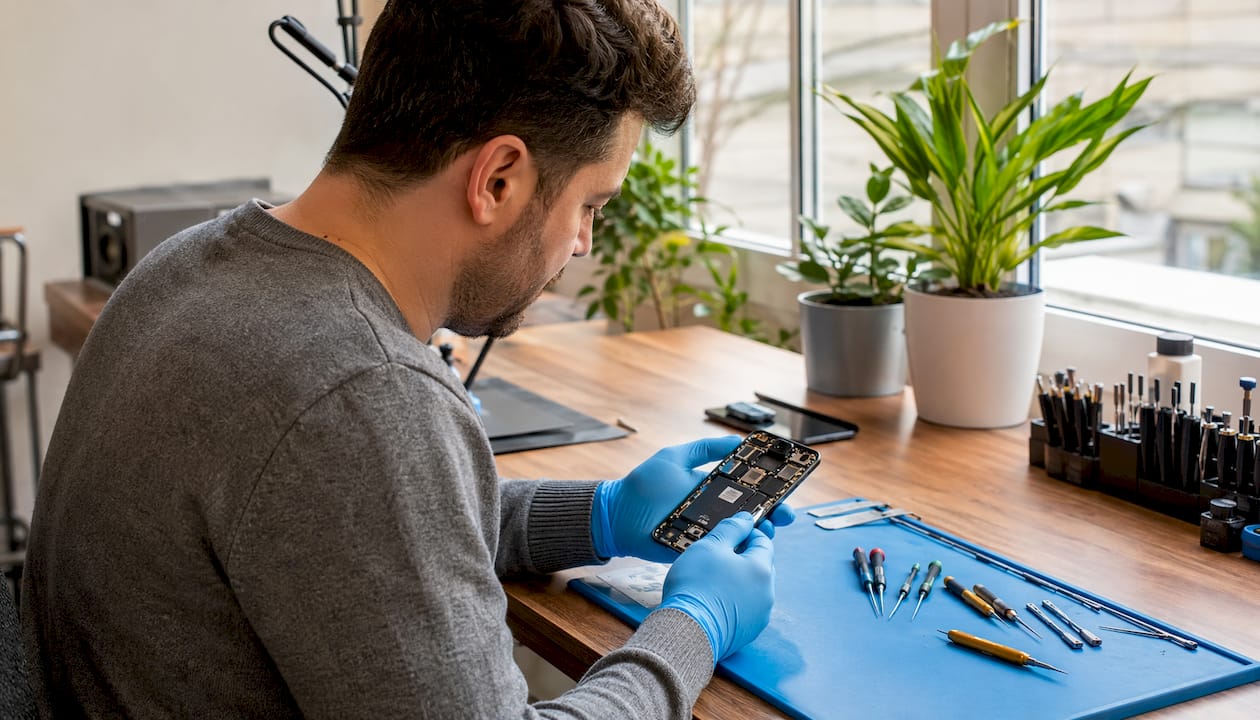
Physical damage is another common cause. Dropping your iPhone, exposure to water, or extreme temperatures can all damage the internal charging coil or surrounding board components. If your phone has taken a knock recently and wireless charging stopped working shortly after, that connection is worth noting.
Pro Tip: Test your charger on a different phone to confirm it works. If the charger is fine but your iPhone still will not charge wirelessly, the fault is almost certainly with the device. Cross-testing like this is the fastest way to isolate the problem before booking a repair.
Understanding common iPhone repair issues can also help you recognise whether wireless charging failure is part of a wider pattern of hardware problems. If you are seeing other warning signs alongside the charging issue, check the signs your iPhone needs repair for a fuller picture.
Rapidrepairsldn can fix your iPhone wireless charging fault

When software fixes and accessory swaps have not solved the problem, the fault is inside the phone — and that is exactly what Rapidrepairsldn specialises in. Based in London, Rapidrepairsldn offers professional diagnosis and repair for iPhone wireless charging failures, including logic board faults, charging coil damage, and power management chip issues that no amount of restarting will resolve.
Rather than paying Apple’s out-of-warranty prices or waiting weeks for a postal service, you get a fast, transparent repair from technicians who work at component level. No unnecessary part replacements, no guesswork. Visit the iPhone repair page to book a diagnosis or get a quote — most charging faults are assessed and resolved the same day.
Key takeaways
Most iPhone wireless charging failures come down to a case, a misaligned pad, a software issue, or a faulty charger — all fixable without professional help.
Point | Details |
Check the basics first | Remove your case, align the phone centrally, and confirm the charger is plugged into a working wall socket. |
USB cable blocks wireless charging | Plugging in a cable while on a charging pad stops wireless charging immediately. |
Overheating pauses charging | iOS limits charging above 80% when the device gets too warm; move to a cooler location. |
Fake charging signals hardware failure | A static battery percentage despite the charging icon appearing points to a logic board fault needing professional repair. |
Rapidrepairsldn for hardware faults | If software fixes fail, Rapidrepairsldn offers same-day iPhone wireless charging diagnosis and repair in London. |
Recommended
Comments