
iPhone stuck on Apple logo: quick fixes and next steps
- a few seconds ago
- 9 min read
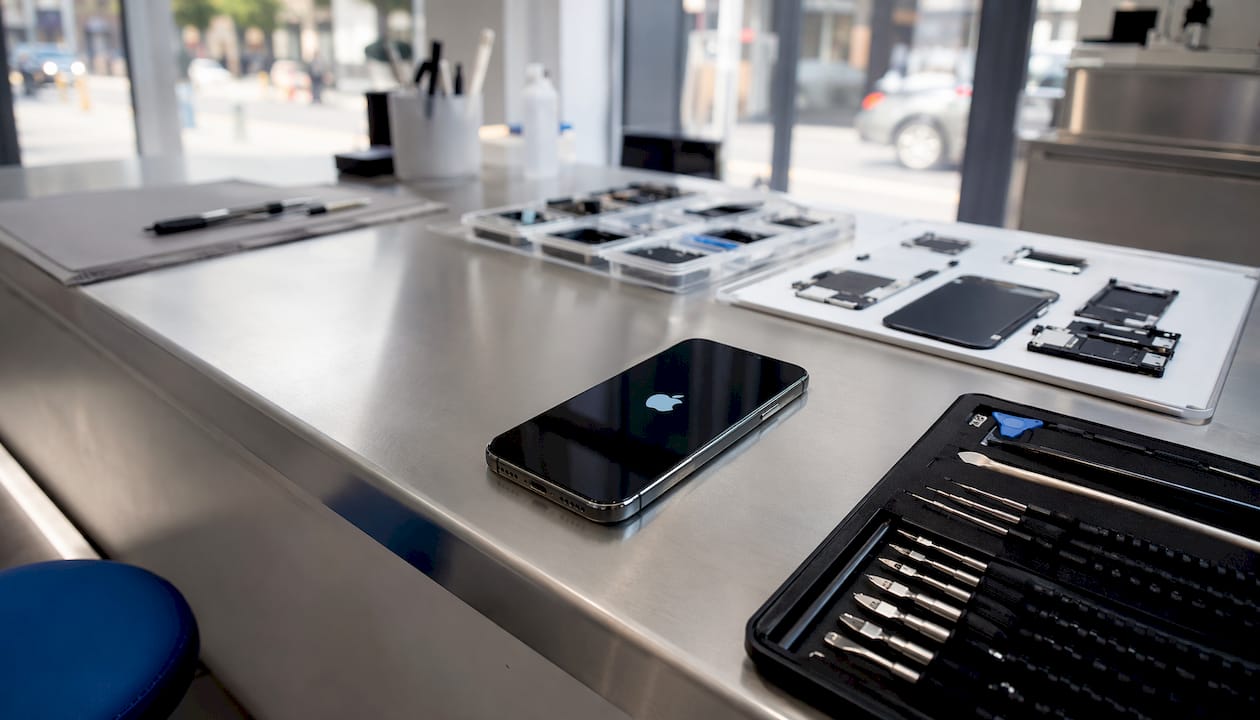
A force restart is the quickest, safest fix for an iPhone stuck on the Apple logo, and it resolves the majority of cases without touching your data. If that does not work, charge the device for a significant amount of time, then use Recovery Mode to update iOS before considering anything more drastic.
Quick actions to try right now:
Force restart your iPhone using the button sequence for your model (see below)
Plug into a wall charger and leave it for at least 30 minutes if the restart fails
Connect to a Mac or PC and use Recovery Mode to update iOS if charging does not help
Table of Contents
What to do when your iPhone is stuck on the Apple logo
The force restart is your first move. It clears temporary memory without deleting anything and takes under a minute. Most Apple logo freezes are caused by a software glitch or a failed boot process, both of which a force restart can clear.
iPhone 8, iPhone SE (2nd and 3rd gen), and all later models
Press and quickly release the Volume Up button.
Press and quickly release the Volume Down button.
Hold the Side button until the Apple logo appears, then release.
iPhone 7 and iPhone 7 Plus
Hold the Volume Down button and the Sleep/Wake button at the same time.
Keep holding until the Apple logo appears, then release.
iPhone 6s, iPhone SE (1st gen), and earlier
Hold the Home button and the Sleep/Wake button simultaneously.
Keep holding until the Apple logo appears, then release.
The most common mistake is letting go too soon. Apple’s guidance notes the logo can take well over 10 seconds to appear. In practice, many successful restarts require holding for 20–30 seconds, particularly on newer models. If you released early, try again and hold longer.
A successful force restart shows the Apple logo, then boots to the lock screen within roughly 60 seconds. If the logo reappears and the phone loops back to the same frozen screen, move to the next step.
Pro Tip: Try the force restart while the phone is plugged into a wall charger. If the battery is borderline low, the extra power can be the difference between a successful restart and another freeze.
Is your battery too flat to boot?
A deeply discharged battery can produce exactly the same symptom as a software fault: the phone shows the Apple logo, stalls, and goes nowhere. Before assuming a software problem, rule this out.
Plug the phone into a wall socket using a known-good cable and a reliable adapter. A laptop USB port or a power bank may not deliver enough current to revive a critically flat battery. Apple’s own 20W USB-C adapter (or equivalent) is a reliable choice for this step.
Charging checklist before you proceed:
Use a wall socket, not a USB hub or laptop port
Try a different cable if you have one available
Check the charging port for fluff or debris
Wait at least 30–60 minutes before drawing any conclusions
After 30 minutes, you should see either a low-battery icon, a charging screen, or the phone should be detected by a computer. If none of those appear, the cable, adapter, or charging port itself may be the issue. If the phone charges but still will not boot past the Apple logo, the problem is software and Recovery Mode is your next step.
Note: A charging screen that appears and then disappears repeatedly, without the phone ever reaching the lock screen, is a sign of a boot loop rather than a simple battery issue.
How to use Recovery Mode to fix the boot screen freeze
Recovery Mode lets you reinstall iOS from your Mac or PC. The key point: always try Update before Restore. Update reinstalls iOS and attempts to keep your data; Restore erases the device entirely.
Entering Recovery Mode
The button sequence is the same as a force restart, but you hold the final button until the Recovery Mode screen (a cable pointing to a laptop icon) appears instead of the Apple logo.
iPhone 8 and later / iPhone SE 2nd and 3rd gen: Volume Up → Volume Down → hold Side button
iPhone 7 / 7 Plus: hold Volume Down + Sleep/Wake together
iPhone 6s and earlier: hold Home + Sleep/Wake together
Connect the phone to your Mac (use Finder) or Windows PC (use iTunes or the Apple Devices app) before or during the sequence.
Update vs Restore: which to choose

Option | What it does | Data outcome | When to use |
Update | Reinstalls iOS | Keeps data where possible | Try this first |
Restore | Erases and reinstalls | All data deleted | Only if Update fails |
Choose Update first. If the download times out, try again on a faster connection. If the device is not recognised, use a known-good cable and a direct USB port on a desktop rather than a hub or laptop. If Update fails after two attempts, Restore becomes necessary.
Pro Tip: If the download keeps timing out, download the iOS IPSW file manually from Apple’s website first, then Option-click (Mac) or Shift-click (Windows) the Update button in Finder or iTunes to select the file directly.
DFU mode: last resort only, and it will erase your data
DFU (Device Firmware Update) mode goes deeper than Recovery Mode. The screen stays completely black, and the phone communicates directly with your computer to reinstall firmware at the lowest level. It is the most thorough software fix available.
DFU mode almost always requires a full restore, which means all data on the device is erased. Only use DFU if Recovery Mode has already failed and you understand that you will need to restore from a backup afterwards. If you have no backup, weigh that risk carefully before proceeding.
How to enter DFU mode
iPhone 8 and later:
Connect to your Mac or PC.
Press and quickly release Volume Up, then Volume Down.
Hold the Side button for 3 seconds.
Without releasing Side, also hold Volume Down for 10 seconds.
Release the Side button but keep holding Volume Down for a further 5 seconds.
The screen should remain black. Finder or iTunes will show a device in recovery.
iPhone 7 / 7 Plus: Hold Sleep/Wake and Volume Down together for 8 seconds, then release Sleep/Wake while continuing to hold Volume Down for 5 more seconds.
iPhone 6s and earlier: Hold Sleep/Wake and Home together for 8 seconds, then release Sleep/Wake while continuing to hold Home for 5 more seconds.
Once in DFU mode, Finder or iTunes will prompt you to restore. After the restore completes, set the phone up as new or restore from an iCloud or iTunes backup.
Boot loops, stalled progress bars, and what they usually mean
Not every Apple logo freeze is the same. Understanding what you are seeing helps you pick the right fix.
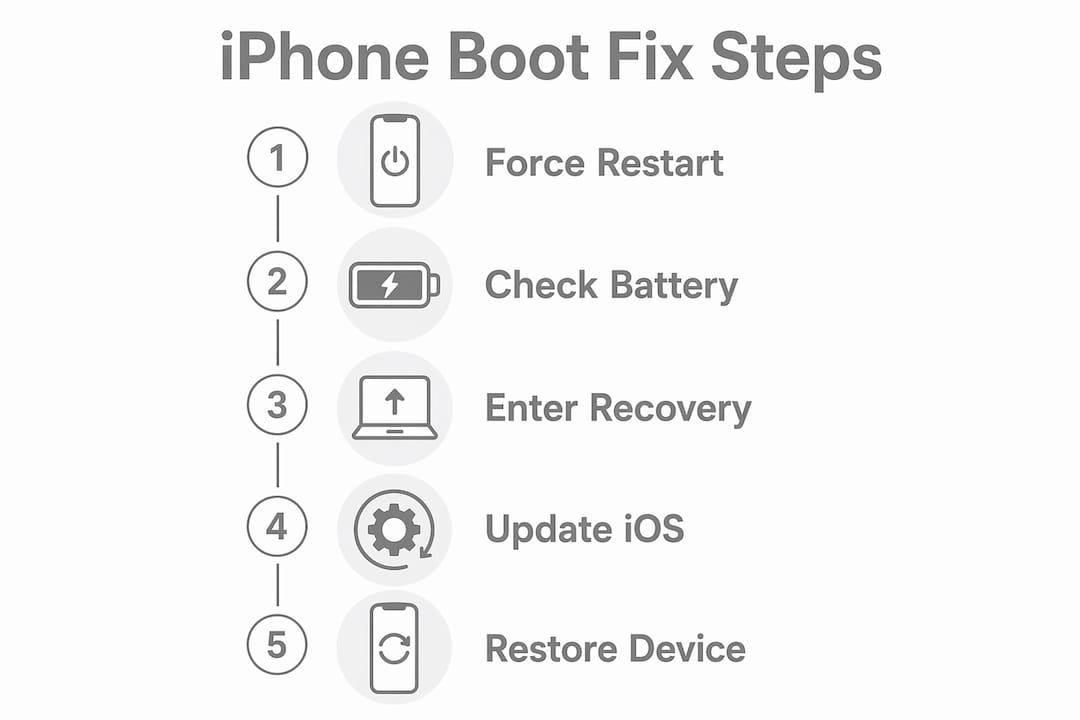
A repeating Apple logo (the phone shows the logo, goes dark, shows it again) is a classic boot loop, most often caused by software: a failed iOS update, corrupted system files, or critically full storage. Recovery Mode is the right tool here.
A static Apple logo with a progress bar is different. The phone is trying to complete an update or restore. Wait up to 15–30 minutes before intervening. If the bar has not moved at all for 20–30 minutes, the process has stalled and a force restart is the next step.
A black screen that still rings or vibrates when you call it suggests the phone is actually on but the display has failed. That is a hardware issue, not a boot problem. You can read more about black screen causes and how to tell them apart.
Symptom | Most likely cause | First action |
Repeating Apple logo | Failed update / corrupted files | Force restart, then Recovery Mode |
Static logo, no progress bar | Frozen boot process | Force restart |
Progress bar stalled 20+ min | Failed update mid-install | Force restart, then Recovery Mode |
Logo after drop or liquid | Hardware damage | Skip to professional repair |
Black screen, phone rings | Display failure | Professional diagnostic |
Common causes also include hardware damage after a drop or liquid exposure. If the freeze started immediately after either, software fixes are unlikely to help.
When should you contact a professional repair service in the UK?
Stop the DIY steps and book a diagnostic if any of the following apply:
The phone shows no charging indicator after 60 minutes on a wall charger with a verified cable
Recovery Mode Update and Restore have both failed
DFU mode has been attempted and the phone still will not boot
The freeze started after a drop, knock, or liquid exposure
The phone gets hot during charging but never progresses past the logo
You see signs of hardware trouble beyond the boot issue
What to expect at a UK repair shop
A reputable shop will run a diagnostic before touching anything. Technicians typically test battery voltage and power delivery first, then check display and connector integrity, before moving to deeper logic-board analysis. This sequence protects your data where possible.
Typical repair path for a boot-loop case:
Diagnostic — battery voltage, charging circuit, display check (usually same day)
Battery replacement if voltage is low or the cell is failing
Logic-board repair if power delivery or NAND components are at fault
Data-safety discussion before any procedure that risks data
In the UK, you have two main routes: an Apple Authorised Service Provider (which uses genuine Apple parts and may be required for AppleCare+ claims) or an independent repair shop. Independent shops generally offer faster turnaround and more competitive pricing for out-of-warranty devices. Check your Apple Support page first to confirm whether your device is still under warranty or covered by AppleCare+.
Key takeaways
A force restart is the safest first fix for an iPhone stuck on the Apple logo; if it fails, follow the ordered steps below before booking a repair.
Point | Details |
Force restart first | Use the model-specific button sequence and hold for up to 30 seconds before releasing. |
Charge before assuming software fault | Plug into a wall socket for 30–60 minutes; a flat battery mimics a software freeze. |
Recovery Mode: Update before Restore | Update reinstalls iOS and keeps your data; Restore erases everything. |
DFU is last resort | DFU erases all data — only use it if Recovery Mode has fully failed and you have a backup. |
Rapidrepairsldn for hardware cases | If all software steps fail or the issue followed a drop or liquid exposure, book a diagnostic at Rapidrepairsldn. |
A note from the repair bench
Most iPhones that come into the shop frozen on the Apple logo have a software cause. Post-update failures are the most common: the phone starts installing a new iOS version, loses power or signal mid-way, and the system partition is left in a broken state. A Recovery Mode update fixes the majority of these without any data loss.
Battery-related loops are the second most frequent case. The phone appears to be booting, but the battery cannot sustain the voltage the boot sequence demands. A charge and force restart sorts many of these out; a battery replacement sorts the rest.
Hardware cases, typically after a drop or water exposure, are less common but they do come in regularly. The tell is that software fixes make no difference at all. When Recovery Mode and DFU both fail, the fault is almost always on the logic board, in the power delivery circuit, or in the NAND storage. That requires component-level diagnostics and repair, which is exactly what Rapidrepairsldn handles.
If you have worked through every step in this guide and the phone is still stuck, do not keep repeating the same steps. Bring it in. The benefits of professional repair go beyond just fixing the immediate fault — a proper diagnostic often catches secondary issues before they become bigger problems.
Rapidrepairsldn: local iPhone repair in north London
When software recovery has run its course and the phone is still not booting, the fastest route forward is a hands-on diagnostic from someone who can actually test the hardware.

Rapidrepairsldn offers iPhone diagnostics and repairs from its north London shop, covering battery replacement, charging port repair, logic-board and component-level work, and water damage assessment. There are no lengthy waits for postal services and no uncertainty about who is handling your device. Most diagnostics are completed the same day, and the team will talk you through the findings before any repair work begins.
If your iPhone will not boot past the Apple logo and software steps have not helped, get in touch or drop in to the shop. You will leave knowing exactly what the problem is and what it will take to fix it.
Sources and further reading
Apple Support: if your iPhone is stuck on the Apple logo — Apple’s official UK guidance, including warranty and AppleCare+ status checks
iFixit: iPhone stuck on Apple logo troubleshooting — detailed community repair guide covering software and hardware causes
Norton: 6 reasons your iPhone is not turning on — clear overview of power, software, and hardware fault categories
Rapidrepairsldn iPhone repair service — local north London option for diagnostics and component-level iPhone repairs
Rapidrepairsldn: common iPhone repair issues — overview of what the shop handles, including boot and logic-board faults
For warranty queries or to check AppleCare+ coverage before booking a repair, visit Apple Support UK directly.
Recommended