
How iPhone Emergency SOS works: your 2026 UK guide
- Jul 24
- 7 min read

iPhone Emergency SOS calls your local emergency services automatically, alerts your chosen contacts, and shares your location, all with a few button presses. On iPhone 14 and later, it goes further: if you have no mobile signal at all, Emergency SOS via satellite lets you text emergency services by pointing your phone at the sky. Here is exactly how the feature works, how to set it up, and what to expect when you use it.
At a glance, Emergency SOS does the following:
Calls 999 (or your local emergency number) automatically once a countdown ends
Plays a loud alert sound to warn you the call is about to connect
Sends a text to your emergency contacts with your current location, then updates as you move
Shares your Medical ID with responders if you have set it up
Tries any available carrier network if your own is down, displaying “SOS only” in the status bar
Connects via satellite on iPhone 14 and newer when there is no mobile or Wi-Fi signal at all
The feature has been built into iPhone since iOS 11, but satellite connectivity arrived with iPhone 14 in 2022 and has continued to improve since.
How to use Emergency SOS on iPhone
There are three ways to trigger Emergency SOS, and knowing all of them means you can act quickly regardless of the situation.
Method 1: Hold the side and volume buttons
Press and hold the side button and either volume button simultaneously.
Keep holding until the Emergency SOS slider appears on screen and the countdown ends.
Release the buttons. Your iPhone dials emergency services automatically.
This is the default method and works even when your screen is off or your phone is locked.
Method 2: Press the side button five times
Go to Settings, then tap Emergency SOS.
Toggle on Call with 5 Presses.
In an emergency, rapidly press the side button five times. The SOS countdown begins immediately.
This option is useful if you need to call for help discreetly, with your hand in a pocket.
Method 3: Use the on-screen slider
Hold the side and volume buttons until the sliders appear.
Drag the Emergency SOS slider manually rather than waiting for the countdown.
This gives you direct control and skips the countdown entirely.
Using satellite SOS when there is no signal
If your call to emergency services fails to connect, your iPhone will prompt you. Here is what to do:
Tap Emergency Text via Satellite, then tap Report Emergency.
Answer the on-screen questions about your situation, injuries, and surroundings.
Follow the arrow on screen to point your iPhone toward a clear patch of sky.
Once connected, a relay centre passes your information to emergency responders.
Continue the guided conversation as prompted on screen.
Messages sent via satellite can take several seconds each, so stay still and keep the phone pointed at the sky throughout.
How to cancel an accidental Emergency SOS call:
If the countdown is running, press Cancel on screen immediately.
If the call has already connected, do not hang up. Wait for a responder to answer, then explain calmly that you do not need help. Hanging up on an emergency call can trigger a welfare check.
Pro Tip: You can silence the loud countdown alert by going to Settings, then Emergency SOS, and toggling off the alert sound. This is worth knowing if you work in a setting where a sudden alarm would cause panic, though keep in mind the sound exists to warn you the call is imminent.
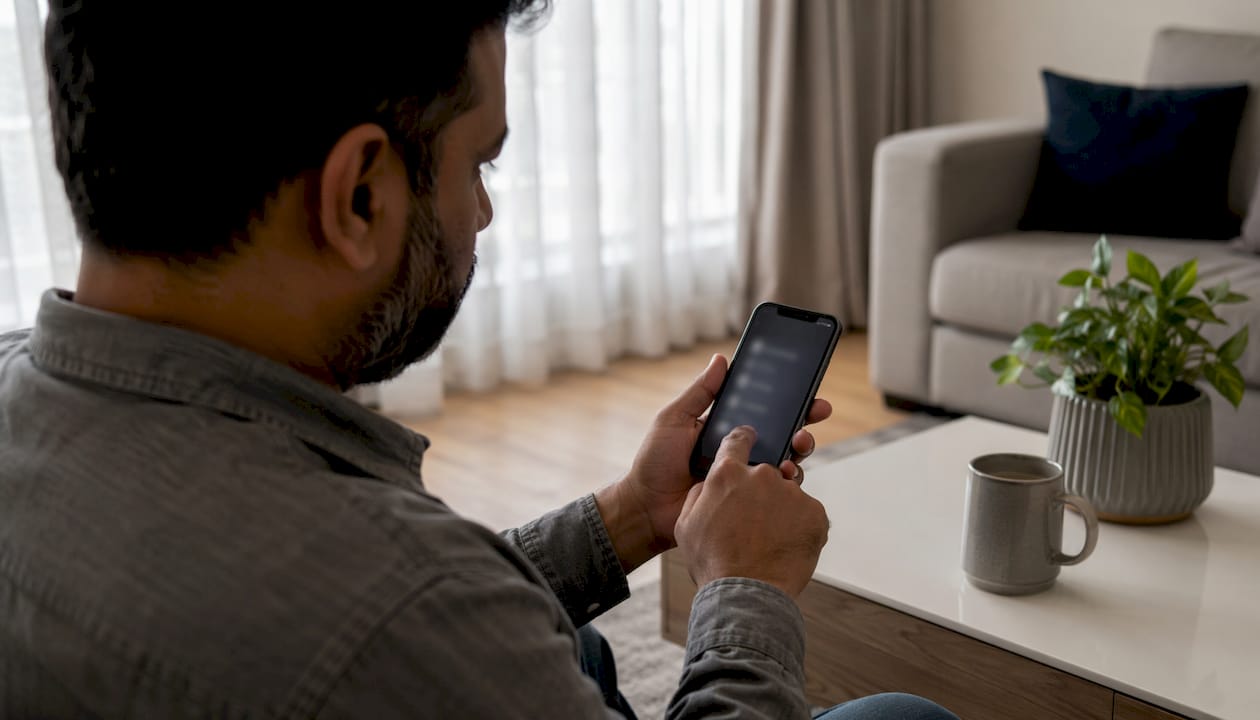
Setting up your iPhone for Emergency SOS
Getting the feature ready before you need it takes less than ten minutes and makes a real difference when seconds count.
Set up your Medical ID:
Open the Health app and tap your profile picture.
Tap Medical ID, then Edit.
Add your blood type, allergies, medications, and any conditions that responders need to know.
Toggle on Show When Locked so first responders can access your medical info from the lock screen without unlocking your phone.
Understanding what a Medical ID tag does for emergency care is worth reading if you want to go further with emergency health preparation. The SOS-ID guide on medical ID tags explains how physical and digital ID work together for responders.
Add emergency contacts:
In the Health app, go to Medical ID and tap Add Emergency Contact.
Choose someone you trust. They will receive a text with your location the moment an emergency call ends.
Add at least two contacts in case one is unreachable.
Configure your Emergency SOS settings:
Go to Settings, then Emergency SOS.
Enable Call with Hold and Release and, if you prefer, Call with 5 Presses.
Review these settings after any iOS update, as options can change between versions.
Try the Satellite Connection Demo:
Go to Settings, then Emergency SOS, then Try Demo.
The demo walks you through pointing your phone at a satellite without placing a real call.
Apple recommends practising this before heading into remote areas, because doing it for the first time under stress is significantly harder.
Pro Tip: Update your Medical ID every time your medications or conditions change. Outdated information can mislead a paramedic as easily as no information at all.
Does Emergency SOS via satellite work in the UK?
Satellite SOS is available in the UK on iPhone 14 and all later models, provided you are running iOS 16.1 or newer. The feature does not require a separate subscription; Apple includes it as part of the device on supported hardware.
What you need for it to work:
An iPhone 14 or later (any model, including Plus, Pro, and Pro Max variants)
iOS 16.1 or later installed
A clear, unobstructed view of the sky
Physical limitations to be aware of:
Trees, buildings, cliff faces, and even your own body can block the satellite signal. Moving a few metres into an open area often resolves a failed connection.
Messages take several seconds to transmit each way, so the exchange with a dispatcher is slower than a phone call.
Satellite SOS is designed for genuine emergencies in remote locations, not as a substitute for mobile coverage in towns or cities.
UK coverage:
Apple confirms satellite SOS coverage across the United Kingdom. For the most current coverage map, check Apple’s satellite SOS page directly, as coverage areas are updated as the service expands.
Environmental factors that reduce success:
Dense woodland canopy overhead
Steep valley sides or gorges that limit sky visibility
Heavy cloud cover can slow transmission but does not block it entirely
If you regularly walk, cycle, or camp in remote parts of Scotland, Wales, or the Lake District, the satellite feature is genuinely worth knowing about. An iPhone with a no service error in a remote area is not necessarily cut off from help.
What happens after you trigger Emergency SOS
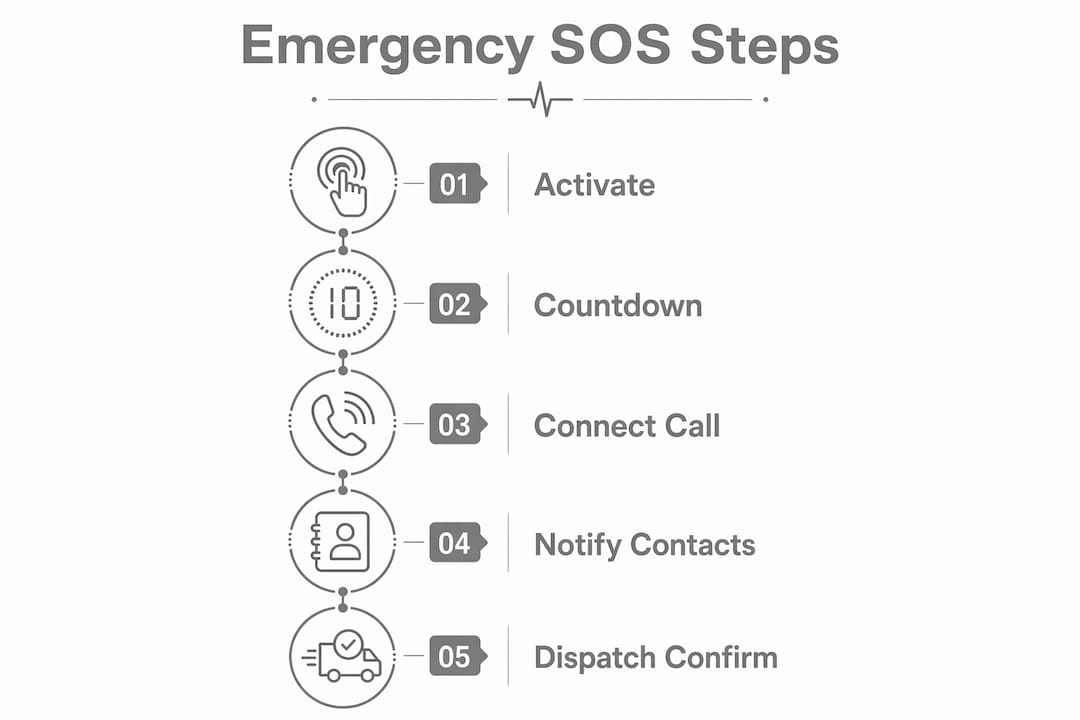
Once the countdown ends and the call connects, your iPhone takes several automatic steps that you should understand in advance.

The call itself:
Your iPhone dials 999 in the UK automatically. If your own network is unavailable, the phone attempts to route the call through any other available carrier network, displaying “SOS only” in the status bar. You do not need to do anything to trigger this; the phone handles it.
Alerts to your emergency contacts:
The moment the call ends, your iPhone sends a text message to every contact listed in your Medical ID emergency contacts. That text includes your current location. If you move afterwards, your contacts receive updated location messages for a period of time, so they can track where you are without needing to call you.
Changes to your phone’s behaviour:
After an emergency call, your iPhone temporarily disables Do Not Disturb, Silence Unknown Callers, and Screen Time call restrictions. This means a responder calling you back will get through even if your phone would normally block unknown numbers. On some networks using CDMA technology, your iPhone enters a brief emergency call mode after the call ends, during which data and texts are paused to keep the line clear for a callback.
Exiting emergency mode:
If your iPhone stays in emergency mode longer than expected, a simple restart clears it. This is particularly relevant after texting emergency services, where the phone can remain in a restricted state for a short period.
Satellite SOS follow-up:
When using satellite, the on-screen conversation continues until the dispatcher confirms help is on the way. Apple routes your messages through a relay centre staffed by trained operators who contact the appropriate emergency service on your behalf. Keep answering the prompts and stay in your position if it is safe to do so.
Key takeaways
iPhone Emergency SOS automatically calls emergency services, notifies your contacts with live location updates, and connects via satellite on iPhone 14 and later when no mobile signal is available.
Point | Details |
Activation methods | Hold side and volume buttons, press side button five times, or drag the on-screen slider. |
Satellite SOS eligibility | Requires iPhone 14 or later running iOS 16.1 or newer; available across the UK. |
Emergency contact alerts | Contacts receive a text with your location immediately after the call ends, plus updates as you move. |
Medical ID access | First responders can read your Medical ID from the lock screen without unlocking your phone. |
Post-call phone behaviour | Do Not Disturb and Silence Unknown Callers are temporarily disabled to allow callbacks from emergency services. |
Need your iPhone in top condition?
Emergency SOS only works as well as the device running it. A cracked screen, a faulty side button, or a battery that dies unexpectedly can all prevent the feature from working when you need it most. If your iPhone has any hardware issues, Rapidrepairsldn offers professional iPhone repair in London, covering screens, batteries, buttons, and more. Walk in or book online at Rapid Repairs London.

Recommended
Comments