
Why iPhone SIM card fails: causes and fixes

An iPhone SIM card failure occurs when your device cannot detect or communicate with the SIM card, resulting in lost calls, texts, and cellular data. This is the technical definition used by Apple Support guidelines, and it applies across all models from iPhone X through to the iPhone 17 Pro Max. The failure is not always caused by a broken SIM. Physical damage, software glitches, carrier restrictions, and internal hardware faults all trigger the same result. Understanding which category your problem falls into is the fastest route to fixing it. Rapidrepairsldn sees these faults regularly, and most cases follow a clear pattern once you know what to look for.
What are the common causes of iPhone SIM card failure?
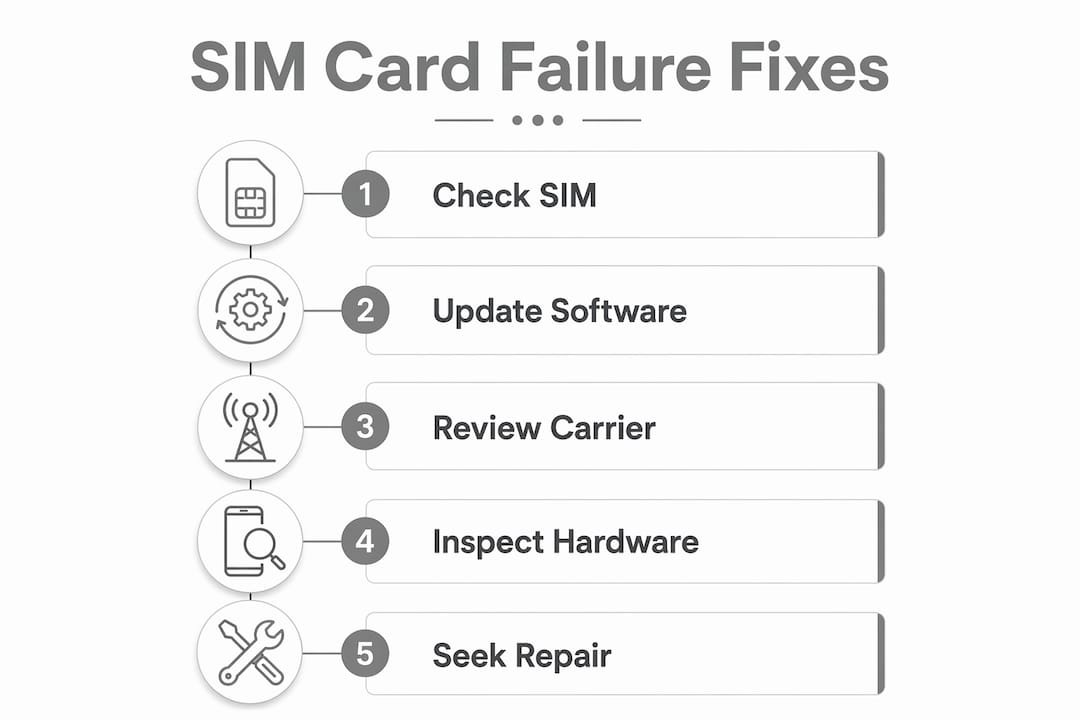
Four distinct categories cause the vast majority of iPhone SIM failures: physical SIM or tray issues, software and configuration errors, carrier restrictions, and internal hardware faults. Knowing which category applies to your situation saves time and prevents unnecessary expense.
Physical causes
Physical problems are the most common starting point. The SIM card itself may be cracked, oxidised, or sitting slightly out of alignment in the tray. Invisible oxidation or micro-shifts caused by drops cause SIM contact failures more often than obvious visible damage. Many users assume the SIM must look broken to be faulty. That assumption is wrong.

Punched-out SIM cards cut down from a larger size to Nano format are particularly prone to micro-cracks, which cause intermittent failures. Factory-cut SIM cards are far more reliable for iPhone use. If your SIM was trimmed by hand or at a market stall, that is a likely culprit.
Software and configuration errors
Software problems are the second most frequent cause of iphone sim errors. Outdated carrier settings, iOS bugs, and corrupted network configurations all prevent the iPhone from authenticating the SIM correctly. Carrier settings updates can silently fail, causing persistent SIM authentication errors that users never connect to a software issue. The fix is straightforward once you know where to look.
Carrier restrictions
A network lock or a deactivated plan will produce SIM errors that look identical to hardware faults. If you have recently switched networks, travelled abroad, or changed your tariff, carrier restrictions are worth checking before you do anything else.
Hardware failures
Internal hardware faults are the most serious category. The SIM card reader and the baseband modem are the two components responsible for SIM communication. When either fails, no software fix or SIM replacement will restore service. Drops can cause micro-fractures in the logic board or break microscopic SIM contacts even when the SIM itself looks completely undamaged.
Pro Tip: Clean your SIM card gently with a dry, lint-free cloth only. Avoid alcohol wipes, compressed air at close range, or any abrasive material. Excessive cleaning or rough handling worsens minor SIM contact issues rather than resolving them.
How to diagnose whether your SIM failure is software, hardware, or carrier related
Diagnosing the root cause before attempting fixes prevents wasted effort. Work through these steps in order.
Toggle Aeroplane mode. Turn Aeroplane mode on for 30 seconds, then off. This forces the iPhone to re-establish a network connection and clears minor software glitches.
Perform a hard restart. On iPhone 8 and later, press and release Volume Up, press and release Volume Down, then hold the Side button until the Apple logo appears. This resets active processes without deleting any data.
Inspect the SIM card and tray. Remove the SIM tray using the ejector tool. Check the SIM for visible cracks, discolouration, or bent contacts. Reseat it firmly and reinsert the tray flush with the phone body.
Check carrier settings. Go to Settings > General > About. If a carrier settings update is available, a prompt appears automatically. Install it. Manual checking here catches silent update failures that automatic processes miss.
Reset network settings. Go to Settings > General > Transfer or Reset iPhone > Reset > Reset Network Settings. This clears corrupted network configurations. Note that it also removes saved Wi-Fi passwords.
Test the SIM in another phone. Insert your SIM into a different handset. If it works there, the fault lies with your iPhone, not the SIM. If it fails there too, contact your carrier for a replacement SIM. Carrier replacement SIM costs typically range from £0 to £20 depending on your provider.
Check the Modem Firmware field. Go to Settings > General > About and scroll to Modem Firmware. If this field is blank, your iPhone has a baseband hardware failure. No software fix or SIM swap will resolve this. Professional repair is required.
Understanding the difference between error messages matters here. ‘Invalid SIM’ indicates a software carrier lock or provisioning mismatch. ‘No SIM’ indicates a physical or baseband communication failure. These are distinct problems requiring different solutions, so the error message itself is a useful diagnostic tool.
How to fix common iPhone SIM card issues at home
Most software and physical SIM problems respond to home fixes. Work through these steps before booking a repair.
Restart and toggle Aeroplane mode as described in the diagnostic steps above. This resolves a surprising number of temporary software faults.
Clean the SIM card. Use a dry, lint-free cloth to wipe the gold contacts on the SIM. Do not use liquids. Reinsert the SIM and test.
Reseat or replace the SIM tray. A bent or damaged tray prevents the SIM from making proper contact. Replacement trays are inexpensive and widely available. Ensure the tray sits completely flush when reinserted.
Update carrier settings. Navigate to Settings > General > About and check for a carrier update prompt. Installing this update resolves silent authentication failures that cause persistent SIM errors.
Delete and re-add your eSIM profile. If you use an eSIM rather than a physical SIM, go to Settings > Mobile Data > your eSIM plan > Delete eSIM. Then re-add it using your carrier’s QR code or app. This refreshes the provisioning data.
Contact your carrier for a SIM replacement. If testing your SIM in another phone confirms it is faulty, your carrier will issue a replacement. Most UK carriers provide this free of charge or for a small admin fee.
Pro Tip: When reinserting the SIM tray, never force it. If it does not slide in smoothly, the tray is misaligned. Forcing it bends the internal guides and creates a new fault on top of the original one.
For a broader look at common smartphone faults and how to handle them, the pattern of methodical testing before replacing parts applies across most phone issues.
When does iPhone SIM failure need professional repair?
Some SIM failures sit beyond what any home fix can address. Recognising these situations early saves time and prevents accidental damage from DIY attempts on hardware faults.
Signs that professional repair is necessary include:
Blank Modem Firmware field. As noted above, a blank entry in Settings > General > About confirms baseband failure. No software update, SIM replacement, or network reset will fix this.
Persistent ‘No SIM’ after all software steps. If you have completed every software fix and tested a known-working SIM with no improvement, the SIM reader or logic board is the likely fault.
Recent drop or impact. Drops cause micro-fractures in the logic board that are invisible externally but severe internally. If SIM errors began after a drop, assume hardware damage until proven otherwise.
Intermittent SIM detection. If your iPhone randomly loses and regains signal, this points to a loose or damaged SIM reader rather than a software issue.
Water exposure history. Moisture corrodes SIM contacts and baseband components over time. Errors appearing weeks after water exposure are a known pattern.
Professional diagnostics involve checking the baseband modem, inspecting SIM reader contacts under magnification, and testing logic board continuity. These are not tasks suited to home repair. Attempting to resolder or replace baseband components without specialist equipment causes irreversible damage. If your iPhone shows signs of hardware failure, a professional assessment is the correct next step.
Warranty and authorised repair options are worth checking first if your iPhone is under 12 months old or covered by AppleCare+. For out-of-warranty devices, independent repair specialists like Rapidrepairsldn offer diagnostics and component-level repairs at competitive rates.
Key takeaways
iPhone SIM card failure falls into four categories: physical damage, software errors, carrier restrictions, and hardware faults, each requiring a distinct fix.
Point | Details |
Two error messages, two problems | ‘No SIM’ signals a physical or hardware fault; ‘Invalid SIM’ signals a software or carrier issue. |
Check Modem Firmware first | A blank Modem Firmware field in Settings confirms baseband failure needing professional repair. |
Carrier settings fail silently | Always check Settings > General > About manually for carrier updates after SIM errors appear. |
Cut-down SIMs cause failures | Factory-cut Nano SIMs are more reliable; hand-trimmed SIMs develop micro-cracks over time. |
Professional repair has clear triggers | Persistent errors after all software fixes, or a recent drop, indicate hardware damage beyond DIY. |
What I have learned from years of iPhone SIM repairs
The most common mistake I see is users replacing the SIM card when the real fault is a software configuration error. A new SIM costs money and time, and it fixes nothing if the carrier settings are corrupted or the network settings need a reset. The methodical approach, working through software fixes before touching hardware, resolves the majority of cases without any parts at all.
The second mistake is assuming a drop has to be severe to cause internal damage. I have seen iPhones with barely a scratch on the casing that had significant micro-fractures on the logic board. The physics of a hard floor impact concentrates force on internal solder joints, not the outer shell. If SIM errors started after any kind of drop, treat it as a hardware case from the outset.
Carrier settings updates are the most overlooked fix in the entire troubleshooting process. Most users have never manually checked for them. These updates handle the authentication handshake between your iPhone and the network. When they fail silently, the phone looks broken when it is actually just misconfigured. Checking Settings > General > About takes ten seconds and fixes a meaningful proportion of persistent SIM errors.
My honest advice: be patient and methodical. Work through every software step before concluding it is a hardware fault. But when the Modem Firmware field is blank, stop there. That is a clear signal, and no amount of restarting will change it.
— Joshua
Rapidrepairsldn: iPhone SIM repair you can rely on
If you have worked through every software fix and your iPhone still will not read the SIM, the fault is almost certainly hardware. Rapidrepairsldn specialises in exactly this kind of repair, from SIM reader replacements to baseband and logic board diagnostics.

Rapidrepairsldn’s technicians carry out component-level iPhone repairs with fast turnaround times and warranty-backed results. Booking is straightforward, and you will receive a clear diagnosis before any work begins. Visit the iPhone repair page to see the full range of services and get your phone back working properly.
FAQ
What does ‘No SIM’ mean on an iPhone?
‘No SIM’ indicates a physical or baseband communication failure, meaning the iPhone cannot detect the SIM card at all. This is distinct from ‘Invalid SIM’, which points to a software or carrier issue.
Can a software update fix iPhone SIM card issues?
Yes, in many cases. Carrier settings updates resolve silent authentication failures, and resetting network settings clears corrupted configurations that cause persistent SIM errors.
How do I know if my iPhone has a baseband hardware failure?
Go to Settings > General > About and check the Modem Firmware field. A blank Modem Firmware entry confirms baseband failure, which requires professional repair and cannot be resolved by software.
Why does my iPhone lose SIM signal after a drop?
Drops cause micro-fractures in the logic board or damage microscopic SIM contacts internally, even when the phone looks undamaged externally. If SIM errors began after a drop, assume hardware damage and seek a professional diagnostic.
Is it safe to cut a SIM card down to Nano size for an iPhone?
Hand-trimmed SIM cards are prone to micro-cracks that cause intermittent SIM failures. Factory-cut Nano SIMs are significantly more reliable and are the recommended option for iPhone use.
Recommended
Comments