
iPhone back camera black screen fix: 2026 guide
- Jul 7
- 9 min read

A black screen on your iPhone back camera is defined as a camera app failure where the viewfinder displays no image despite the camera hardware being physically intact. The good news is that nearly 90% of cases resolve through non-hardware steps such as force-quitting the app, restarting the device, removing obstructions, or correcting permissions. That figure means the vast majority of users reading this guide can fix the problem at home, without spending a penny on repairs. The causes fall into three categories: software glitches, physical obstructions, and permission blocks. Work through each category in order, and you will almost certainly restore your camera before reaching the final step.
How to fix the iPhone back camera black screen: basic steps first
The fastest iphone back camera black screen fix starts with the simplest actions. Force quitting the Camera app clears its memory and forces a clean restart, which resolves most glitches in seconds. Swipe up from the bottom of the screen (or double-press the Home button on older models) to open the app switcher, then swipe the Camera app card upwards to close it. Reopen the Camera app and check whether the viewfinder is working.
If force-quitting alone does not help, work through these steps in order:
Force restart your iPhone. On iPhone 8 and later, press and quickly release Volume Up, press and quickly release Volume Down, then press and hold the Side button until the Apple logo appears. On iPhone 7, hold Volume Down and Sleep/Wake together. On iPhone 6s and earlier, hold Home and Sleep/Wake together. A force restart clears system RAM and restarts all processes without deleting your data.
Remove your case and any accessories. Cases with incorrect cutouts and magnetic accessories frequently block camera sensors. Take the case off completely before testing.
Remove lens protectors. Tempered glass or film protectors that do not align precisely with the lens can cause a partial or full black screen.
Check camera permissions. Go to Settings, scroll to Privacy and Security, tap Camera, and confirm the Camera app has permission enabled.
Switch between front and rear cameras. Tap the flip icon inside the Camera app to toggle lenses. If the front camera works but the rear does not, the fault is isolated to the back camera system.
Switch camera modes. Try Photo, Video, and Portrait modes in turn. A black screen in one mode but not others points to a mode-specific software bug.
Pro Tip: Toggling between the ultra-wide and main lens on multi-camera iPhones can trigger a hardware reinitialisation of the camera system without rebooting. Open the Camera app, tap the 0.5x lens selector, wait two seconds, then tap 1x. This sometimes jolts a stuck camera daemon back into life.
These steps address the most common causes of a camera app black screen and take under five minutes to complete.

What software issues cause a black screen on the iPhone camera?
The iPhone camera runs as a background service called a daemon. When this daemon crashes or freezes, the Camera app opens but the viewfinder shows nothing. Major iOS updates can corrupt temporary configuration files for camera drivers, which means the daemon fails to load correctly after an update. A force restart reloads the hardware abstraction layer and clears the fault.
Follow this numbered sequence to address software causes:
Force restart the iPhone (see steps above). A force restart resolves approximately 60% of post-update camera black screens by clearing the stuck daemon from RAM. That makes it the single most effective first action after an iOS update.
Check available storage. Go to Settings, General, then iPhone Storage. If storage is below 1GB, the camera cannot write temporary files and may display a black screen. Delete unused apps or photos to free space.
Close background apps. Open the app switcher and close all running apps. Some third-party apps hold onto camera hardware access, blocking the Camera app from initialising the sensor.
Disable VoiceOver. The VoiceOver accessibility feature is a frequent, non-obvious cause of the black screen bug. It interferes with the camera viewfinder display in a way that mimics hardware failure. Go to Settings, Accessibility, VoiceOver, and toggle it off.
Update iOS. Go to Settings, General, Software Update. Apple regularly patches known camera bugs in point releases. Installing the latest version often resolves persistent black screen problems.
Test in a third-party camera app. Testing the camera in a third-party app isolates whether the fault is specific to the native Camera app or system-wide. If a third-party app shows a live image, the issue is software-level within the native app. If it also shows a black screen, the fault is deeper.
Pro Tip: Distinguishing between a true black screen and a frozen frame matters. A frozen frame means the last captured image is stuck on screen, which points to a locked-up software process. A completely black screen usually indicates the camera service has crashed entirely. The fix for both starts with a force restart, but knowing the difference helps you diagnose faster.
Understanding why your iPhone freezes randomly can also shed light on related daemon crashes that affect the camera.
Is the black screen caused by a physical obstruction or hardware fault?
Physical causes of an iPhone rear camera black screen are less common than software causes, but they are easy to check. Removing cases or magnetic accessories is the first physical step, as they frequently obstruct camera sensors. This is especially true of wallet cases with magnetic clasps and third-party MagSafe accessories that sit over the camera module.
Check for these physical causes before assuming hardware failure:
Dirty or smudged lens. Use a dry microfibre cloth to gently wipe the rear lens. Fingerprint grease or dust can scatter light enough to produce a near-black image.
Moisture condensation. If you have moved from a cold to a warm environment, condensation can form inside the lens. Leave the phone in a dry room for 20–30 minutes before testing again.
Misaligned lens protector. Remove any glass or film protector entirely and retest.
Incorrect case cutout. Some budget cases have cutouts that are slightly too small, partially covering the lens or the LiDAR sensor on Pro models.
Pro Tip: On iPhones with multiple rear lenses, test each lens individually by tapping the 0.5x, 1x, and 2x selectors in the Camera app. If one lens shows a live image and another shows black, the fault is lens-specific. That narrows the diagnosis considerably and helps a repair technician identify the exact component at fault.
Recognising the difference between a software glitch and a hardware fault saves time and money. Users often confuse camera black screens with hardware damage, but most cases stem from software failures. Physical damage from drops or water ingress is a different matter. If your iPhone has been dropped recently, has a cracked rear glass, or has been exposed to water, the black screen may indicate a displaced or damaged camera module. In that case, professional diagnosis is the right next step. You can read more about signs your iPhone needs repair to help you decide.
Advanced fixes: resetting settings and restoring your iPhone
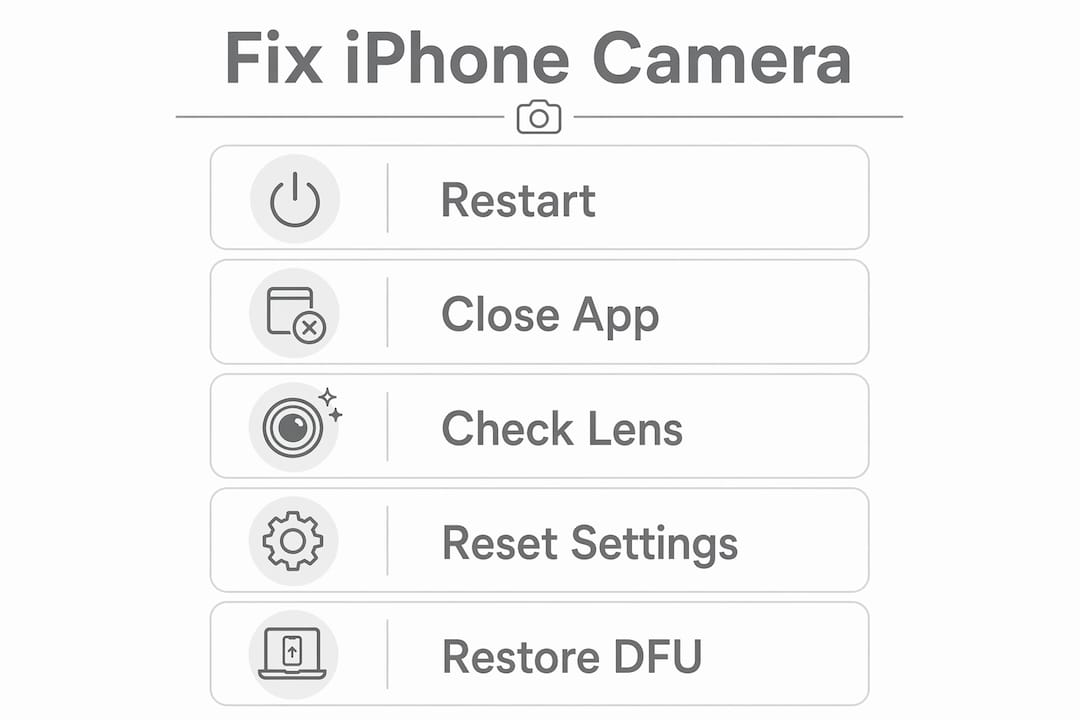
When basic and software fixes fail, deeper resets can resolve persistent iphone camera troubleshooting problems. The table below compares the main reset methods by risk level and typical use case.
Reset method | What it does | Data loss? | Best used when |
Reset All Settings | Clears system preferences, Wi-Fi passwords, and display settings | No | Camera fails after an update or settings change |
Erase All Content and Settings | Full factory reset | Yes | All other fixes have failed |
DFU restore | Reinstalls firmware and iOS from scratch | Yes | Suspected deep software or firmware corruption |
Reset All Settings clears corrupted configuration without deleting your photos, apps, or messages. Go to Settings, General, Transfer or Reset iPhone, then Reset, and tap Reset All Settings. The phone restarts with default system preferences. This often resolves camera software issues that appeared after an iOS update.
A full erase and DFU restore are more drastic. DFU mode restores firmware and the operating system from scratch, giving you the cleanest possible software state. After a DFU restore, set up the iPhone as a new device rather than restoring from a backup. If the camera works on a fresh setup, the fault was software-based. If the camera works after DFU but fails again after restoring from backup, corrupted backup data is the cause, not the hardware. In that case, set up as new and transfer only your photos and contacts manually.
Pro Tip: Back up to iCloud or your computer before any reset. If you restore from a backup and the black screen returns, you now know the backup itself contains the corrupted data. Set up as new, confirm the camera works, then selectively restore data rather than doing a full backup restore.
If the camera remains black after a DFU restore on a fresh setup, the fault is hardware. Contact Apple Support or a professional repair service at that point.
Common mistakes to avoid when fixing iPhone camera issues
Rushing through fixes without a clear sequence wastes time and can make diagnosis harder. The most common mistake is assuming hardware failure before completing all software steps. Most black screen cases stem from software failures that do not require repair, so patience with the software sequence pays off.
Avoid these pitfalls:
Reinstalling the Camera app repeatedly. The Camera app is a system app and cannot be reinstalled in the traditional sense. Deleting and re-adding it from the App Store does not replace system-level camera services.
Ignoring storage warnings. A full or nearly full iPhone cannot process camera data. Check storage before assuming a deeper fault.
Skipping the VoiceOver check. VoiceOver is a non-obvious cause that many guides overlook. Toggle it off and on once to reset the camera UI overlay.
Testing only in the native Camera app. Always test in a third-party camera app to confirm whether the fault is app-specific or system-wide.
Restoring from backup without testing on a fresh setup first. This reintroduces corrupted data and makes it impossible to confirm whether the hardware is sound.
Pro Tip: Use the iPhone’s built-in Torch (flashlight) as a quick hardware test. If the torch works normally, the LED and camera module are receiving power. A working torch alongside a black camera screen strongly suggests a software fault rather than a hardware one.
Key takeaways
A black screen on the iPhone back camera is a software fault in the vast majority of cases, and working through a methodical sequence of fixes resolves it without professional repair.
Point | Details |
Software causes dominate | Nearly 90% of black screen cases resolve through non-hardware steps like force-quitting or restarting. |
Force restart is the priority fix | A force restart clears the camera daemon from RAM and resolves around 60% of post-update black screens. |
VoiceOver is a hidden cause | Disabling VoiceOver in Accessibility settings resolves black screens that mimic hardware failure. |
Reset All Settings before a full restore | Resetting settings clears corrupted preferences without data loss, making it a safer first advanced step. |
DFU restore reveals hardware faults | If the camera works after DFU on a fresh setup but fails after a backup restore, the backup is corrupted, not the hardware. |
What I have learned from diagnosing iPhone camera black screens
The software-first rule saves most people from unnecessary repairs
After years of working with iPhones at Rapidrepairsldn, the pattern is consistent: the first instinct when the camera goes black is to assume the worst. People come in convinced they need a new camera module, and nine times out of ten, a force restart or a VoiceOver toggle fixes it on the spot. The relief is genuine, and so is the frustration that no one told them to try that first.
The methodical approach matters more than any single fix. Skipping steps because they seem too simple is the most common mistake. I have seen DFU restores performed by users who had never tried resetting their settings, which is like replacing an engine because the car would not start with an empty fuel tank. Work through the sequence. Do not skip ahead.
The one situation where I tell people to stop self-troubleshooting is after a confirmed drop or water exposure. Physical damage to the camera module does not respond to software fixes, and repeated resets on a damaged device can occasionally complicate the repair. If your phone has taken a hard knock and the camera is black, bring it in for a proper diagnosis rather than cycling through resets. Knowing when to stop is as valuable as knowing where to start. You can learn more about what causes iPhone black screen issues to build a clearer picture before you decide.
— Joshua
When Rapidrepairsldn can help with your iPhone camera
When self-troubleshooting reaches its limit, Rapidrepairsldn offers professional iPhone camera diagnosis and repair at our London workshop.

Our technicians run a full diagnostic on your rear camera system to pinpoint whether the fault is a software configuration issue, a loose ribbon cable, or a damaged camera module. We use quality parts and handle your data with care throughout the process. Most camera repairs are completed the same day. If you have worked through every step in this guide and the back camera is still showing a black screen, book an iPhone repair with Rapidrepairsldn and we will get it sorted quickly and reliably.
FAQ
Why is my iPhone back camera showing a black screen?
The most common cause is a crashed camera daemon, which is a background software process. Force-quitting the Camera app and performing a force restart resolves the issue in the majority of cases.
Does a black screen mean my iPhone camera is broken?
Not usually. Nearly 90% of black screen cases resolve through software fixes or by removing physical obstructions, with no hardware repair needed.
Can VoiceOver cause a camera black screen?
Yes. The VoiceOver accessibility feature interferes with the camera viewfinder and produces a black screen that looks identical to a hardware fault. Disabling it in Settings under Accessibility fixes the issue immediately.
Will resetting all settings delete my photos?
No. Reset All Settings clears system preferences such as Wi-Fi passwords and display settings, but it does not delete photos, apps, or personal data.
When should I seek professional iPhone back camera repair?
Seek professional repair if the camera remains black after a DFU restore on a fresh device setup, or if the phone has suffered a drop or water damage. Those scenarios indicate a hardware fault that software fixes cannot address.
Recommended
Comments