
What does iPhone restore mean? A clear guide
- 2 days ago
- 7 min read

An iPhone restore is defined as the process of wiping your device’s software and data to return it to a clean or previous state. The term covers three distinct operations: a factory restore, a restore from backup, and a Recovery Mode restore. Each one has a different effect on your data, and confusing them is one of the most common reasons people accidentally lose everything on their phone. Knowing which type you need, and when to use it, is the difference between solving your problem and creating a bigger one.
What does iPhone restore mean and what are the different types?
A restore is not a single action. It is a category of three separate processes, each with a different outcome for your data and your device.
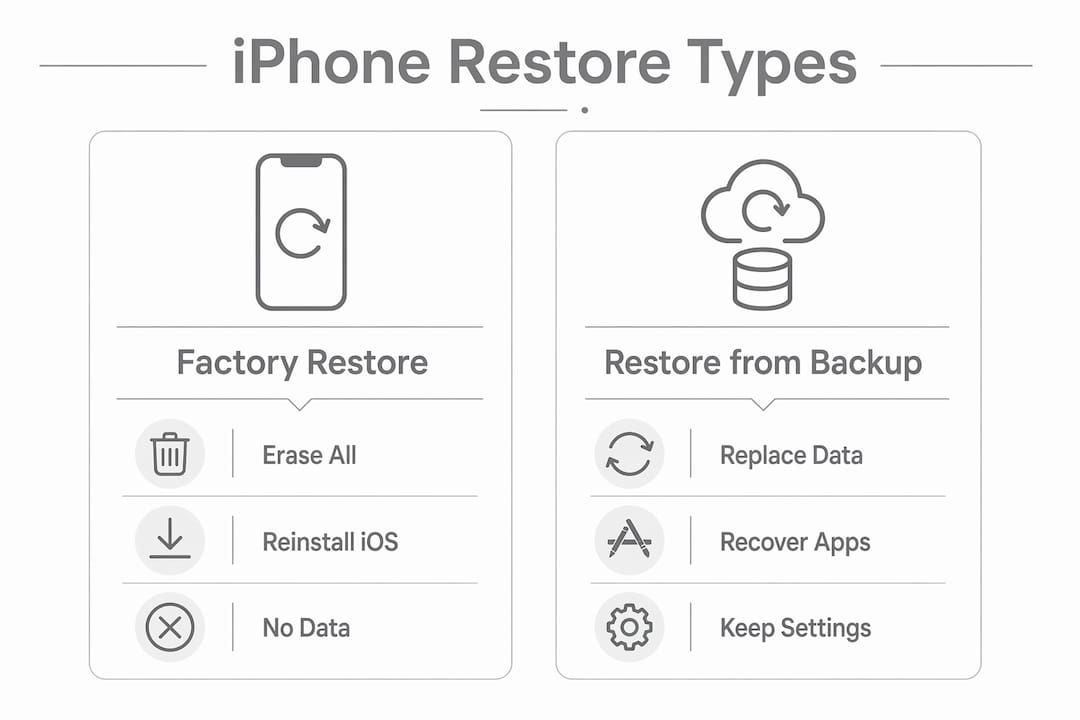
Factory Restore is the most drastic option. It erases all data and settings and reinstalls the latest version of iOS, returning your iPhone to the state it was in when it left the factory. Every photo, app, message, and account is permanently removed. This is the process most people picture when they hear the phrase “iPhone factory reset,” and the two terms describe the same outcome.

Restore from Backup works differently. Instead of wiping your phone and leaving it empty, it replaces your current data with a previously saved copy from iCloud or a computer backup. The catch is that you cannot apply a backup to a configured iPhone directly. iOS requires you to erase the device first, then migrate the backup data during the setup process.
Recovery Mode Restore is used when your iPhone will not turn on or is stuck in a boot loop. It forces the device into a state where iOS can communicate with a computer even when the main operating system will not load. From there, you can reinstall iOS, which typically erases the device unless you follow up with a restore from backup.
Restore type | What it does | Data outcome |
Factory Restore | Erases everything, reinstalls iOS | All data permanently deleted |
Restore from Backup | Replaces data with saved backup copy | Data recovered if backup exists |
Recovery Mode Restore | Reinstalls iOS on unresponsive device | Data erased; backup recovery possible after |
Pro Tip: Before any restore, open Settings, tap your name, then iCloud, and check that your last backup completed successfully. A backup from six months ago will not save your recent photos.
When and why should you restore your iPhone?
A restore is a last resort, not a first response. The correct troubleshooting order matters because each step is more disruptive than the last.
The recommended hierarchy runs as follows:
Restart your iPhone first. A standard restart clears temporary memory and resolves minor glitches.
Forced restart is the next step. This is done by pressing specific button combinations depending on your model, and it works on phones that are frozen or unresponsive to a normal restart.
Soft reset covers resetting individual settings, such as network settings or keyboard dictionary, without erasing personal data.
Factory restore is the final step, used only when the above options have failed.
There are specific situations where a restore is clearly the right call. A factory restore is the most reliable fix for deep software corruption, persistent crashes, or configuration conflicts that have built up over years of use. Recovery Mode restore is the correct tool when your iPhone will not boot at all, displays a connect-to-computer screen, or is stuck on the Apple logo. You should also perform a factory restore before selling or gifting your device, as it removes all your personal data and accounts.
Pro Tip: If your iPhone shows a black screen and will not respond to a forced restart, check Rapidrepairsldn’s guide on iPhone black screen causes before attempting a full restore. Some black screen issues have simpler fixes.
How does the iPhone restore process work?
The method you use depends on whether your iPhone is responsive and which type of restore you need.
Restoring via Finder or iTunes
Connect your iPhone to a Mac or PC using a USB cable.
Open Finder (on macOS Catalina or later) or iTunes (on Windows or older macOS).
Select your iPhone when it appears in the sidebar.
Choose “Restore iPhone” for a full factory restore, or “Restore Backup” to apply a saved backup.
Confirm your choice and wait for the process to complete. Do not disconnect the cable.
For Recovery Mode, hold the correct button combination for your model while connecting to the computer. Your iPhone will display a connect-to-computer screen. Finder or iTunes will detect it and offer options to update or restore.
Using the wireless restore feature
From march 2026, newer iPhone models support a wireless restore option for devices in Recovery Mode. This requires a nearby unlocked iPhone or iPad running iOS 18 or later. The process displays a six-digit code on screen for authorisation, removing the need for a USB cable in many situations. This is a genuine convenience improvement, but it requires compatible hardware on both devices.
What to expect during the process
The restore downloads and installs a fresh copy of iOS. This can take anywhere from several minutes to over half an hour depending on your internet connection. One point that catches many people off guard: if the iOS download takes longer than 15 minutes, your device may temporarily exit the Recovery Mode screen. This is normal behaviour. The download continues in the background, and you simply need to re-enter Recovery Mode to complete the installation.
Pro Tip: Keep your iPhone plugged into power and connected to Wi-Fi throughout the entire restore. A disconnection mid-process can leave your device in an unusable state.
What happens to your data when you restore an iPhone?
The data outcome depends entirely on which restore method you use and whether a verified backup exists.
A factory restore permanently deletes every app, photo, message, and account on your device. iOS wipes the encryption keys during this process, which means the data is not just deleted but made unrecoverable. Without a recent backup, there is no way to retrieve it. If you have ever wondered whether a specialist could recover data after a factory reset, the answer is almost always no. Rapidrepairsldn’s guide on phone data recovery services explains exactly why encryption key deletion makes recovery so difficult.
A restore from backup is a controlled recovery. It brings back your apps, photos, messages, and most settings from the saved copy. However, not everything returns instantly. iCloud syncing can take time to restore large photo libraries and app data. Certain items, including Apple Wallet passes, passwords, and eSIM settings, are retained or synced separately and are generally preserved through the process.
Key points to keep in mind:
A backup must exist and be verified before you start a factory restore.
iCloud backups and computer backups both work, but check the date of the last successful backup first.
If your iPhone won’t back up, resolve that issue before attempting any restore.
Data not included in a backup, such as data from apps that do not support iCloud sync, will not be recovered.
Key takeaways
An iPhone restore is not one action but three distinct processes, and choosing the wrong one without a verified backup causes permanent data loss.
Point | Details |
Three restore types exist | Factory Restore, Restore from Backup, and Recovery Mode Restore each have different outcomes. |
Factory restore deletes everything | All data is permanently removed; encryption keys are wiped and recovery is not possible. |
Backup must come first | Verify your backup date in iCloud settings before starting any factory restore. |
Recovery Mode is for unresponsive devices | Use it when your iPhone will not boot; follow up with a backup restore to recover data. |
Restore is a last resort | Always try a restart and forced restart before moving to a full factory restore. |
Joshua’s take: the restore mistake most people make
The single most common mistake I see is people treating “restore” as one thing. They hear the word, assume it means getting their phone back to normal, and press confirm without a backup in place. Then they ring us at Rapidrepairsldn wondering where their photos went.
The word “restore” is genuinely misleading. In everyday English, it sounds like recovery. In Apple’s world, it can mean the exact opposite: a complete wipe. That gap between expectation and reality is where data loss happens.
My honest advice is this: before you touch any restore option, spend two minutes in your iCloud settings confirming your last backup completed and is recent. If the backup is weeks old, back up now before you do anything else. A restore from a current backup is a safe, controlled process. A factory restore with no backup is permanent.
The other thing worth knowing is that Recovery Mode is far less frightening than it sounds. If your iPhone is stuck and will not respond, Recovery Mode is simply the tool that lets your computer talk to it. It does not automatically destroy your data. The restore that follows it might, which is why the backup step matters so much.
If you have already attempted a restore and something has gone wrong, do not keep trying. Each failed attempt can complicate recovery. Bring the device in and let a professional assess it before the situation gets worse.
— Joshua
When a restore goes wrong, Rapidrepairsldn can help
Restore errors, stuck devices, and failed Recovery Mode attempts are some of the most common issues the team at Rapidrepairsldn handles. Whether your iPhone is frozen mid-restore, showing an unknown error code, or simply will not respond after a factory reset, professional diagnosis is faster and safer than repeated attempts at home.

Rapidrepairsldn specialises in iPhone software and hardware troubleshooting, including restore-related faults that cannot be resolved through standard methods. If your device is stuck or you have lost data during a restore, visit the iPhone repair service page to book an assessment. The team works with all iPhone models and can advise on data recovery options where they exist.
FAQ
What does restoring an iPhone actually do?
Restoring an iPhone either wipes the device and reinstalls iOS (factory restore) or replaces current data with a saved backup copy (restore from backup). The outcome depends entirely on which restore type you choose.
Does restoring an iPhone delete everything?
A factory restore deletes all apps, photos, messages, and settings permanently. A restore from backup recovers data from a previously saved copy, provided that backup exists and is up to date.
What is the difference between reset and restore on an iPhone?
A reset adjusts specific settings, such as network or keyboard settings, without removing personal data. A restore is more drastic and involves reinstalling iOS, with or without recovering data from a backup.
Can I restore my iPhone without losing data?
Yes, if you restore from a verified backup. The process erases the device first, then migrates your data from the backup during setup. Without a backup, data loss is permanent and unrecoverable.
What is Recovery Mode and when do I need it?
Recovery Mode allows a computer to communicate with an iPhone that will not boot normally. Use it when your device is stuck on the Apple logo, shows a connect-to-computer screen, or will not respond to a forced restart.
Recommended
Comments