
What "Samsung moisture detected" means and how to fix it fast
- 9 minutes ago
- 10 min read
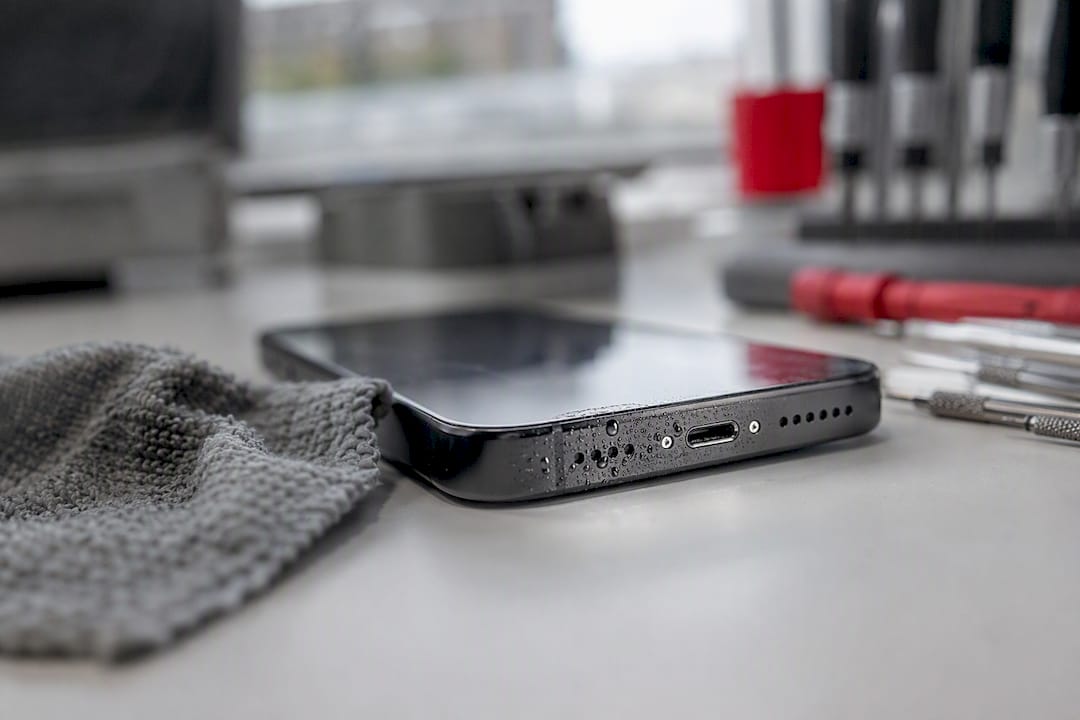
“Moisture detected” is Samsung’s way of blocking wired charging to stop your phone short-circuiting or corroding from the inside out. It is not a fault warning, it is a safety lock, and forcing a charge past it is the one thing you should never do.
Here’s what to do right now:
Unplug the cable and power the phone off or at least disconnect it from any charger.
Wipe the phone dry with a soft cloth, then hold it with the port facing down and give it a few gentle shakes.
Use a fan or a well-ventilated spot rather than heat. Most water clears the port within 1 to 2 hours under normal conditions.
If you’ve waited that out and the warning is still there, try a different cable, clear the USB cache, or plug into a wireless charger instead. Do not keep forcing a wired connection. If it stays wet or the warning won’t clear, that’s your cue to slow down and troubleshoot properly rather than keep plugging and unplugging the same cable.
Key Takeaways
The Samsung moisture detected warning blocks wired charging to prevent short circuits, and drying the port for 1 to 2 hours resolves most cases before any software fix is needed.
Point | Details |
Dry before anything else | Unplug, power off, wipe dry, and wait 1 to 2 hours with the port facing down near airflow. |
Rule out the cable | Swap to a different cable and charger before assuming the port itself is the problem. |
Clear the USBSettings cache | Settings → Apps → Show system apps → USBSettings → Storage → Clear cache fixes many stuck warnings. |
Debris mimics moisture | Lint and conductive residue can trigger the same warning as liquid, and often just needs careful cleaning. |
Know when to stop DIY | Visible corrosion or exposure to salt water or sugary drinks calls for Rapid Repairs’ diagnostic and board-level repair service. |
Table of Contents
What causes the Samsung moisture detected issue?
Your phone’s USB-C port has sensor pins that measure electrical resistance between contacts. When something conductive bridges those pins, whether that’s water, sweat, or even lint with the right composition, the system reads it as moisture and cuts wired charging until the resistance reading looks normal again. Samsung is upfront that this is deliberate: it would rather block a charge for an hour than risk a short circuit that damages the board underneath.
That’s the bit most people don’t realise: the sensor isn’t detecting “water” specifically, it’s detecting conductivity. That distinction explains most of the confusing cases you’ll read about online.
Humidity and steam can trigger it without a single drop touching the port. Cooking, a steamy bathroom, or even a muggy commute can be enough.
A damp or damaged cable can carry a false signal straight into the port, especially if the cable itself has been left in a bag with a water bottle or spilled drink.
Lint and pocket debris can act as a conductive bridge in exactly the same way liquid does, which is why plenty of dry phones still throw the warning.
Salt water and sugary spills are the trickiest cause, because they leave a residue behind that keeps conducting electricity long after the liquid itself has evaporated.
That last point matters more than most guides admit. If your phone went swimming in the sea or took a hit of fizzy drink, drying it is only half the job. The Samsung Malaysia support team specifically recommends rinsing the port with clean water before you dry it, because otherwise the salt or sugar residue will keep tripping the sensor indefinitely.
How do you dry a phone with moisture in the charging port?
Drying it out properly takes minutes of effort and up to two hours of patience. Here’s the order that actually works, based on the sequence Samsung itself recommends and the fixes technicians see succeed most often:
Unplug everything. Remove the cable, power the phone off if you can, and take off any case that might be trapping moisture against the port.
Dry the exterior first. A soft, lint-free cloth on the body and screen stops you dripping more water into the port while you work.
Tilt and shake gently. Hold the phone with the port facing downward and give it 5 to 10 gentle shakes. This alone dislodges surprisingly stubborn droplets.
Set it in front of a fan, or somewhere with decent airflow, port-side down if possible. Room temperature air does the job; you don’t need anything more elaborate.
Wait it out. Give it the full 1 to 2 hours before you test charging again. Checking every ten minutes just means opening the port up to more airflow disruption and doesn’t speed anything up.
If it was salt water or a sugary drink, briefly rinse the port under a light stream of clean tap water before you start the drying process. That washes out the conductive residue that plain evaporation won’t remove.
Pro Tip: Resist the urge to plug the phone into a charger “just to check” every few minutes. Each attempt risks the exact short circuit the warning exists to prevent, and it tells you nothing you don’t already know: it’s still drying.
What you should never do is put the phone in rice, blast it with a hairdryer, or leave it on a radiator. Rice is porous and can leave dust in the port; direct heat can warp seals and damage the battery. Neither speeds up evaporation in any meaningful way, and both introduce new risks. If you’ve handled water exposure before, our guide on what to do when your phone gets wet covers the wider damage-control checklist beyond just the charging port.
Why won’t the moisture detected warning go away after drying?
If the port is genuinely dry and the warning persists, you’re no longer dealing with moisture, you’re dealing with a stuck sensor reading or a cache glitch. This is the most common reason people search for “moisture detected won’t go away,” and it’s usually a five-minute fix.
Start with the cable and charger. Swap in a different USB-C cable and, if you have one, a different charging brick. A frayed or slightly damp cable is one of the more common false triggers, and it’s the fastest thing to rule out.
Clear the USBSettings cache. This is Samsung’s own recommended fix when the icon lingers despite a dry port:
Open Settings and go to Apps.
Tap the sort or filter icon and select Show system apps.
Scroll down and find USBSettings.
Tap Storage, then tap Clear cache.
Restart the phone and try charging again.
Disable fast charging temporarily. Go to Settings → Battery → Charging, and turn off fast or super-fast charging. Some phones handle the higher current poorly when there’s any residual moisture reading, even a false one, and dropping to standard charging speed can let the connection through.
Try the boot-with-charger trick. Power the phone off completely, plug it into a charger or PC, and boot it back up while it’s connected. This forces the USB controller to reinitialise from scratch rather than carrying over whatever state triggered the warning. Android Police documents this as one of the more reliable community fixes precisely because it resets the connection rather than repeating the same failed handshake.
Check for a One UI update. Occasionally the moisture sensor’s software logic itself has a known bug that Samsung patches. If your phone hasn’t updated in a while, check Settings → Software update before you go further down the troubleshooting list.
Run through these in order rather than jumping straight to the last one. Most people find the fix somewhere in the first three steps, and combining a cable swap with a cache clear resolves the majority of cases that survive the initial drying period.
Can debris in the port cause a false moisture alert?
Yes, and it’s more common than most people expect. Repair technicians report that lint pulled from pockets and bags frequently acts as a conductive bridge in exactly the way water does, triggering the same warning with no liquid anywhere near the device.
Here’s what’s safe to try at home:
A soft plastic pick designed for electronics, never metal, works well for teasing out visible fluff without scratching the contacts.
A dry, soft-bristled toothbrush can sweep loose debris away from the opening.
Canned air used briefly and at a distance can dislodge stubborn particles, though it’s worth using sparingly since a strong blast can push debris deeper rather than out.
Dedicated port-cleaning kits with silicone or nylon tips are the safest bet if you plan on doing this more than once.
Power the phone off first, and use a bright torch or your phone’s own flashlight from another device to actually see what’s in there before you start poking. Go slowly and stop the moment you meet resistance.
Pro Tip: If you can see corrosion, a greenish or white crusty residue rather than plain lint, stop immediately. That’s a sign a liquid has already reacted with the metal contacts, and further poking can push the damage deeper into the connector.
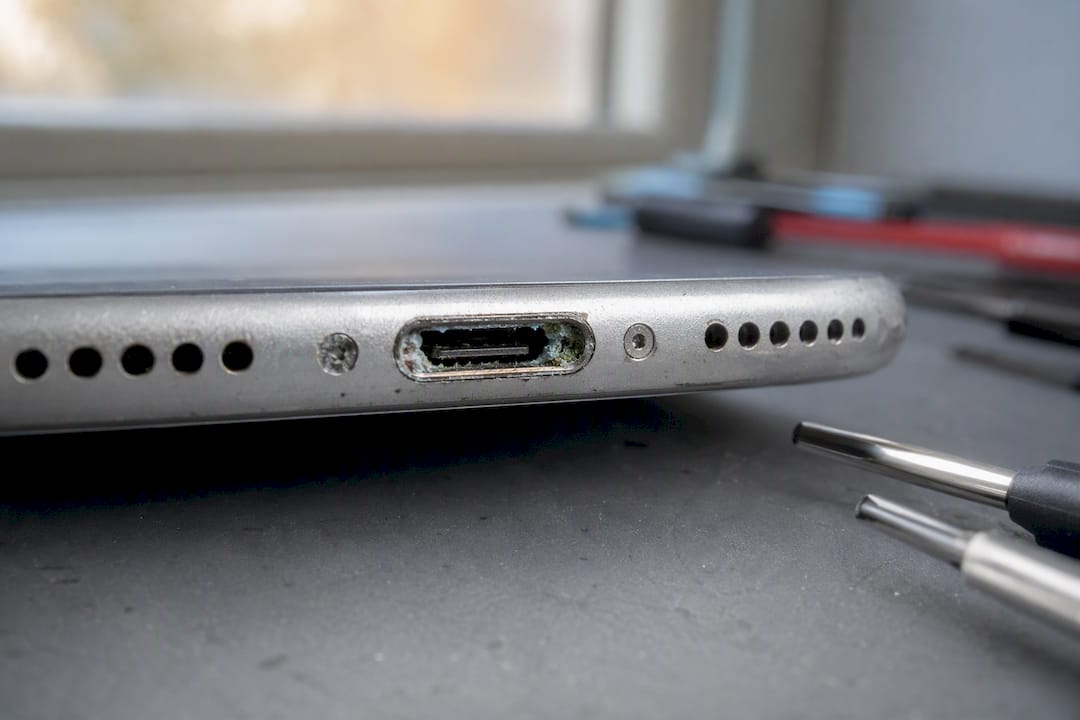
Avoid metal tools entirely; they can scratch the port’s water-resistant mesh or bridge contacts you’re trying to separate. If cleaning doesn’t reveal an obvious blockage, or if you’re not comfortable getting that close to the connector, that’s the point to stop rather than push further. Our guide to headphone port repair covers similar careful-cleaning principles that apply just as well to USB-C.
Is wireless charging safe when moisture is detected?
Wireless charging is genuinely the best short-term workaround here, because it bypasses the USB-C port completely. There’s no electrical contact for the sensor to misread, so it works even while the port itself is still drying out.
Confirm your model supports it. Most Galaxy S and Z series phones do; some A series budget models don’t, so check your spec sheet if you’re unsure.
Make sure the back of the phone is dry before placing it down, since a wet glass back can affect the charging coil’s efficiency.
Centre the phone on the pad and check the charging icon appears within a few seconds. If it doesn’t connect, nudge it slightly. Alignment matters more with wireless charging than most people assume.
Treat it as a bridge, not a fix. Wireless charging is slower than a wired connection, and it does nothing to address corrosion or debris sitting inside the port. If the warning is still there tomorrow, you’re delaying a proper fix rather than solving anything.
When should you take your phone to a repair shop?
Persistent warnings after a full drying cycle and every software fix are your clearest signal that this has moved beyond a DIY job. So is visible corrosion, or any exposure to something other than fresh water, sea water, coffee, soft drinks, or anything sugary.
The warning returns within minutes of clearing it, even after cleaning and cache resets.
You can see green or white residue on the contacts inside the port.
The phone was submerged beyond its rated depth or time, or exposed to a non-water liquid.
Charging fails intermittently even once the moisture warning has cleared, which can point to connector or board-level damage.
A proper workshop visit typically involves a detailed port inspection under magnification, ultrasonic or manual cleaning to remove debris and residue, connector replacement if the pins themselves are damaged, and board-level diagnostics if there’s any sign the moisture reached further than the port. Back up your data before you bring it in if you can, describe exactly what liquid was involved and roughly how long ago, and expect a same-day to few-day turnaround depending on the extent of the damage. Our deeper guide on rescuing water-damaged devices walks through what board-level repair actually involves if you want to know before you book.
What do technicians actually check first for this fault?
At Rapid Repairs, the diagnostic order rarely changes: reproduce the error first, rule out the cable second, inspect the port third, and only then look at the board. Most customers who walk in convinced their phone is “water damaged” have actually got a lint bridge or a tired cable, and that distinction changes everything about the repair, and the cost.
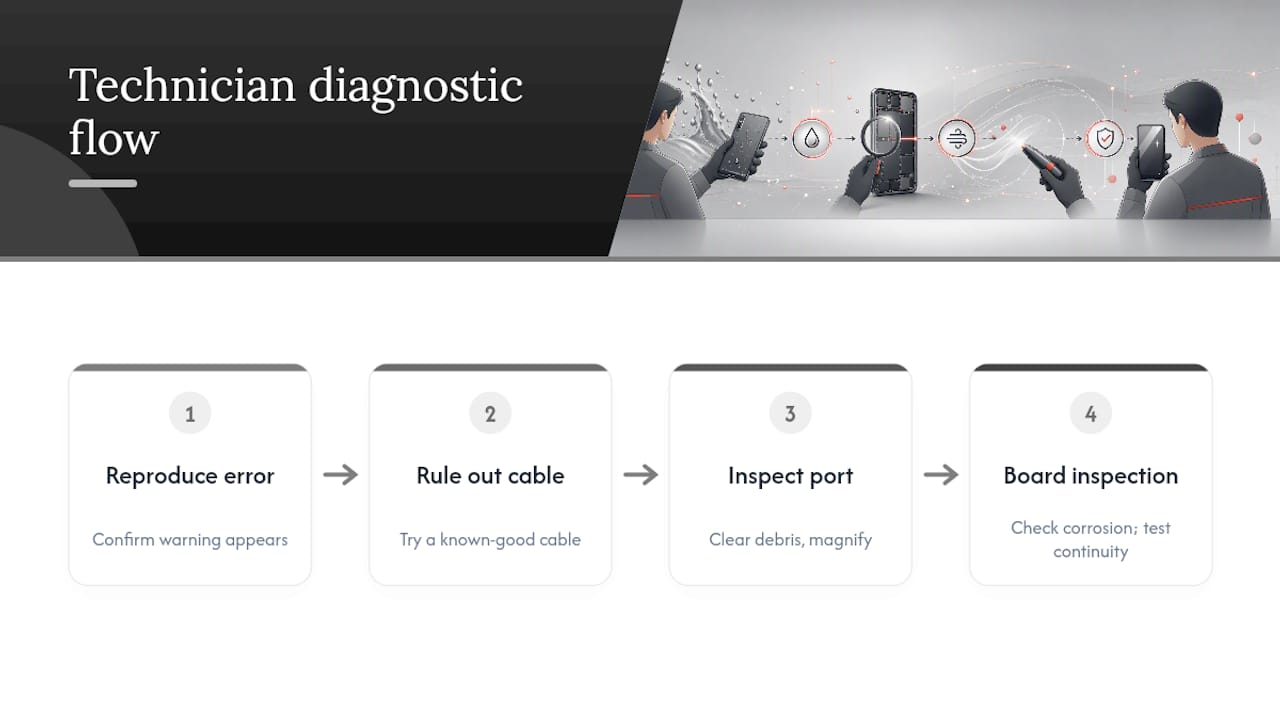
We ask people to run through the same checklist covered above before booking: dry it properly, swap the cable, clear the USBSettings cache, try the boot-with-charger trick. It genuinely resolves a large share of cases without anyone needing to open the phone. What we’re watching for on our end is whether the warning is intermittent (usually cable or debris) or constant regardless of drying time (usually residue or corrosion further inside).
The red flags that push us straight to board-level inspection are corrosion visible under magnification, a phone that was in salt water or a sugary drink rather than plain tap water, or charging that fails even after the moisture warning clears. Those cases need more than a clean, they need us testing continuity on the board itself.
If you’ve been through the checklist and you’re still stuck, don’t keep experimenting. Bring it in.
— Joshua
Get your charging port properly diagnosed and repaired
If you’ve worked through drying, cable swaps, and cache clears and the warning still won’t budge, that’s not a phone to keep gambling on with a charger. Rapid Repairs runs full diagnostics on the USB-C port itself, checking for corrosion, debris, and connector damage that a home inspection simply can’t catch without the right tools and lighting.

Our workshop handles the full range this fault can escalate to: port cleaning under magnification, connector replacement where pins are damaged, and water-damage motherboard repair when residue or corrosion has reached further inside. You’ll get a clear quote after diagnostics, before any work starts, and most charging port repairs turn around within a day or two depending on parts availability. Bring the phone in as-is, don’t attempt any further drying or cleaning beforehand if you suspect corrosion, and let us know what liquid was involved and roughly when. Head to Rapid Repairs London to check availability and book your diagnostic, or browse our iPhone repair services if you’re dealing with a similar issue on a different device.
Sources
Recommended
Comments