
A green line on your Samsung screen: what it means and what to do
- 3 days ago
- 8 min read
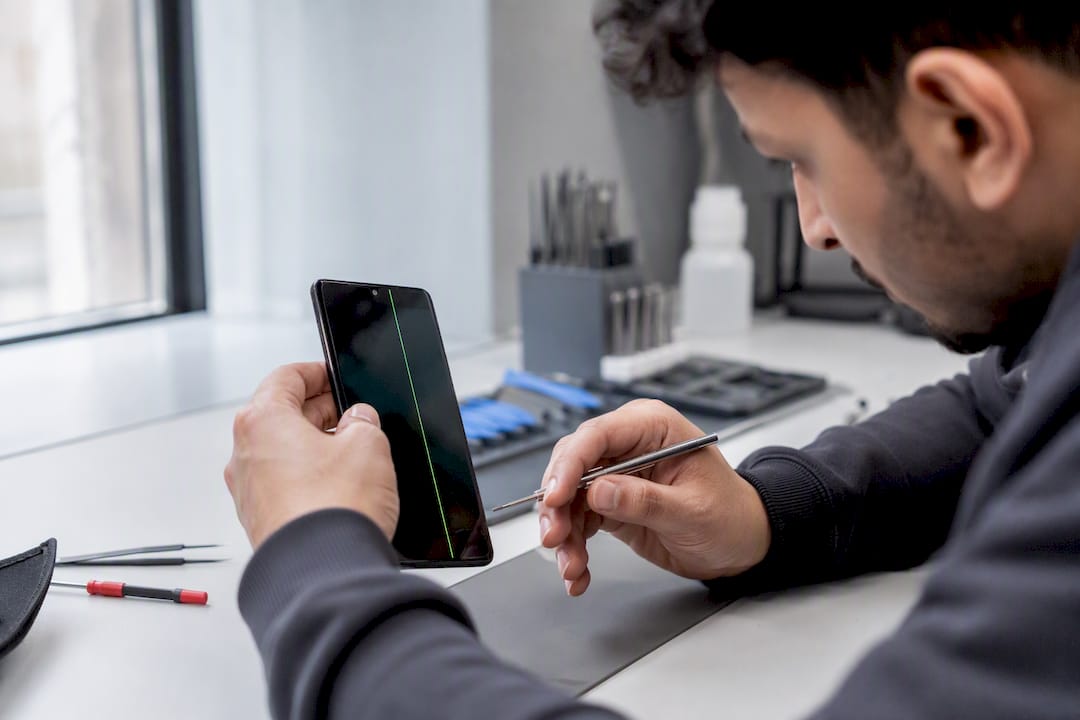
A single green vertical line on your Samsung screen is most often a hardware fault in the display itself, not a software glitch you can wipe away with a factory reset. Before you accept that, run a few quick checks. They cost you nothing and confirm whether you’re dealing with a stubborn app or a failing panel.
Start here:
Force restart your phone. Hold the power and volume down buttons for around 10 seconds. If the line vanishes, the fault may be a software hiccup rather than physical damage.
Run the hidden diagnostic menu. Open the phone dialler and type *#0*# to launch Samsung’s built in test screen, then tap through the Red, Green and Blue colour tests to see if the line only appears on certain colours or across all three.
Boot into Safe Mode to rule out a recently installed app conflicting with the display driver.
Back up your data now if the line is still there after these checks, since a hardware repair may involve replacing the whole screen assembly.
Pro Tip: Photograph the line in daylight and in a dark room before you do anything else. If you do need a repair quote, that photo evidence speeds up diagnosis considerably.
Key Takeaways
A green vertical line on a Samsung screen almost always signals a hardware fault in the display or its connector, and the fix that actually lasts is a full assembly replacement.
Point | Details |
Run the four checks first | Force restart, #0# diagnostics, Safe Mode, and back up before assuming hardware failure. |
Colour tests narrow the fault | A line on one colour points to a single sub pixel column; all three suggests driver failure. |
Heat and updates correlate, not cause | Update related heat often exposes an already weakening ACF bond rather than creating the fault. |
Avoid DIY heat or pressure fixes | iFixit warns this risks puncturing the battery; reseating rarely fixes bonded modern panels. |
Rapid Repairs London offers full diagnosis | Free inspection, colour testing, and warrantied full assembly replacement when hardware is confirmed. |
Table of Contents
How to troubleshoot a green line on a Samsung display at home
Work through these steps in order. Each one narrows down whether you’re looking at a software fault or a physical one.
Force restart the device. Press and hold power and volume down for 10 seconds until it reboots. A line caused by a stuck process or a rendering glitch usually disappears here. One that survives a reboot rarely comes from software.
Run the #0# diagnostic menu. This opens Samsung’s built in hardware test suite. Tap the Red screen test, then Green, then Blue. If the line only shows on one colour, that points to a fault in a specific sub pixel column. If it appears across all three colour tests, the entire column driver circuit for that strip of pixels has likely failed.
Boot into Safe Mode. Hold power, then long press “Restart” or “Power off” until the Safe Mode prompt appears. This disables all third party apps. If the line disappears in Safe Mode, uninstall whatever you added most recently, particularly anything that changes display settings or refresh rates.
Check your update history. Reports across multiple recent cases tie green lines to One UI and security patch rollouts, particularly on Galaxy S23 devices. If the line appeared right after an update, that’s a meaningful clue, though usually not proof the update itself caused the damage.
Back up everything. Once you’ve completed steps one through four, treat persistence as your answer. Technician explainers consistently find the display or its connection is the actual fault, and software fixes rarely resolve it.
A line that vanishes after restart or in Safe Mode usually means software. A line that survives all four checks means hardware, and it’s time to talk repair.
What causes a green vertical line on a Samsung display?
Samsung’s OLED panels are built from thousands of individual pixel columns, each driven by a column driver IC that controls voltage to that strip. When one of those drivers fails, or the data line feeding it breaks, you get exactly what you’re seeing: a thin, static, usually green line running the full height of the screen.
A few specific failure points cause this pattern again and again:
Column driver IC failure – a single faulty chip governs one column of pixels, so damage there produces one clean vertical line rather than a blotchy patch.
Display flex cable or connector damage – micro fractures in the ribbon cable connecting the panel to the motherboard, often from a drop months earlier that didn’t show symptoms straight away.
ACF bond degradation – the anisotropic conductive film that bonds the driver chip to the glass can weaken with age or heat, loosening the electrical connection.
Heat exposure during heavy use or updates – processors run hot during installation, and that heat can accelerate ACF degradation in a bond that was already borderline.
The update didn’t break your screen. It just generated enough heat, at the wrong moment, to finish off a bond that was already failing quietly in the background.
That’s why so many green line cases cluster around update windows without the update being the true root cause.
Repair routes, cost expectations and what a technician actually checks
Once a green line is confirmed as hardware, you’ve got three realistic paths: an authorised Samsung service centre, a manufacturer replacement programme if one applies to your model, or a trusted independent repair shop.
An authorised centre will run the same colour diagnostic you did at home, then inspect the flex connector and bonding area under magnification. If the connector shows physical damage or the ACF bond has failed, technician guides recommend replacing the full display assembly rather than attempting a component level fix, since re-bonding a driver chip needs factory tooling most workshops don’t have. Motherboard replacement only comes into play if the fault traces back to the display driver circuitry on the board itself, which is uncommon but not unheard of.
Samsung has previously run limited, region-specific replacement programmes for green line clusters tied to particular update waves, though eligibility and outcomes vary by device and by case, so it’s worth checking with Samsung support directly rather than assuming your model qualifies.
Cost depends heavily on model, part availability, and whether the chassis took damage alongside the display:
Repair factor | What changes the price |
Device model | Newer flagship panels cost more to source than older mid-range models |
Chassis or frame damage | Additional damage beyond the screen adds parts and labour |
Parts availability | Rarer or discontinued models can extend turnaround and cost |
Warranty status | In-warranty claims may be free; out-of-warranty repairs are paid |
Our Samsung repair cost guide breaks down price bands by model in more detail if you want to plan ahead financially.
Why heat, pressure and “fix” videos are a bad idea
Forum threads occasionally suggest pressing the affected area or applying gentle heat to “reseat” the panel. Don’t do it. iFixit’s own repair documentation warns that improper pressure or heat near a lithium battery risks puncturing the cell, which can cause swelling or, in worse cases, fire.
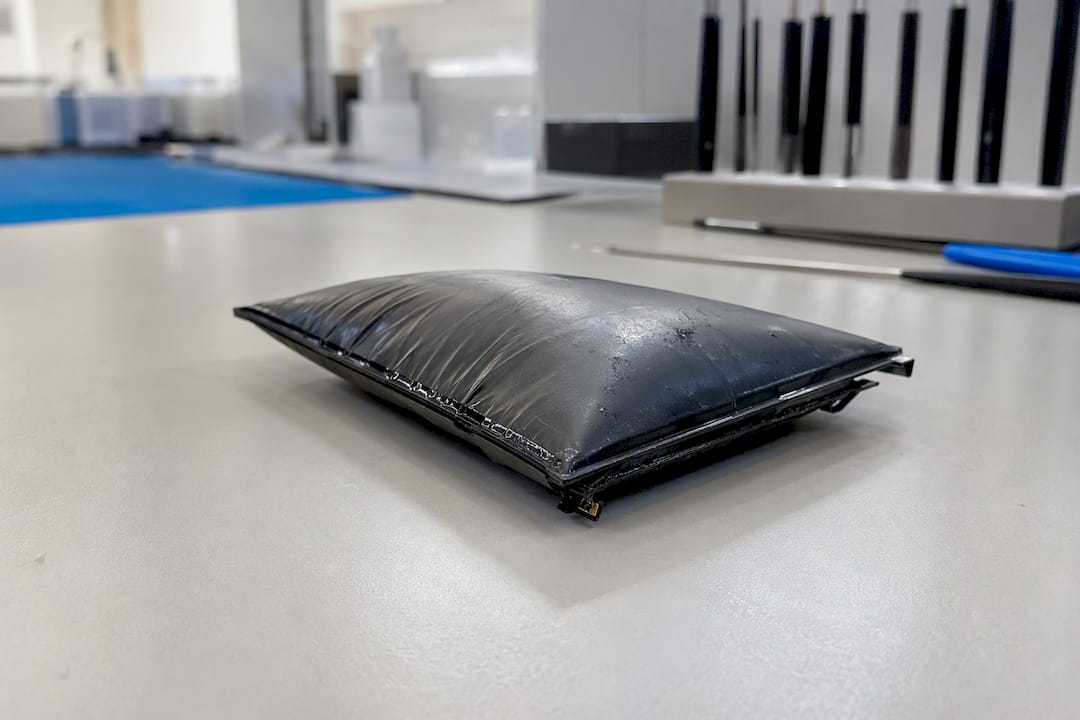
Reseating connectors rarely produces a lasting fix on modern bonded displays anyway, since the ACF bond that failed can’t reliably be restored without factory equipment.
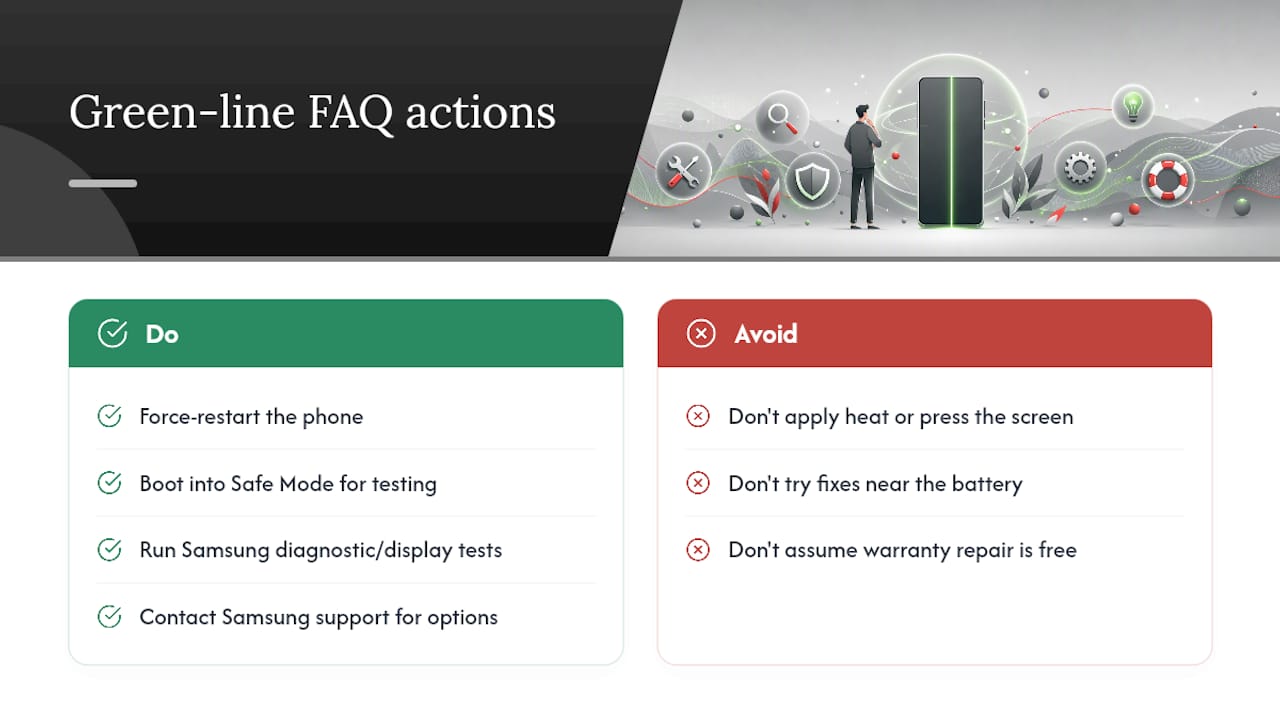
Safe DIY stops at:
Force restarting
Running the #0# diagnostic menu
Booting Safe Mode
Backing up your data
Pro Tip: If you’ve done all four and the line remains, stop troubleshooting and book a proper diagnostic instead of experimenting further.
Preventing a green line: update habits and heat management
A few habits reduce the odds of a borderline connection failing during an update.
Update overnight or off charge, ideally with the case removed so heat can dissipate rather than build up under an insulating cover.
Avoid updating in direct sunlight or a hot car, since ambient heat compounds the processor heat generated during installation.
Let the phone cool between gaming or streaming sessions and an update, rather than installing a patch immediately after heavy use.
Check the screen periodically for faint colour fringing or a barely visible line, since catching a fault early gives you more repair options before it worsens.
How Rapid Repairs London diagnoses a green line fault
Every Samsung device that comes in with a green line goes through the same process: photographic evidence of the fault, the same Red, Green, Blue diagnostic test you can run at home, and a physical check for drop damage or liquid ingress before any quote is given.
Free initial inspection with a same-day quote in most cases
Full display assembly replacement when the connector or bonding has failed
Warranty on workmanship for every completed repair
In-shop drop-off or postal repair options for readers outside daily travelling distance
Bring your device to our Samsung repair page or get in touch to book a slot.
What the update panic gets wrong
Most coverage of this issue treats software updates as the villain, and that framing does readers a disservice. The pattern the evidence actually supports is a phone with a marginal ACF bond or a hairline flex crack sitting quietly for months, then finally giving out under the thermal stress of an update or a long gaming session.
That distinction changes what you should do. Chasing update rollback threads or holding off on security patches doesn’t protect a phone with a weakening bond, it just delays the moment the fault shows itself, while leaving you exposed on the security side in the meantime.
What the reader should prioritise first is the diagnostic sequence, not the update conspiracy. Run the colour tests, check Safe Mode, and treat a line that survives both as a hardware conversation, not a software one. The conventional advice to “wait for a patch fix” wastes time on a fault that software never caused in the first place.
Get your Samsung screen properly diagnosed
Rapid Repairs London gives you a same-day diagnostic instead of weeks spent second-guessing forum threads and update rollback advice. Where a manufacturer replacement programme might leave you waiting on eligibility checks with no fixed timeline, our shop runs the same colour diagnostics covered above, confirms whether the fault sits in the connector, the bond, or the driver, and quotes you a full display assembly replacement on the spot.

Every repair carries a warranty on workmanship, and you can drop the device in locally or send it in by post if you’re not nearby. If you’ve already run the checks in this guide and the line is still there, book a diagnostic through our Samsung repair page or visit our homepage to arrange drop-off or postal repair today.
Frequently asked questions
Is a green line on a Samsung screen always a hardware fault? Not always, but it usually is. If the line disappears after a force restart or in Safe Mode, it’s more likely a software conflict. If it survives both, hardware is the far more likely culprit.
Can a software update actually cause a green line? Not directly. Updates generate heat during installation, and that heat can push an already weakening display bond past the point of failure, which is why reports cluster around update windows.
Will Samsung repair a green line screen for free? Sometimes, depending on the device, the update involved, and whether a regional replacement programme applies. Contact Samsung support directly to check your specific case rather than assuming standard warranty terms apply.
How much does it cost to fix a Samsung green line screen? It varies by model, part availability, and whether there’s additional chassis damage. Our Samsung repair cost guide covers typical price bands by model.
Can I fix a green line myself by pressing or heating the screen? No. Applying heat or pressure near a lithium battery risks puncturing the cell, which can cause swelling or fire. Stick to restart, diagnostic tests, and Safe Mode checks, then book a professional repair.
Sources
This guide draws on technician repair documentation, manufacturer community reports, and safety focused disassembly guides to keep the advice grounded in real world outcomes.
Recommended
Comments