
iPhone keeps restarting fix: stop the reboot loop

An iPhone that keeps restarting is defined as a device caught in a reboot loop, where the phone shuts down and powers back on repeatedly without completing a normal boot. This is known technically as a boot loop or kernel panic cycle. Corrupted firmware or interrupted OTA updates account for the majority of reported boot loop scenarios. The good news is that most causes respond well to a calm, methodical approach, and you rarely need to wipe your data to fix it.
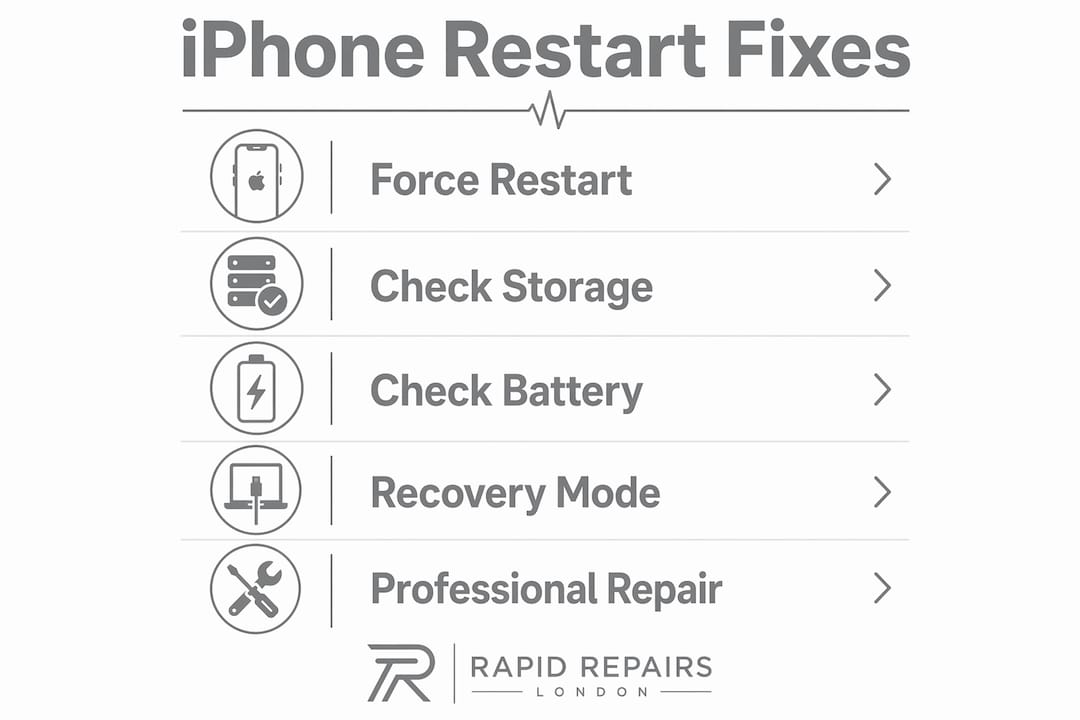
The core principle behind every iPhone restart issue solution is simple: work from the least destructive fix to the most. Start with a force restart, then check battery health and storage, then investigate apps, and only then consider Recovery Mode or professional repair. Rapidrepairsldn uses exactly this sequence with every device that comes through the door.
How to fix an iPhone that keeps restarting: force restart first
A force restart is the correct first step for any iPhone reboot loop. It clears temporary system memory without touching your photos, messages, or apps. Think of it as a hard reset for the phone’s short-term memory, not its long-term storage.
On iPhone 8 and later models, follow this sequence:
Press and quickly release the Volume Up button.
Press and quickly release the Volume Down button.
Press and hold the Side button until the Apple logo appears, then release.
Force restart clears temporary memory without data loss. Most boot loops caused by minor software glitches respond to this fix within seconds.
If the Apple logo appears but the phone restarts again, do not repeat the force restart endlessly. Plug your iPhone into a charger using an Apple-certified cable and leave it for 30–60 minutes. A depleted battery can mimic a software fault and cause the same looping behaviour.

Pro Tip: Use only Apple-certified charging cables. Counterfeit cables cause voltage inconsistency that can trigger restart loops during charging, making the problem appear worse than it actually is.
If the phone still loops after charging and a force restart, move on to checking storage and battery health. Those two factors cause the majority of persistent restart problems.
Is low storage or a weak battery causing your iPhone to reboot?
Low storage and battery degradation are the two most overlooked causes of frequent iPhone restarts. Most users assume the problem is a software bug, but the physical state of the battery is often the real culprit.
Checking your storage
Go to Settings > General > iPhone Storage. Your phone needs room to write temporary files and cache data while running. Storage below 500MB makes iOS unstable, causing crashes and restarts. The safe minimum is 1–2GB of free space at all times.
If you are running low, here is what to clear first:
Offload unused apps: Go to Settings > General > iPhone Storage and tap “Offload Unused Apps.” This removes the app but keeps its data.
Delete large video files: Videos are the single biggest storage drain. Check your Photos app and remove duplicates or long clips.
Clear browser cache: In Safari, go to Settings > Safari > Clear History and Website Data.
Remove downloaded podcasts and music: These accumulate silently and can take up several gigabytes.
Full storage is a common trigger for phone glitching and instability. Clearing space often stops restarts immediately.
Checking your battery health
Go to Settings > Battery > Battery Health & Charging. Look at the “Maximum Capacity” percentage. Battery health below 80% triggers restart loops during peak processor load because the power management chip forces a shutdown to protect the hardware. This is not a software bug. No amount of iOS reinstalling will fix it permanently if the battery is the root cause.
Pro Tip: If your battery sits below 80% capacity, book a battery replacement before attempting any further software troubleshooting. Software fixes will not hold if the battery cannot supply stable power.
How do you find which app is causing your iPhone to crash?
Apps are a common but fixable cause of iPhone restart problems. A single poorly coded or corrupted app can crash the system repeatedly, especially after an iOS update changes how apps interact with the operating system.
Follow these steps to identify and remove the offending app:
Go to Settings > Privacy & Security > Analytics & Improvements > Analytics Data.
Look for log files with names containing “panic” or “crash.” These are kernel panic logs. Analytics logs identify specific failure causes and often name the app or process responsible.
Note the app name that appears most frequently in the logs.
Go to your Home Screen, press and hold the app icon, and tap Remove App.
Restart your iPhone normally after deleting the app.
Experienced technicians use panic logs in Analytics Data to locate specific hardware faults such as battery or logic board failures causing kernel panics. If the logs point to a system process rather than a third-party app, the issue is more likely hardware or iOS corruption, not an individual app.
Think back to when the restarts started. Did you install a new app the day before? Update an existing one? Removing recently installed apps is a quick and safe diagnostic step that costs nothing and takes two minutes.
Can Recovery Mode fix a reboot loop without deleting your data?
Recovery Mode is the most powerful software fix available without visiting a repair shop. Many users avoid it because they assume it wipes their phone. That assumption is wrong, and it causes people to skip a fix that would have solved their problem.
Here is what you need to know before starting:
You need a Mac running Finder, or a Windows PC running iTunes.
Use an Apple-certified Lightning or USB-C cable.
Back up your iPhone to iCloud before starting if the phone is stable enough to do so.
The process typically takes 15–30 minutes from start to finish.
Entering Recovery Mode
On iPhone 8 and later: Press Volume Up, then Volume Down, then hold the Side button. Keep holding even after the Apple logo appears, until you see the Recovery Mode screen (a cable pointing to a laptop icon).
Update versus Restore
When Finder or iTunes detects your iPhone in Recovery Mode, it offers two options:
Option | What it does | Data impact |
Update | Reinstalls iOS without erasing data | Data preserved |
Restore | Wipes the device and reinstalls iOS | All data deleted |
Always try Update first before considering Restore. Recovery Mode Update reinstalls iOS without wiping data. This is an underused fix that resolves software corruption in the majority of cases. Most users resort prematurely to factory reset when Update would have been sufficient.
If Update fails and the phone still loops, a full Restore is the last software option. Only proceed with Restore after you have confirmed a recent backup exists.
When does an iPhone restart loop need professional repair?
Some restart loops do not respond to any software fix. When that happens, the cause is hardware, and no amount of iOS reinstalling will resolve it. Recognising the signs early saves time and protects your data.
Watch for these hardware warning signs:
The phone restarts only during charging, especially with heat present. This points to a battery or charging port fault.
The phone was recently dropped or exposed to water. Physical damage to the logic board or battery connector causes intermittent restarts that worsen over time.
The battery is visibly swollen. A swollen battery is a safety issue and requires immediate professional attention.
Restarts happen at random, even on standby. Random restarts with no pattern suggest a power management IC fault or logic board issue.
A persistent reboot loop that survives a force restart, a storage clear, and a Recovery Mode Update is almost certainly a hardware problem. At that point, continuing to attempt software fixes risks further data loss and delays a repair that the device genuinely needs.
Signs your iPhone needs repair go beyond restarts. Overheating, black screens, and unresponsive buttons often accompany hardware faults. Rapidrepairsldn carries out in-store diagnostics that read the same panic logs your phone generates, identifying whether the fault lies in the battery, the logic board, or another component. A professional diagnosis takes the guesswork out of the decision entirely.
Key takeaways
A persistent iPhone reboot loop is almost always caused by corrupted software, a degraded battery, or insufficient storage, and each cause has a clear, data-safe fix before any factory reset is needed.
Point | Details |
Force restart first | Press Volume Up, Volume Down, then hold Side button until the Apple logo appears. |
Storage threshold matters | Keep at least 1–2GB free; below 500MB, iOS becomes unstable and restarts occur. |
Battery below 80% causes shutdowns | The power management chip forces restarts to protect hardware; replace the battery. |
Use Recovery Mode Update, not Restore | Update reinstalls iOS without deleting data and fixes most software corruption. |
Hardware signs need professional repair | Drops, water damage, swelling, or random restarts on standby require in-store diagnostics. |
What I have learned from iPhone restart loops after years in repair
The most common mistake I see is people treating a restart loop as a mystery when it is almost always leaving clues. The phone restarts when charging but not on standby? That is a battery or cable issue, not a software one. It started the day after an iOS update? That is almost certainly a firmware corruption, and Recovery Mode Update will fix it in under half an hour.
Random restarts are commonly mistaken for hardware faults but mostly stem from iOS bugs or battery degradation. I have seen customers come in convinced they need a new phone when a £60 battery replacement was the entire solution. Checking battery health takes thirty seconds and should be the second thing you do after a force restart.
The other thing I would push back on is the instinct to factory reset immediately. Professional repair technicians recommend a clue-based diagnostic approach focusing on recent events rather than random resets. What changed before the restarts started? A new app, a dropped phone, a failed update? That answer usually points directly to the fix. A factory reset destroys that evidence along with your data, and it often does not even solve the problem if the cause is hardware.
Patience and a logical sequence protect both your data and your wallet. If you have worked through every software step and the phone still loops, that is not a failure. That is a clear signal that the device needs a physical inspection, and getting that inspection promptly prevents a manageable repair from becoming a data recovery emergency.
— Joshua
Rapidrepairsldn: expert iPhone repair when software fixes are not enough
When you have tried every step and your iPhone is still stuck in a reboot loop, the fault is almost certainly hardware. Rapidrepairsldn offers in-store diagnostics that read your device’s panic logs and identify the exact component causing the problem, whether that is the battery, the logic board, or the charging assembly.

Rapidrepairsldn specialises in iPhone battery replacements and hardware repairs for persistent restart issues that software cannot resolve. The team handles everything from battery swaps to logic board faults, with no unnecessary upselling. If a software fix would have solved it, you will be told that too. Book a diagnostic at Rapidrepairsldn and get a clear answer fast.
FAQ
What is the fastest way to stop an iPhone restarting?
A force restart is the fastest fix. Press Volume Up, Volume Down, then hold the Side button until the Apple logo appears.
Does Recovery Mode delete everything on my iPhone?
The “Update” option in Recovery Mode reinstalls iOS without deleting your data. Only the “Restore” option wipes the device.
Can a bad battery cause an iPhone to keep rebooting?
Yes. Battery health below 80% causes the power management chip to force shutdowns during heavy use. Battery replacement resolves this permanently.
How do I know if an app is causing my iPhone to restart?
Go to Settings > Privacy & Security > Analytics & Improvements > Analytics Data and look for crash or panic logs. They typically name the app or process responsible.
When should I take my iPhone to a repair shop?
Take your phone in if it still restarts after a force restart, storage clear, and Recovery Mode Update. Drops, water exposure, or a swollen battery also require immediate professional attention.
Recommended
Comments