
Why is my iPad not charging, and how do I fix it?
- 9 hours ago
- 7 min read
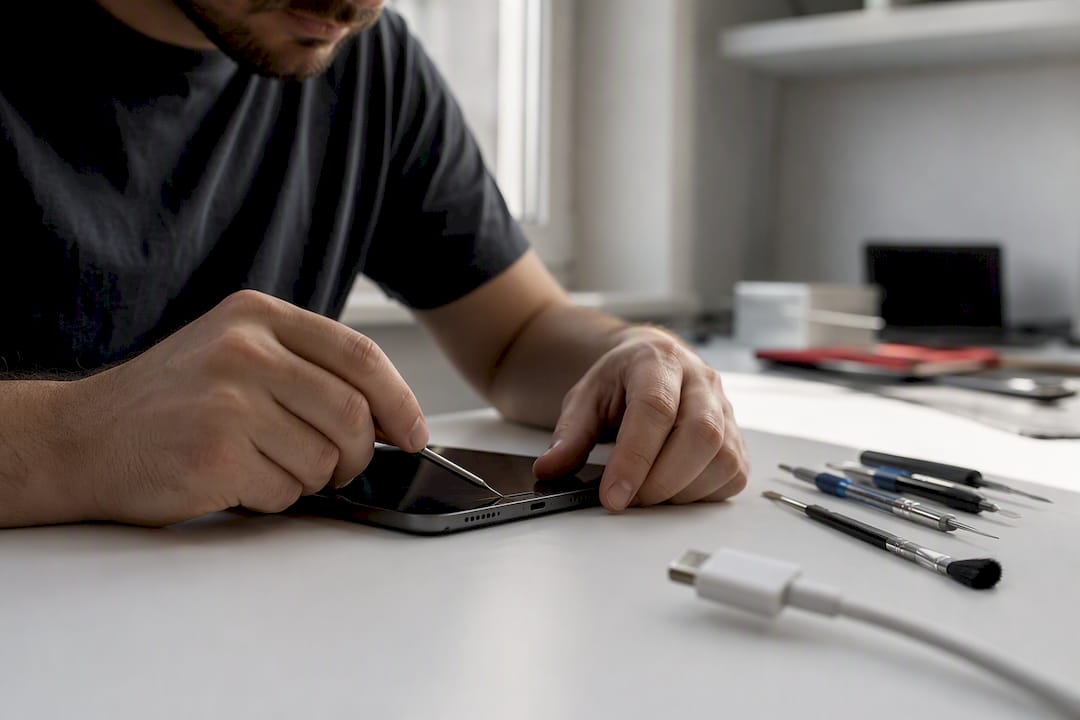
Most iPads showing “not charging” are fixed with a known-good 20W+ Apple-compatible adapter and a known-good cable, plugged into a wall socket, left alone for 10 to 15 minutes. The usual culprits are underpowered accessories, port debris, temperature limits, or a software hiccup. Before you assume the worst, check what’s actually on screen.
Lightning bolt with battery icon: charging normally.
“Not Charging”: usually means the adapter or cable can’t deliver enough power.
“Slow Charger”: the iPad is charging, just gradually.
Pro Tip: If the screen stays black, don’t panic yet. A very flat battery can take several minutes before anything appears at all.
Key Takeaways
Most iPad charging failures trace back to an underpowered accessory, port debris, or a temperature limit rather than a genuinely broken battery.
Point | Details |
Test accessories first | Swap in a 20W+ Apple-compatible adapter and a known-good cable before assuming a fault. |
Check the on-screen message | “Not Charging” usually points to adapter wattage, not battery failure. |
Respect temperature limits | Charge only between 0°C and 35°C; let the iPad cool or warm before trying again. |
Clean carefully or stop | Use non-metal tools for lint; bent pins or corrosion mean it’s time for a technician. |
Watch for safety red flags | Stop charging immediately if you see screen lift, bulging, or suspected liquid damage. |
Table of Contents
Quick 30 to 60 second checks for an iPad not charging when plugged in
Before you touch the port or blame the battery, rule out the boring stuff. It’s almost always the boring stuff.
Swap the wall socket. Try a different plug socket entirely, and skip laptop USB ports for this test. They’re often too weak to charge an iPad properly.
Use a proper adapter. Modern iPads need a 20W or higher Apple-compatible USB-C adapter; older Lightning models need an MFi-certified Lightning cable.
Check the cable itself. Look at both ends for fraying, bent pins, or a stretched strain-relief section near the connector. If you have a spare, swap it in.
Watch the message on screen. Retail guides consistently flag that an underpowered adapter triggers “Not Charging” or “Slow Charger” far more often than an actual dead battery does.
Pro Tip: Keep one cable and adapter set aside purely for testing. Borrowed chargers from other devices are the number one hidden cause of “my iPad won’t charge” call-outs we see.
If you’re regularly buying replacement cables because they keep failing, it’s worth reading up on why charging accessories degrade faster than people expect — the same wear patterns affect iPad cables too.
How do you safely clean an iPad charging port?
Pocket lint is a surprisingly common reason an iPad charging port stops working, and it’s one of the few fixes you can genuinely do at home without risking anything.
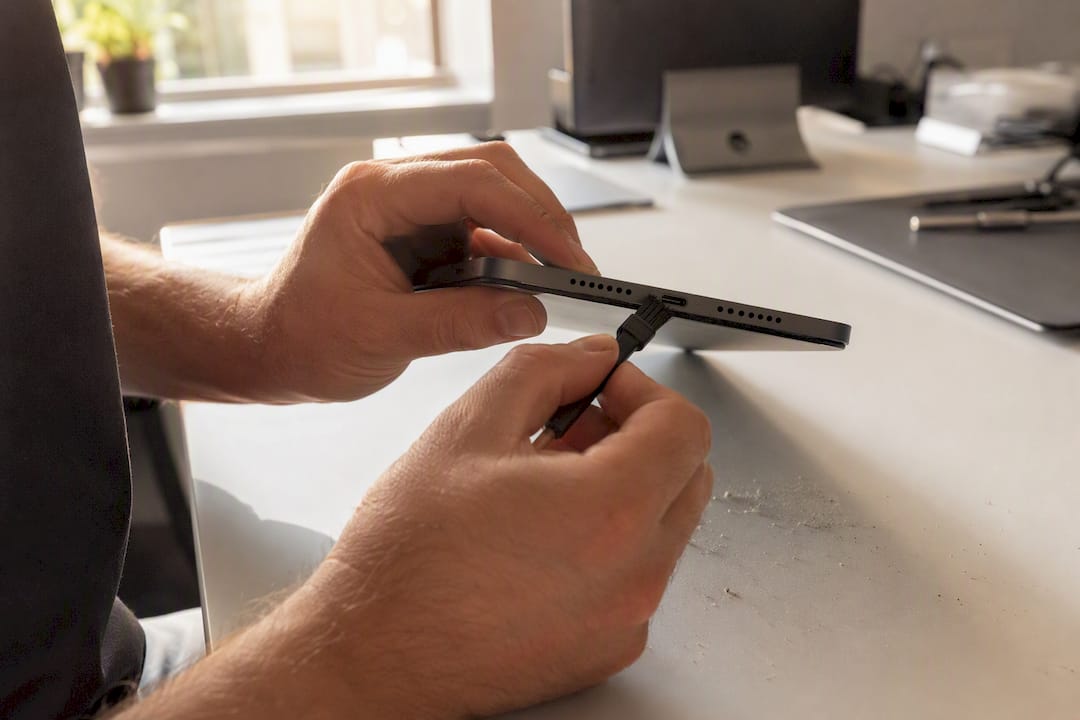
Grab a torch and a magnifying glass if you have one, and look straight into the port. You’re checking for three things: fluffy grey lint packed at the back, a greenish or white crust (corrosion), or pins that look bent or pushed sideways rather than sitting straight.
If it’s just debris, here’s the safe way to clear it:
Power the iPad off completely first.
Use a wooden toothpick, a plastic pick, or a soft anti-static brush. Never metal, never a pin, never a needle.
Gently scrape along the sides of the port rather than jabbing straight in.
Give it a moment, then plug in your known-good cable and watch for the charging icon.
Apple’s own guidance backs this up: lint and debris inside the Lightning or USB-C port are among the most common causes of intermittent or failed charging, and the fix is almost always mechanical rather than electrical. Specialists echo this constantly. Even ports that look clean to the naked eye often hide dust packed further back than a casual glance reveals.
Stop immediately if you see bent pins, corrosion, or a cable that suddenly feels loose where it used to click firmly into place. That’s no longer a cleaning job. It’s a sign the connector itself may be damaged, and pushing a cable into a compromised port risks bending the pins further or shorting something internally.
Could temperature or software be stopping your iPad from charging?
Sometimes there’s nothing wrong with your iPad at all. It’s just too hot or too cold to charge.
Apple states that iPads should only be charged between 0°C and 35°C, and the device will deliberately pause or slow charging outside that range to protect the battery. Left a tablet on a sunny windowsill or in a cold car boot? Bring it to room temperature and try again before assuming a fault.
If temperature isn’t the issue, a software glitch might be. A force restart is the standard fix, and the steps differ by model:
iPad with a Home button: hold the top button and the Home button together until the Apple logo appears.
iPad without a Home button: hold the top button and either volume button together until the Apple logo appears.
Force restarting clears a frozen charging process without touching your data. If the battery was completely flat, leave it plugged in for a while before judging anything, since a deeply discharged iPad can show a blank screen while it slowly builds enough charge to boot.
What hardware faults stop an iPad from charging properly?
Some charging faults have nothing to do with cables, ports, or software, and no amount of restarting will fix them. Recognising the pattern saves you wasted time.
Battery-related signs:
The percentage jumps or drops erratically, or gets stuck at one number regardless of charging time.
The iPad shuts down suddenly even when the battery reads 20% or more.
The screen has started to lift slightly at the edges, or the case bulges.
Port or board-related signs:
The iPad only charges if you hold the cable at a specific angle.
It reboots repeatedly while connected to power.
The charging icon appears, but the percentage simply never rises.
A charging symbol that never translates into a rising percentage is one of the clearest hardware red flags. It typically points to a fault in the charging IC or USB-C controller, something that only shows up under bench diagnostics measuring actual current draw, not something you can eyeball or fix with a new cable.
Board-level components are soldered directly onto the logic board and integrated port assemblies aren’t designed for home disassembly. Getting this wrong risks turning a fixable fault into a much more expensive one.
When should you book a professional iPad repair?
If cleaning, swapping accessories, and a force restart haven’t shifted anything, it’s time for a proper diagnosis rather than another guess.
A technician will typically run through:
Testing with a verified known-good charger and cable to rule out accessories for certain.
Checking port continuity to confirm the connector itself is making a solid electrical connection.
Measuring battery voltage against expected values.
Assessing current draw at board level to isolate a faulty charging IC from a straightforward port fault.
Pro Tip: A common and costly mistake is replacing the battery when the actual fault sits in the charging port or the board. Proper diagnosis before parts are swapped saves you paying twice.
Corrosion damage, a swollen battery, or a confirmed charging IC fault all typically need in-shop repair rather than a DIY attempt. Before you bring your iPad in, back up your data, remove any case, and have the model number ready. If you’ve noticed other issues alongside the charging fault, it’s worth checking these common signs a device needs repair too, since charging faults rarely travel alone.
Warning signs that mean stop charging immediately
A swollen battery pushes the screen upward from underneath, sometimes creating a visible gap or bulge along one edge. Stop charging the moment you notice this.
Screen lift or bulging: disconnect power and stop use immediately.
Suspected liquid exposure: power off, don’t charge, don’t press any buttons.
Overheating during charging: unplug and let it cool before touching it again.
Never attempt to press, puncture, or “pop” a swollen battery. Apple’s own guidance treats a swollen battery as a safety issue requiring professional handling, not a home fix.
Where to find more official guidance on iPad charging
Apple’s official troubleshooting guide covers power sources, cables, and force restarts.
Apple’s guidance on thermally limited charging explains temperature limits in detail.
Regional port-cleaning guidance from Apple for safe debris removal.
For accessory testing and power delivery basics, IFORY’s blog on charging tips is a useful independent resource.
Contact Apple Support for confirmed software issues; visit a repair shop once you suspect the port, battery, or board.
Our honest take on iPad charging fixes
Most advice online treats every charging fault as either “clean the port” or “replace the battery,” and that binary is where people waste money. The evidence points somewhere more nuanced: accessory wattage causes far more failures than people assume, and battery replacement gets reached for too quickly when the real fault sits in the port or the charging IC.
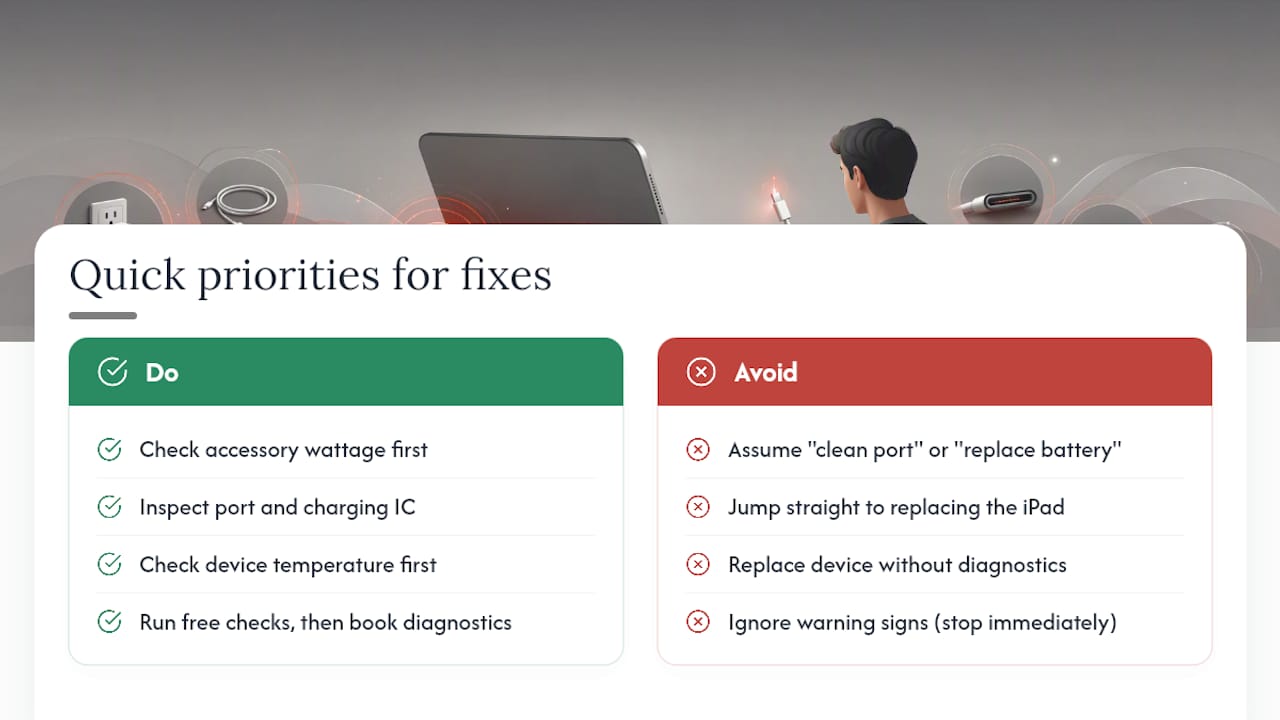
What’s genuinely underrated is the temperature check. It’s the fix nobody tries first because it feels too simple to be the answer, yet Apple builds it directly into the charging logic. If your iPad has been sitting in a cold bag or a hot car, that alone can explain a “Not Charging” message that looks alarming.
Where conventional advice falls short is the jump from home troubleshooting straight to “get a new iPad.” A board-level fault or a worn port assembly is rarely a reason to replace the device outright. It’s a reason to get proper diagnostics. Prioritise the free checks first, respect the warning signs that mean stop immediately, and treat professional diagnosis as the next step rather than the last resort.
— Joshua
If the checks above haven’t solved it, book a diagnostic with Rapid Repairs London’s iPad repair service. Pro models with more complex board layouts can be booked through the iPad Pro repair page, and Air owners can go straight to the iPad Air page for model-specific diagnostics.
Sources
Recommended
Comments