
Why Full Storage is Causing Your Phone to Glitch and How to Fix It
When your phone starts glitching, turning off randomly, or showing screen issues, the culprit might be closer than you think. One common cause is having almost full storage. Many users don’t realize how critical free storage space is for their phone’s smooth operation. This post explains why full storage causes problems, especially on iOS devices, and offers practical steps to free up space and stop those frustrating glitches.
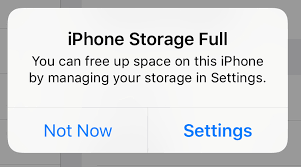
How Full Storage Affects Your Phone’s Performance
Phones need free storage not just for saving files but also for running the system and apps efficiently. When storage is nearly full, your phone struggles to manage temporary files, cache, and background processes. This can lead to:
Glitching such as freezing, lagging, or unresponsive apps
Random shutdowns or restarts as the system tries to free up resources
Screen flickering or display problems due to overloaded system memory
Slow app launches and delayed responses
On iOS devices, the operating system requires a certain amount of free space to perform updates, manage system caches, and run smoothly. Without enough storage, iOS may behave unpredictably, causing the glitches you notice.
Why iOS Needs Free Storage to Run Smoothly
iOS is designed to optimize performance, but it depends on free storage for several key functions:
System updates: iOS downloads and installs updates in the background. If storage is full, updates can fail or cause errors.
App cache and temporary files: Apps create temporary files to speed up loading times. Without space to store these, apps may crash or glitch.
Virtual memory: iOS uses free storage as virtual memory to support multitasking. Limited space reduces this capability, causing slowdowns.
Background processes: System tasks like indexing, backups, and syncing need room to operate without interruption.
When storage is tight, iOS struggles to keep these processes running smoothly, which leads to the issues many users experience.
Practical Ways to Free Up Storage and Fix Glitching
Clearing storage doesn’t mean deleting everything. Here are effective ways to free up space and improve your phone’s performance:
1. Offload Unused Apps
iOS offers an option to offload apps you rarely use. This removes the app but keeps its data, so you can reinstall it later without losing information.
Go to Settings > General > iPhone Storage
Review the list of apps sorted by size
Select apps you don’t use often and tap Offload App
This method frees storage while preserving your app data.
2. Delete Old Photos and Videos
Photos and videos take up significant storage. Back up your media to cloud services like iCloud, Google Photos, or an external drive, then delete them from your phone.
Use the Photos app to review and delete duplicates or blurry images
Empty the Recently Deleted album to permanently free space
3. Clear Safari Cache and Browsing Data
Safari stores cache and website data that can accumulate over time.
Go to Settings > Safari > Clear History and Website Data
This frees up space and can improve browser performance.
4. Manage Messages and Attachments
Text messages with photos, videos, and other attachments can consume storage.
Delete old conversations or large attachments manually
Set messages to auto-delete after 30 days or 1 year in Settings > Messages > Keep Messages
5. Review Downloaded Music and Podcasts
Offline music and podcasts can take up a lot of space.
Delete songs or episodes you no longer listen to
Use streaming options instead of downloading when possible
Signs Your Phone Needs Storage Clean up
If you notice any of these signs, check your storage immediately:
Frequent glitching or freezing
Random shutdowns or restarts
Slow app launches or crashes
Notifications about low storage space
Difficulty installing updates
Regularly monitoring storage helps prevent these issues before they start.
Tips to Maintain Healthy Storage Levels
Keeping your phone’s storage in check is easier with some simple habits:
Regularly review and delete unused apps and files
Use cloud storage for photos, videos, and documents
Enable automatic offloading of unused apps in iOS settings
Clear caches and browsing data monthly
Backup important data and remove local copies when possible
These steps keep your phone running smoothly and reduce the chance of glitching.
Comments