
How to Rescue Your Water-Damaged Devices and Fix Motherboard Issues
- Dec 7, 2025
- 3 min read
Accidents happen, and one of the most common mishaps is dropping your phone or other device into water. Whether it’s a sink, a puddle, or even the toilet, water damage can quickly turn your device into an expensive mistake. The good news is that there are practical steps you can take immediately to improve the chances of saving your device. This guide walks you through what to do right after water exposure and explains how professionals handle more serious problems like motherboard issues.
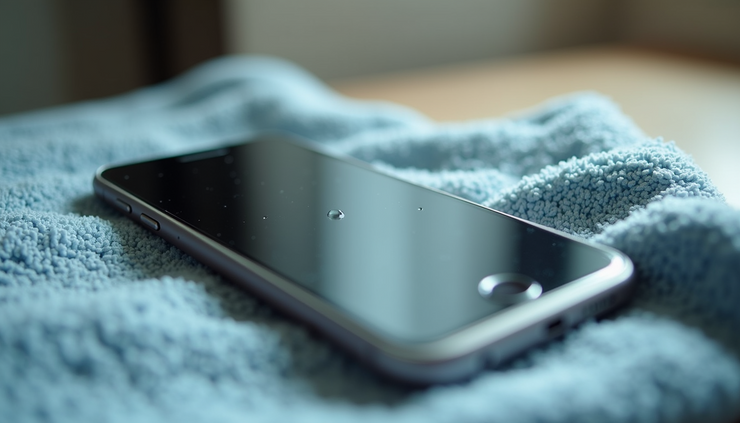
Step 1. Act Fast and Power Off Your Device
The first and most important step after your device gets wet is to turn it off immediately. Leaving it on risks short-circuiting the internal components, especially the motherboard, which controls most of the device’s functions and avoid charging it, this will do irreversible damage. If your phone fell into the toilet or any other dirty water, avoid pressing buttons or shaking it too much, as this can push water deeper inside.
Step 2. Remove External Accessories and SIM Card
Take off any cases, remove the SIM card, memory cards, and unplug any cables. These parts can trap moisture or cause corrosion if left inside. Removing them helps air circulate and speeds up drying.
Step 3. Dry the Device Gently
Use a soft, absorbent cloth or tissue paper to wipe off visible water. Avoid using a hairdryer or heat gun, as excessive heat can damage delicate parts. Instead, wrap your device loosely in tissue paper or a microfiber cloth to absorb moisture without applying pressure.
Step 4. Place it on a Heater
Once your device is wrapped its very crucial to allow the water to evaporate. You can achieve this by placing your phone on a heater, try make sure its not too hot but warm to the the touch. leave it on there for 24 to 72 hours. This gives your phone the best chance of survival.
Step 5. Avoid Charging or Turning On Too Soon
Resist the urge to check if your device works by powering it on or plugging it in. Charging a wet device can cause permanent damage to the motherboard and other components. Wait until you are confident it is completely dry.
Step 6. Test Your Device Carefully
After a full drying period, try turning on your device. If it powers up but behaves oddly—such as random shutdowns, screen flickering, or unresponsive buttons—it might have a motherboard issue caused by corrosion or short circuits.
How Professionals Fix Water Damage and Motherboard Issues
When DIY methods don’t work, professional repair services can help. Here’s what they typically do:
Disassemble the device to access internal components.
Clean the motherboard and other parts with specialized solutions to remove corrosion and mineral deposits caused by water.
Dry and inspect the circuitry under magnification to identify damaged components.
Replace or repair damaged parts such as chips, connectors, or the motherboard itself.
Test the device thoroughly before reassembling to ensure full functionality.
Professional repair can often save devices that seem beyond hope, especially when water damage affects the motherboard. However, success depends on how quickly the device was dried and whether the water was clean or contaminated (like toilet water, which increases the risk of corrosion and bacterial contamination).
Preventing Water Damage in the Future
Prevention is always better than repair. Here are some tips to protect your devices:
Use waterproof cases or pouches when near water.
Avoid using your phone near toilets, sinks, or pools.
Keep devices away from liquids during charging.
Consider insurance or protection plans that cover water damage.
When to Seek Professional Help
If your device:
Fell into dirty water like a toilet or sink.
Shows signs of motherboard issues after drying.
Does not turn on after 48 hours of drying.
Exhibits erratic behaviour or overheating.
It’s best to bring it to a professional repair service. Attempting to open or fix complex motherboard problems without experience can cause more harm.
Comments